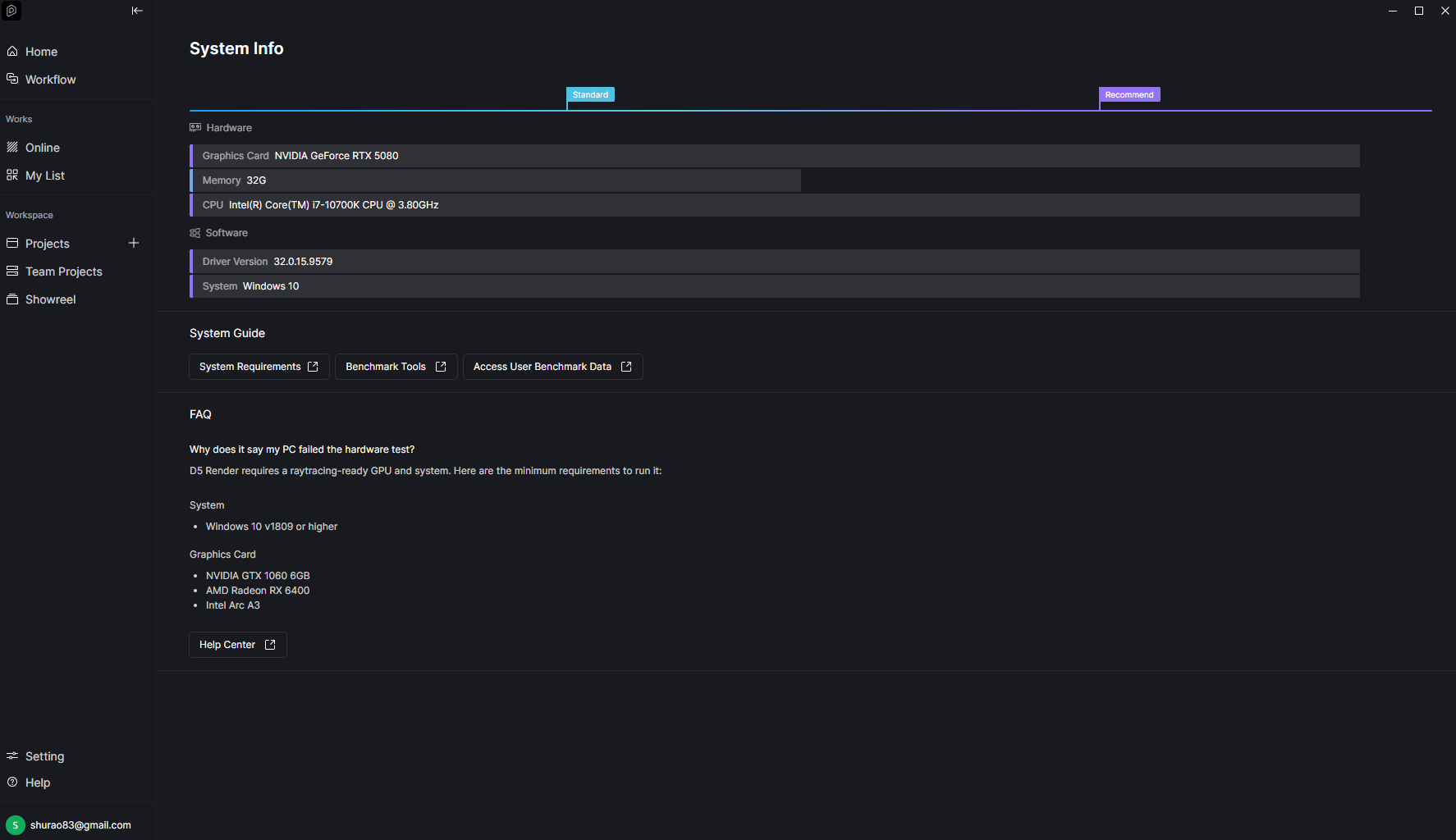
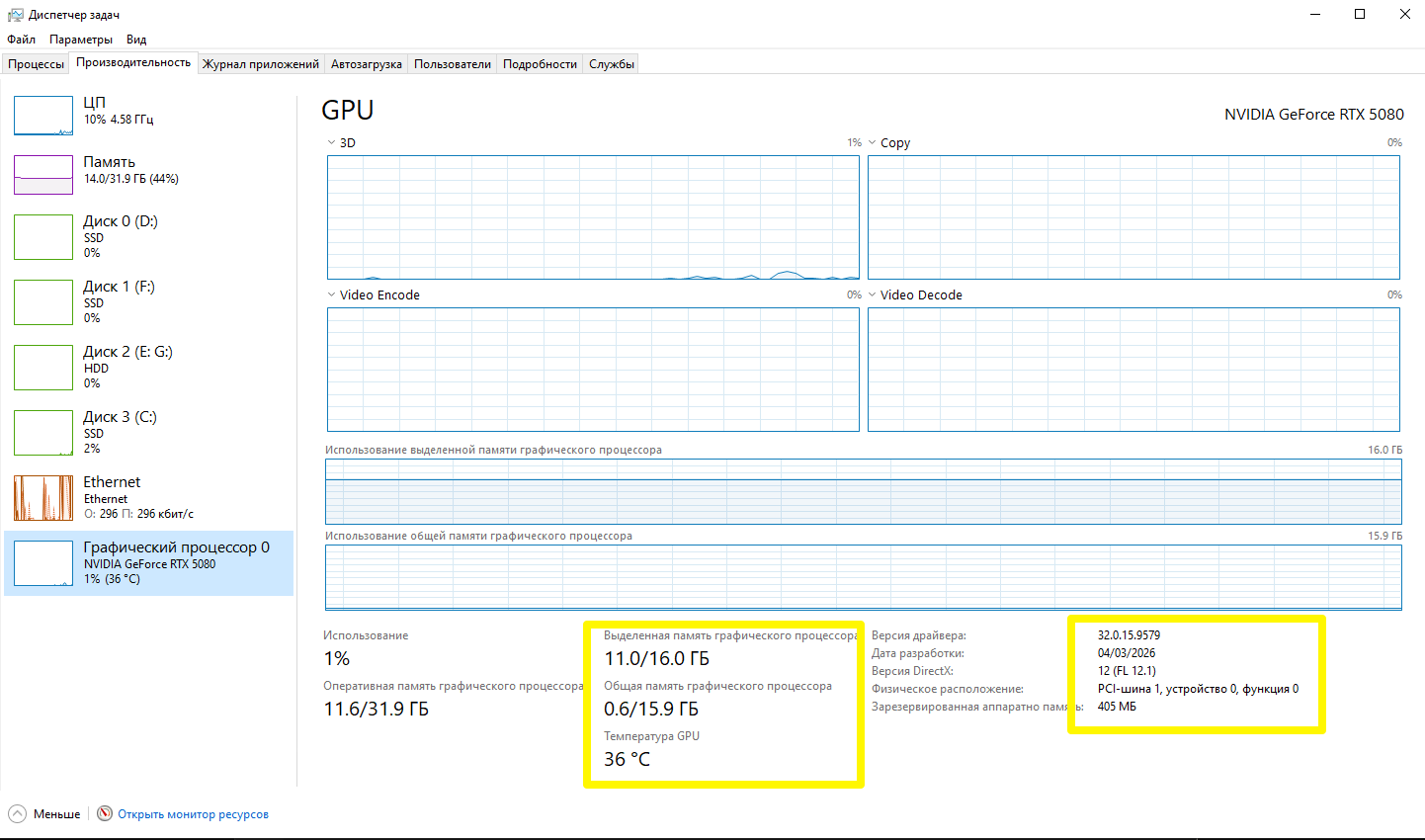
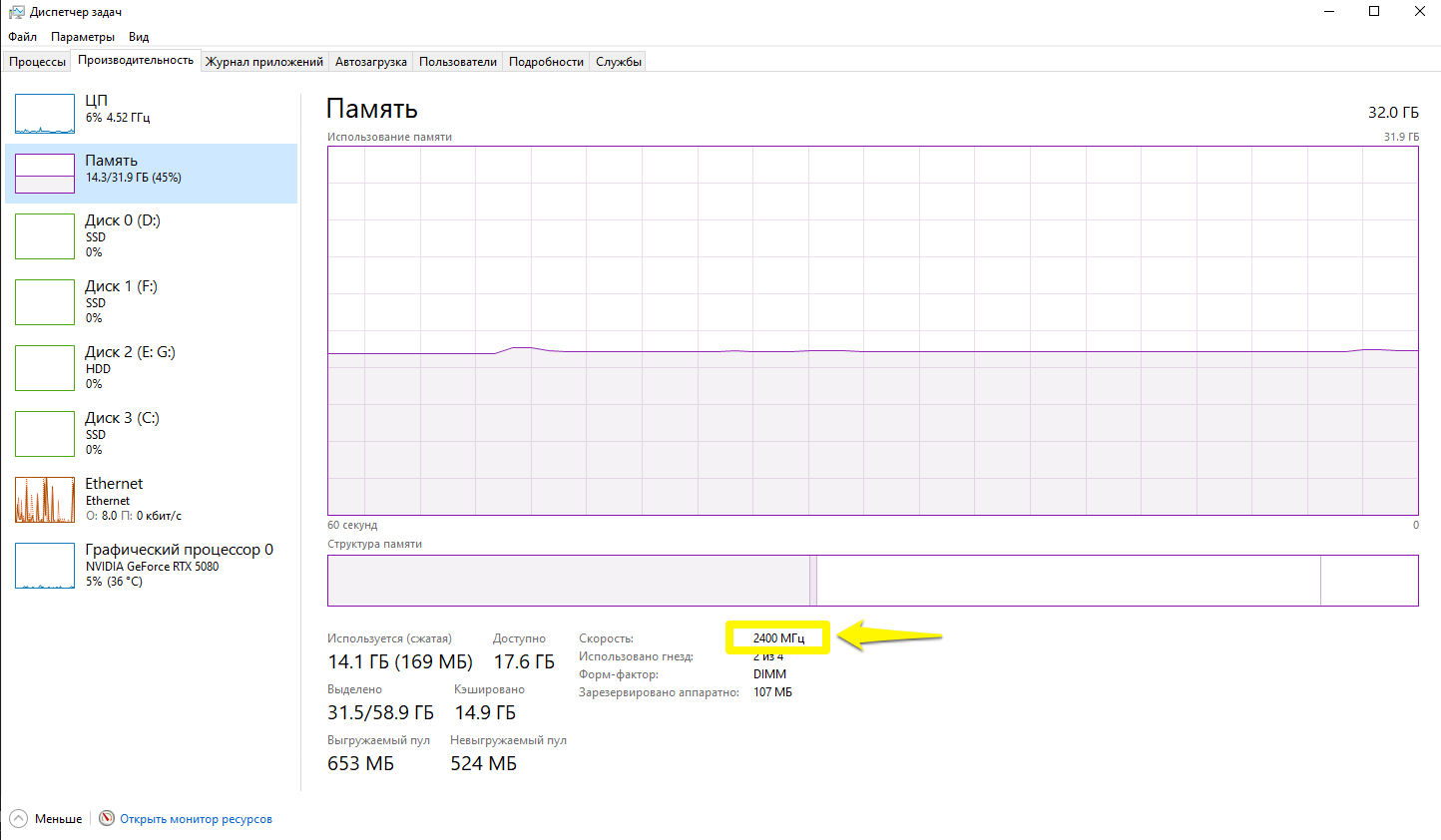
Thanks Daniele. Something I figured out about 3 years ago with D5. Right now I’m experimenting with Turbo Mode on but I set Asus Multicore Enhancement to Disabled - Enforce All Limits. Just fired up D5 Render and I’ll see if it crashes. Looking for a workaround to keep Turbo Mode on.
Setting
ASUS Multi-Core Enhancement (MCE) to "Disabled - Enforce All Limits" forces your CPU to adhere strictly to Intel’s official power, current, and thermal guidelines. This prevents the motherboard from automatically overriding manufacturer specifications, typically resulting in lower power consumption, reduced heat output, and standard factory performance levels. It is the recommended setting if you prioritize system stability and longevity over maximum benchmark scores.
Took 10 minutes longer to render 6 scenes with Turbo Mode on with Disabled - Enforce All Limits than with Turbo mode off with MCE on Auto. I didn’t test overall performance like running Sketchup and D5 at the same time.
I’m trying it now with ASUS Multi-Core Enhancement (MCE) set to Disabled - Enforce All Limits with Turbo Mode enabled to see if I get any crashes. Since I discounted any GPU issues I installed the latest Nvidia driver for my RTX 5070.
24 hours later:
Crashed this morning after a whole 24 hours of no crashes and I put it through some ropes including opening random files and rendering.
Crashed after a rendering. Just random after closing the rendering window. Tried the same file and scene again. Another crash. Tried it a third time. Crashing stopped. Then I thought it might be from watching a Youtube video and while running the video there was no crash. GPU and GPU temperatures are nominal at the time.
These came back after creating a new scene using a section plane. I’m now fiddling with a previous version of the file and scene(s) to see what happens.
This is with Turbo Mode on with Disabled - Enforce All Limits.
Went back several times. Totally random. No crash at the moment.
You can bipass the Turbo Mode BIOS setting in Windows through Power Plan with " Maximum processor state to 99%."
Lately the support team has suggested me to turn off the Turbo Mode and switch back to the previous GPU drivers (not the latest version).
As I alredy explained to the support, disabling this mode negatively impacts my computer’s overall performance and slows down other essential software in my workflow, so it’s not the best solution in my case.
I also recently updated from Windows10 to Windows11, but crashes still happens.
@gusrobatto "You can bipass the Turbo Mode BIOS setting in Windows through Power Plan with "Maximum processor state** to 99%: does this manage to improve the system performance rather than turning the turbo mode completely off?
daniele I wasn’t able to gauge or bench mark a change with Turbo Mode off. There should be since turning it off limits the CPU to its rated base speed. Turbo Mode allows it to go above that. It’s sort of an easy and safe overclocking of sorts.
I’ve been running it with Turbo Mode on with Asus Multicore Enhancement to Disabled. It was running fine but then I got a series of crashes. I basically did nothing other than delete my Nvidia caches and restarted and they stopped. Turbo Mode off remains more stable.
Yes, turning down the CPU to 99% will disable Turbo Mode within Windows. You can then toggle back and forth depending on your tasks. This is easier than having to go into BIOS to change it.
D5 has a “Turbo Mode bug” and I hope they work on fixing it. Perhaps not affecting all users but enough that it should be addressed.
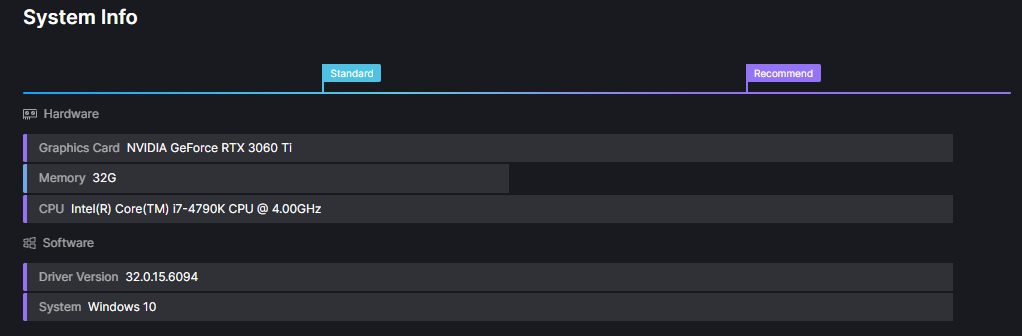
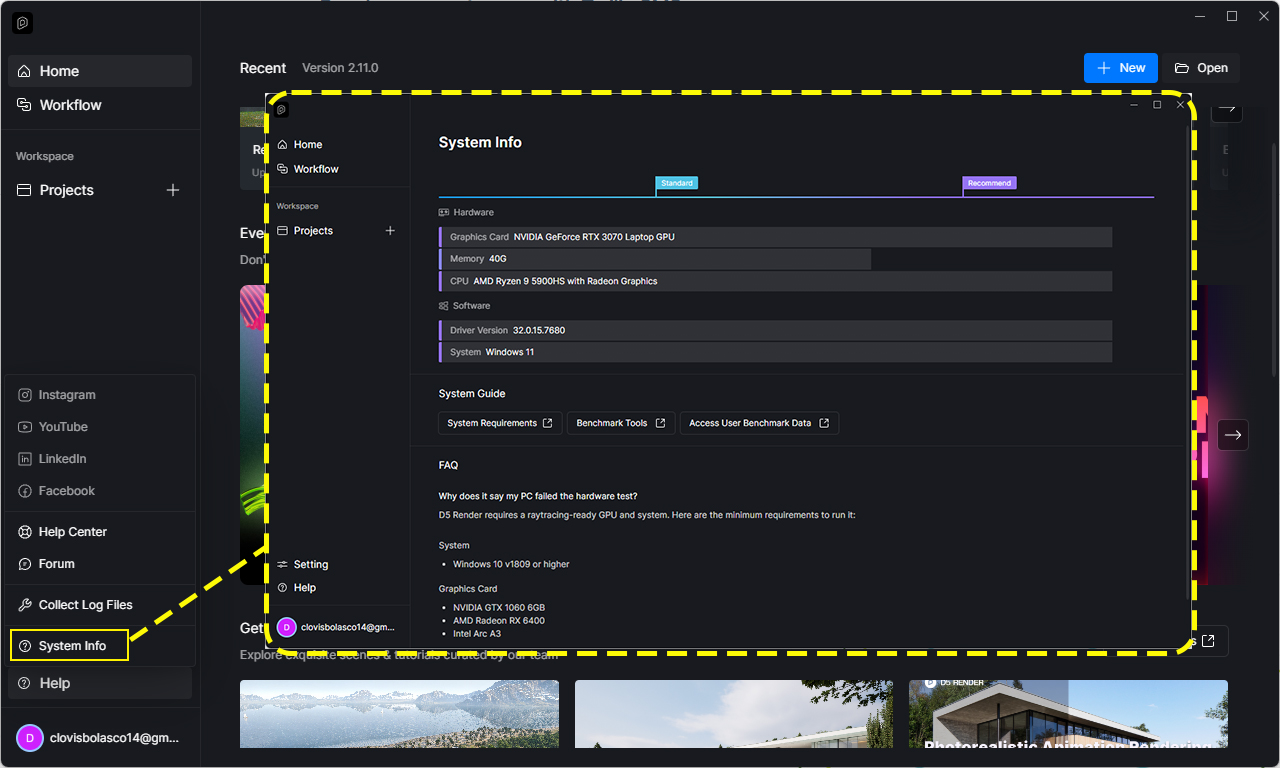
If you’re experiencing crashes, could you please check which CPU model you’re using first? Some specific CPU models may be related to this issue. You can check more details here: Does the CPU have a big impact on D5? | User Manual
If the issue still persists, please try the following:
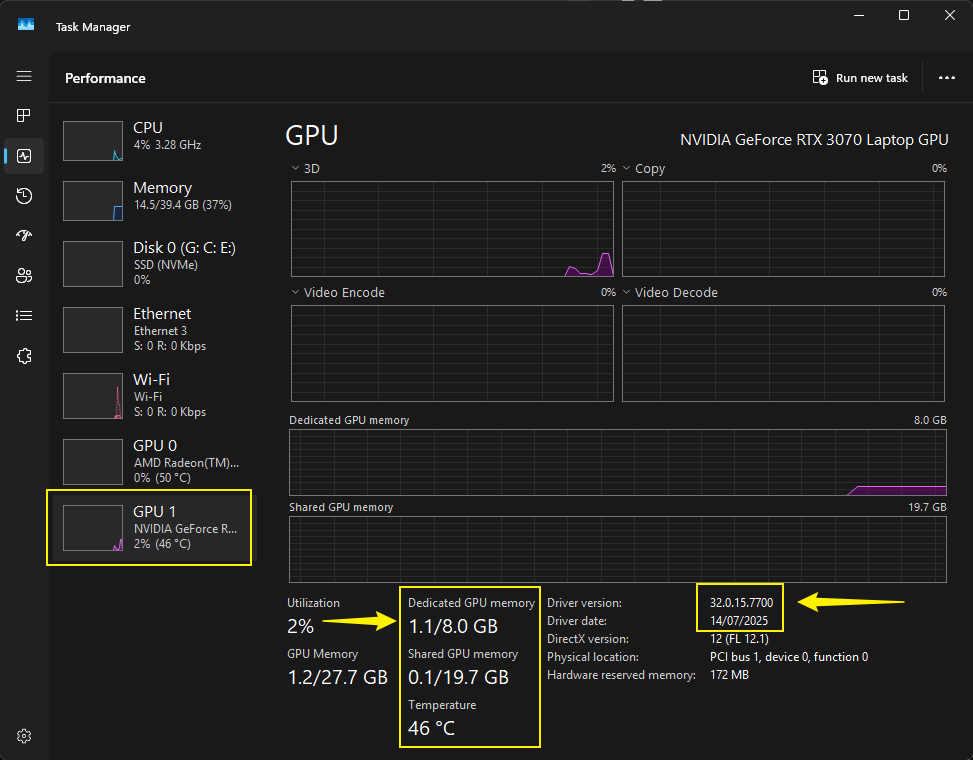
Attempt 1: Turn off Turbo Mode in your BIOS. Attempt 2: Update your graphics driver to version 591.59, or try rolling it back to version 566.36. You can download the drivers here: Download The Latest Official NVIDIA Drivers
If none of these work, please let me know so we can investigate further. Thank you for your patience.
I tried the following drivers:
552.44
591.74
581.57
560.94 (current)
I’ve noticed that this often happens when I zoom in on a detail (for example, when tweaking a texture) and then zoom out using the mouse wheel; the program freezes and crashes without displaying an error message.
In the BIOS of my motherboard (MSI Z97-G43), the option to disable Turbo Boost isn’t enabled, but it seems I’ve effectively disabled it via the MSI Intel Extreme Tuning Utility.
It didn’t help; the program still crashes.
The program crashes on my second computer as well (i5-14400F, 64GB, RTX 4070 12GB, Win10).
Since the release of versions 3.0/3.01, working in D5 Render has become completely unusable.
True Displacement is highly performance-intensive, and Remesh does not work properly.
Reloading edited SketchUp models (directly from the file) into a project often results in errors in the model (scattered gray parts of the model).
D5 Render is becoming completely unusable for serious professional work.
Features have taken precedence over stability, but without stability, features are useless to us.
D5 Team, wake up please.
Suggestion: Is it possible to use mini/full dump files to diagnose problems or crashes?
I’ve tried both Attempt 1 and Attempt 2, but the issues are still persisting. This is becoming quite frustrating, especially as it’s affecting my deadlines—I’m currently unable to confidently commit timelines to my clients.
Given that we are using the Pro paid version, it’s disappointing that these issues remain unresolved across recent updates. Software stability should ideally be addressed at the developer level, rather than requiring repeated system-side adjustments.
Could you please advise on a reliable resolution or escalate this further from your end?
Thank you for the update. Could you please collect and share your most recent log files with us after trying the workaround? This will help our team investigate the issue more thoroughly. We’re really sorry for the inconvenience, and we’re actively working to troubleshoot this.
You may send the files to support@d5techs.com, and please tag me in the email as well. Also, include the link to this forum post for reference so our team can track your case more easily. Thank you for your cooperation and patience.
Here I experience the same issue. Hope you guys find a solution. In my event viewer > windows logs I found an D5 application error on the time the laptop shuts down with
tutte queste informazioni le ho già inviate in passato, provando sia con nuovi che con vechci driver. se mi dite come faccio a tornare alla versione 2.11 lo farei volentieri
Could you please provide more context regarding the issue you’re experiencing? If a file crashes due to excessive VRAM usage, it often indicates that the file is too large for your VRAM to handle. This is an expected limitation, and the only solution is to optimize your file.
This issue appears to be specific to files that crash after the 3.0 or 3.0.1 update. If you can confirm that using version 2.11 or any earlier version does not cause your file to crash, then we may need to gather your log files and scene files for further investigation.
Several users have confirmed that disabling Turbo Mode in their BIOS helped.
Additionally, if your file crashes even in previous versions and have exceeded VRAM, you may create another forum thread along with this information:
Can you please confirm if this issue occurs to a:
Specific file
Or it is also evident to all of your other D5 Files
We may also need you to send the following images/information:
I tried opening other files, and the result was the same: the program crashes a minute or two after opening, without any warning or error. I’ve never had this happen before. I don’t know if this is related to the version update, but this definitely didn’t happen with previous versions.