Okay I am having a poor experience with the vr about 50% of the time. It is often times laggy and the screen will skip around.
Our process
Launch Meta quest Horizon and Linkheadset
Inside Meta Headset we display monitor to headset
Launch D5 Render Model
Click on find VR Hedset
Then when it kicks us into the VR mode it is laggy about 50 percent of the time
Your questions
Device: Meta Quest 3
D5 Version: 3.1.1.0755
VR Quality: Default
Yes I used VR back in 3.01, I would say that it is close to the same performance.
Just to clarify, you’ve mentioned that you have used 3.1.1.0755 but in the logs it shows you’re using the previous version, 3.0.1
Does this mean that you have downgraded to this version?
Anyway, based on your logs, we recommend the following steps:
1. Avoid using “Display monitor to headset” before entering D5 VR
Your current workflow of displaying the desktop monitor to the headset before launching D5 VR adds unnecessary overhead and can interfere with D5’s native OpenXR compositor. D5 uses OpenXR directly to render its own stereoscopic view.
Recommended workflow:
Connect your Quest 3 via Link (wired or Air Link)
Launch D5 Render directly from your desktop
Click “Find VR Headset” inside D5
D5 will switch to native VR mode on its own
2. Confirm Meta Quest Link is set as the default OpenXR runtime
In the Meta Quest Link PC app, go to Settings → General and verify that the OpenXR Runtime is set to Meta Quest Link.
If SteamVR (or another runtime) has taken over as default, D5 VR performance can degrade significantly.
3. Check headset fit and proximity detection
Quest 3 uses proximity detection to manage performance. If the headset fit is loose or you adjust it frequently during use, the headset may think it’s not being worn and throttle performance; this will appear as sudden stuttering. Ensure the strap is snug and minimize headset adjustments during use.
4. Link quality troubleshooting
If using Air Link, try a wired Link cable to rule out Wi-Fi interference as the cause of “screen skipping”
For Air Link, ensure your PC is connected via Ethernet to a 5GHz Wi-Fi 6/6E router, and the Quest 3 is on the 5GHz band only
In the Meta Quest Link settings, try lowering the render resolution/bandwidth and see if stuttering improves
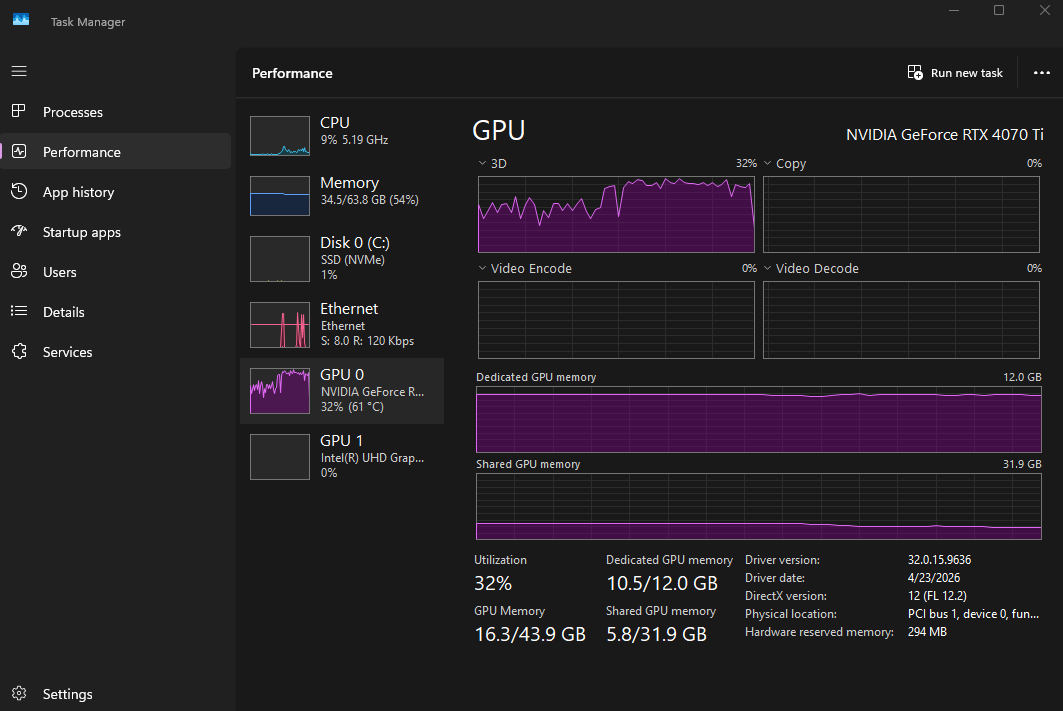
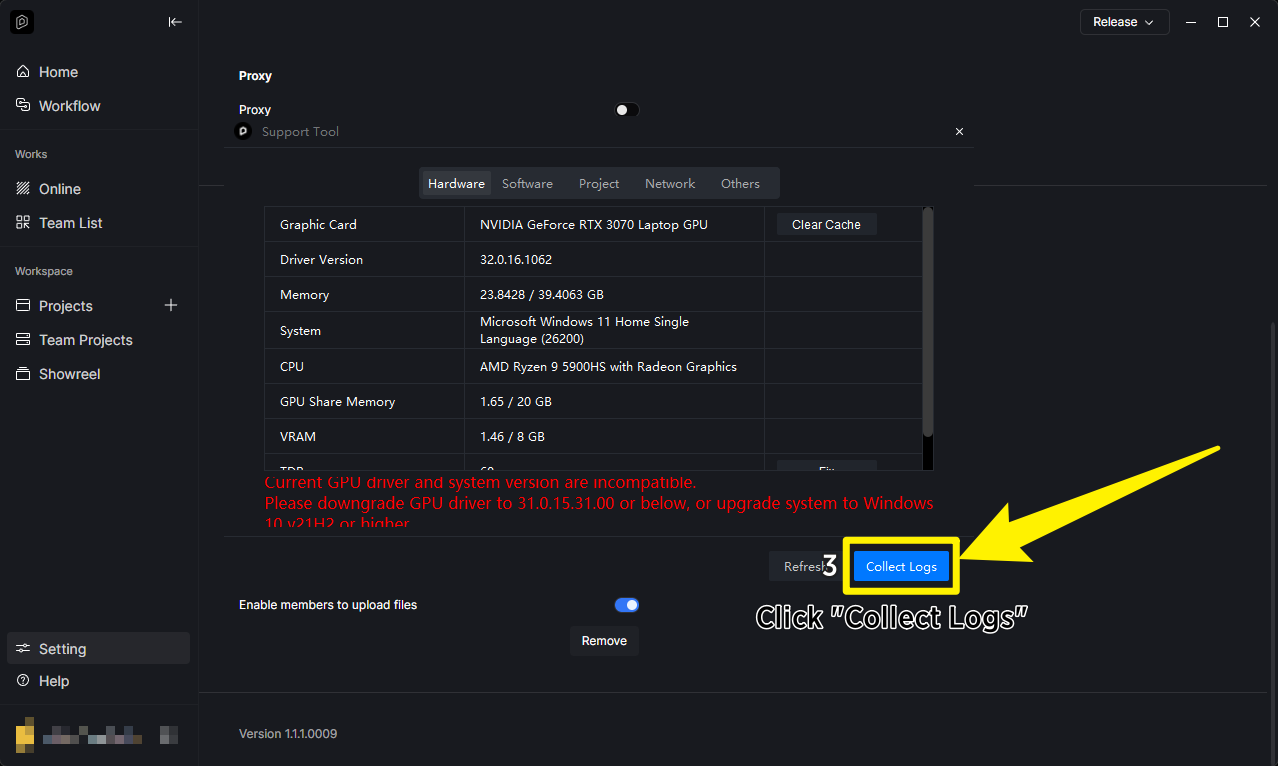
Note: Your logs show you’re running Windows 11 25H2, which is a Canary/preview channel build. This is not a stable Windows release, and we have confirmed multiple cases of GPU driver and rendering incompatibilities on this version. OpenXR VR runtime on a preview OS can be particularly unstable. If possible, we recommend rolling back to Windows 11 24H2 (stable release) for best performance and reliability with D5, or perhaps updating to its latest version.
Additionally, I would also like to suggest a quick test to narrow down the issue.
To quickly identify whether the issue is scene-related or environment-related:
Open a new blank scene in D5
Enter VR mode
Note if stuttering still occurs
If smooth → scene complexity is the bottleneck.
If still stuttering 50% of the time → focus on workflow, OpenXR runtime, link connection, and OS/driver steps above.
Please let us know your results after trying these steps, and we can assist further.
I am using the latest version I just clicked to the older one in the D5 Launcher so I could hover over the new one and see the version type. But I am using 3.1.1.0755 for sure.
I also ensured the settings match your recommendations. I will look into the windows 11 25h2 and have our IT team roll back to the Windows 11 24H2…
I ran the quick test that you recommended in a blank model and it worked great, no issues at all. I then opened up the model I shared with you, and it worked great (No lagging and displayed nicely). I used the left stick to exit VR properly and I took the headset off and passed it to my coworker, once they put it on they headset displayed a black screen. We reset the device several times and when we go to connect to PC the headset displays black (Maybe a Meta issue?).
Also, we are using wired connection to a usbc3 with the meta branded cable. My PC is wired via ethernet.
I haven’t tested this recommendation out but after I sent my previous message we were adjusting settings in the oculus debug tool, and we turned the “Bypass Proximity Sensor Check” to On. It defaults to the OFF position every time you connect your Meta Headset.
Changing this setting helped tremendously. I will update you on your recommendation when I can get to doing it.
We are still experiencing issues, it’s a bit inconsistent on when it works and when it doesn’t. Often times is difficult to pinpoint what’s causing it to not perform well. It seems like the Meta Horizon Link app has a lot of bugs and that combined with the VR being in beta it’s not super reliable.
We experience things like once you exit out of the VR and adjust a plant and try to go back into the VR the VR model space will crash. Sometimes it will black screen, sometimes it will be a frozen image with image tearing around the outsides.
The VR performs the best after a fresh restart of the computer and it’s your first time entering the model. After that the VR experience seems to decline.