I updated the software from version 3.01 to 3.11 and rendered the same file again, but the issue still persists.
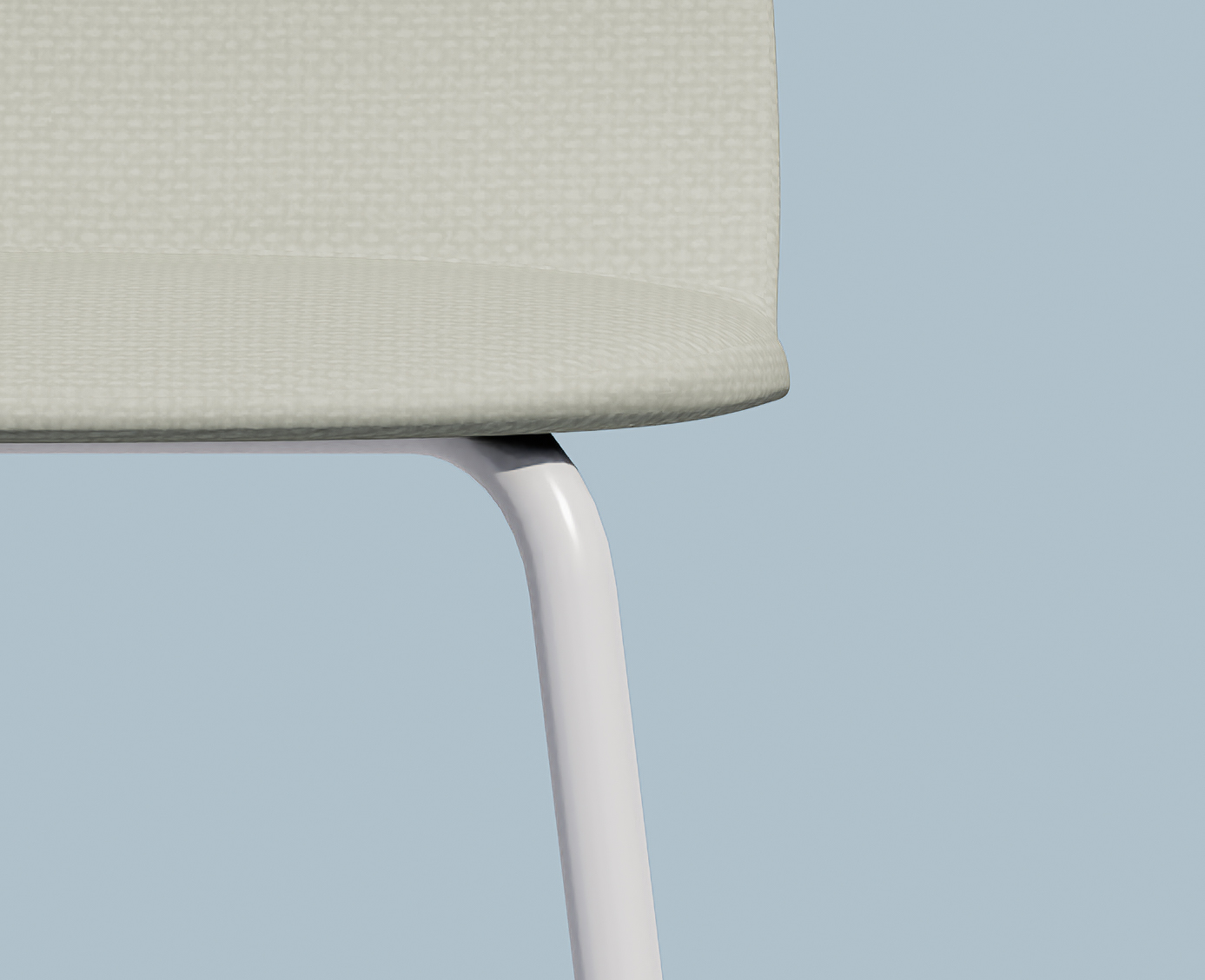
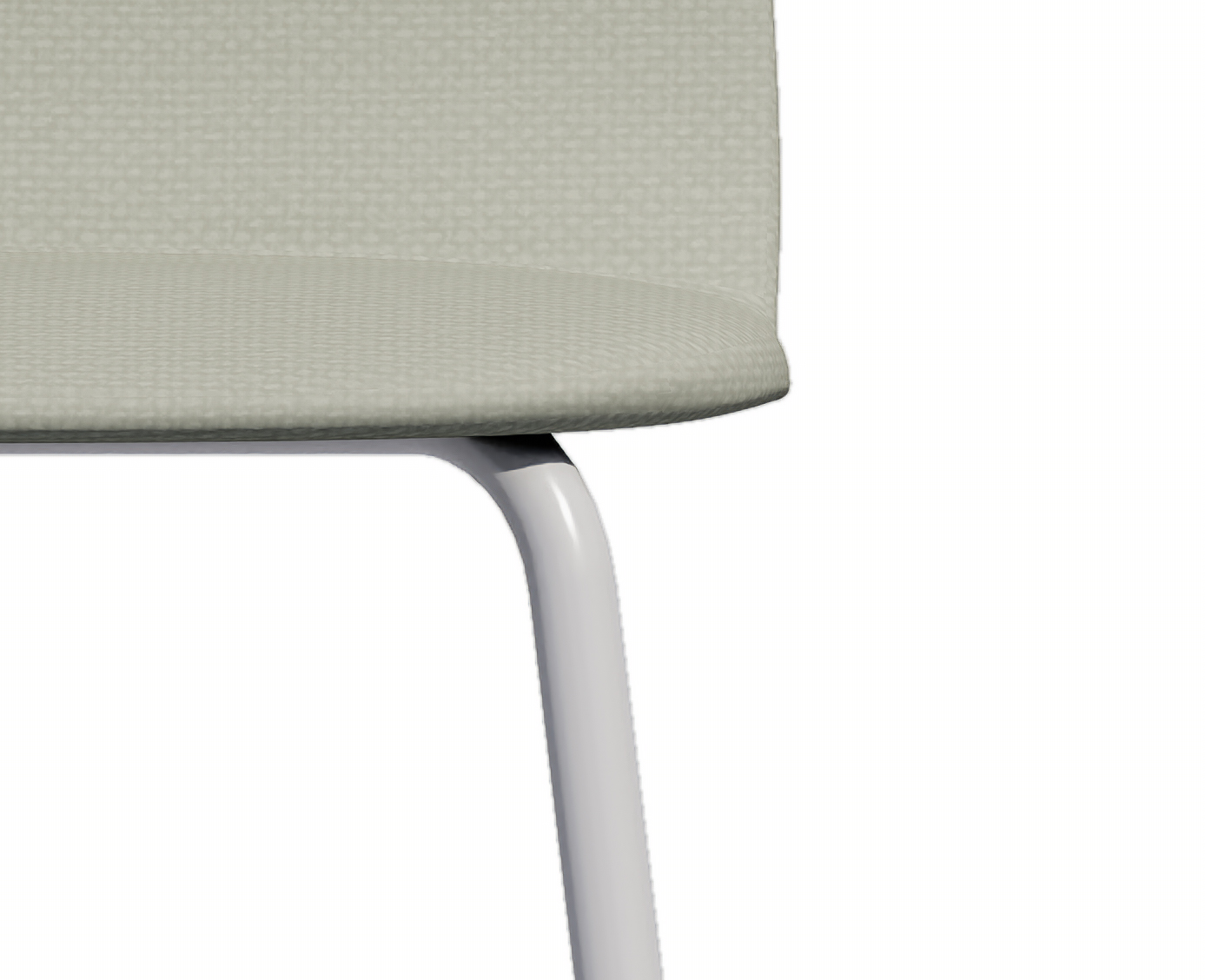
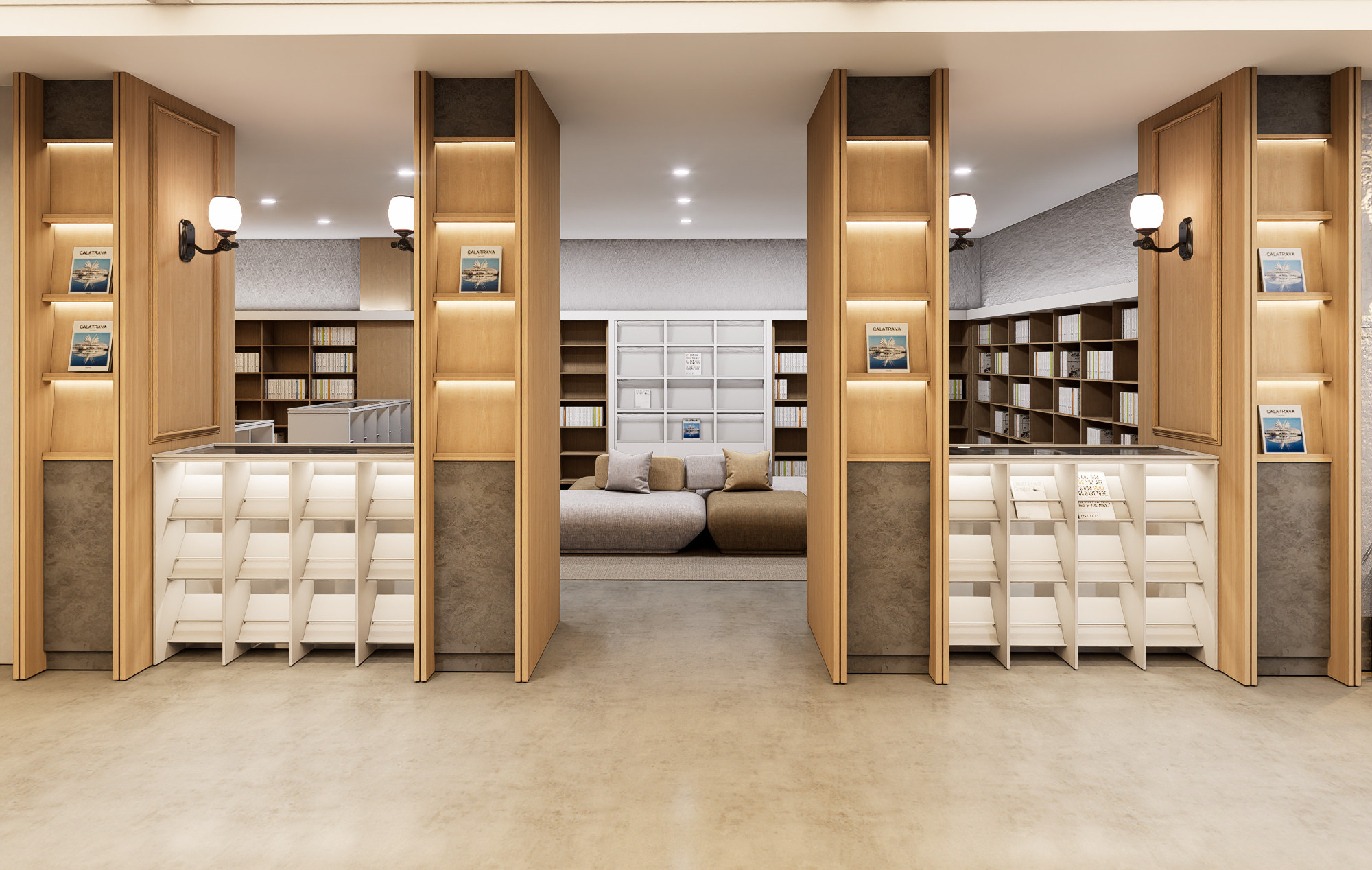
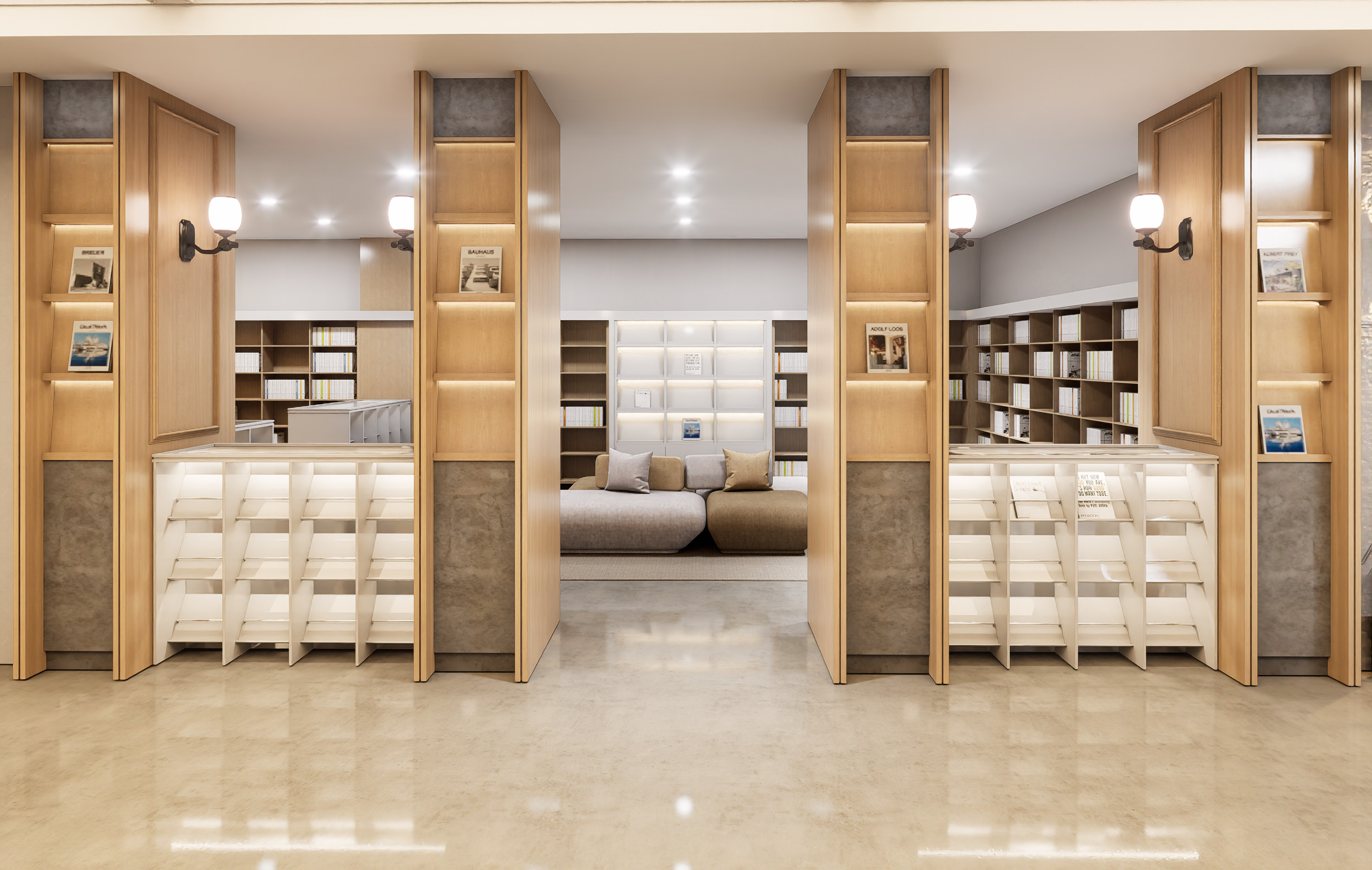
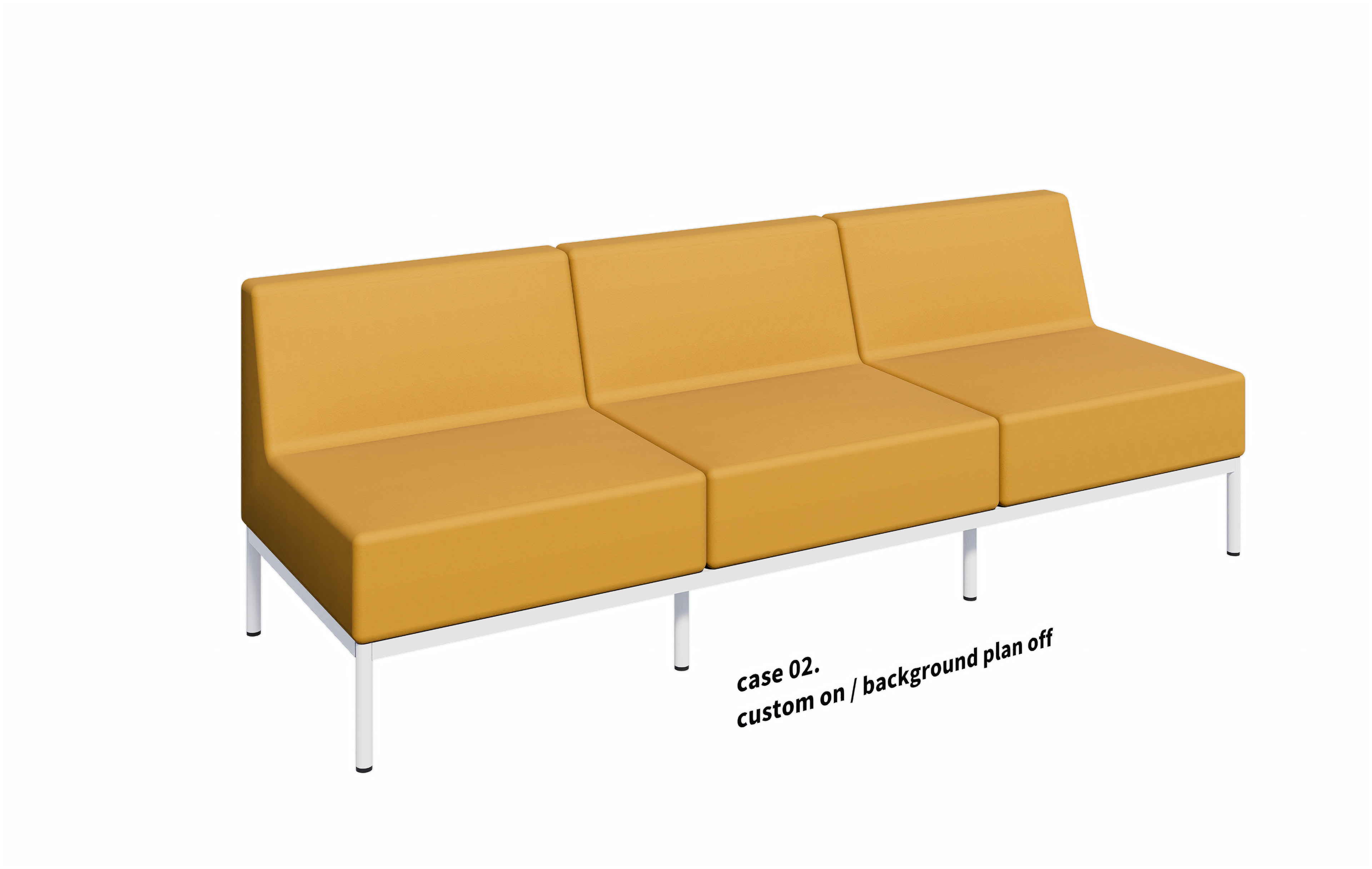
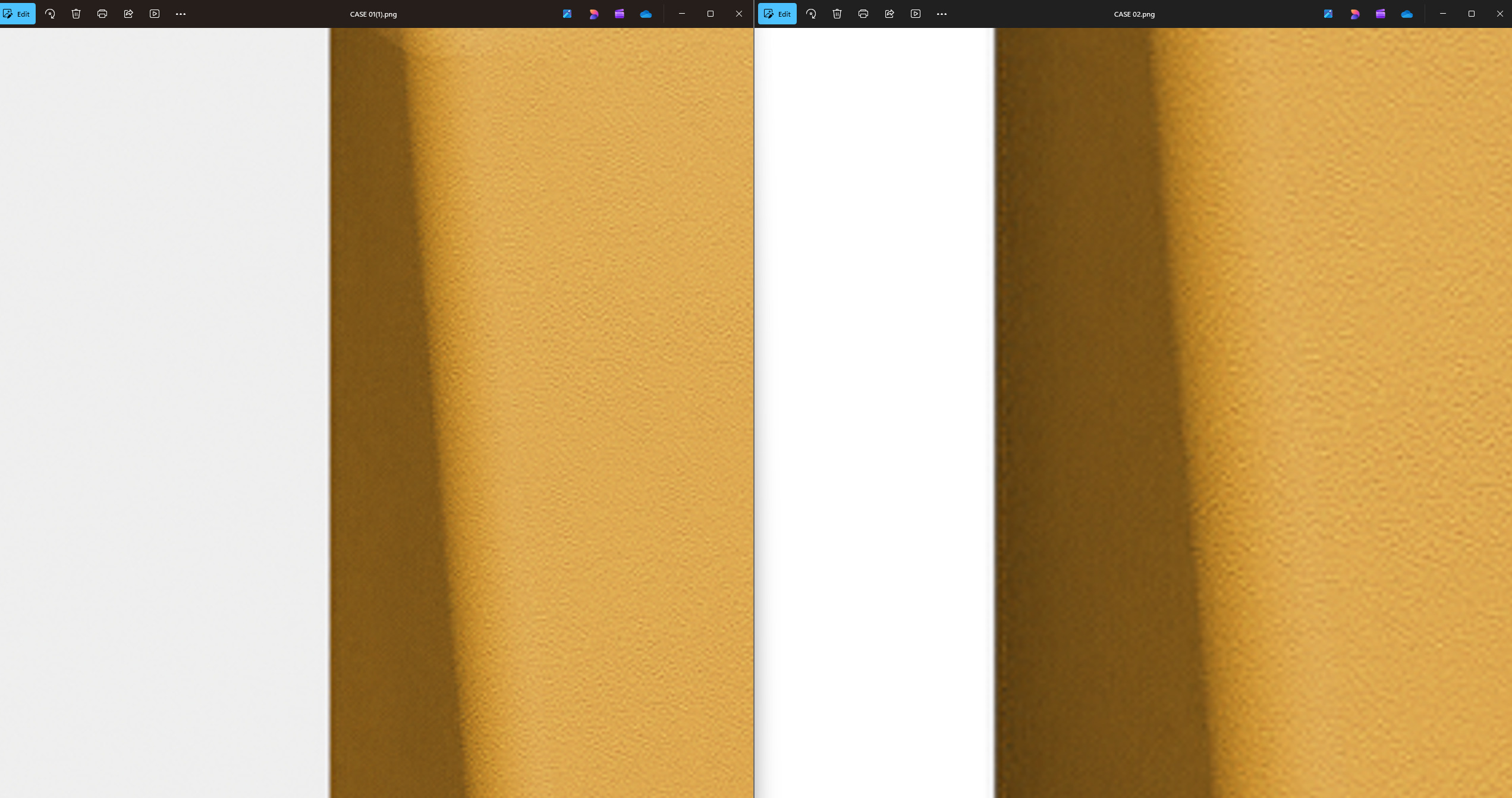
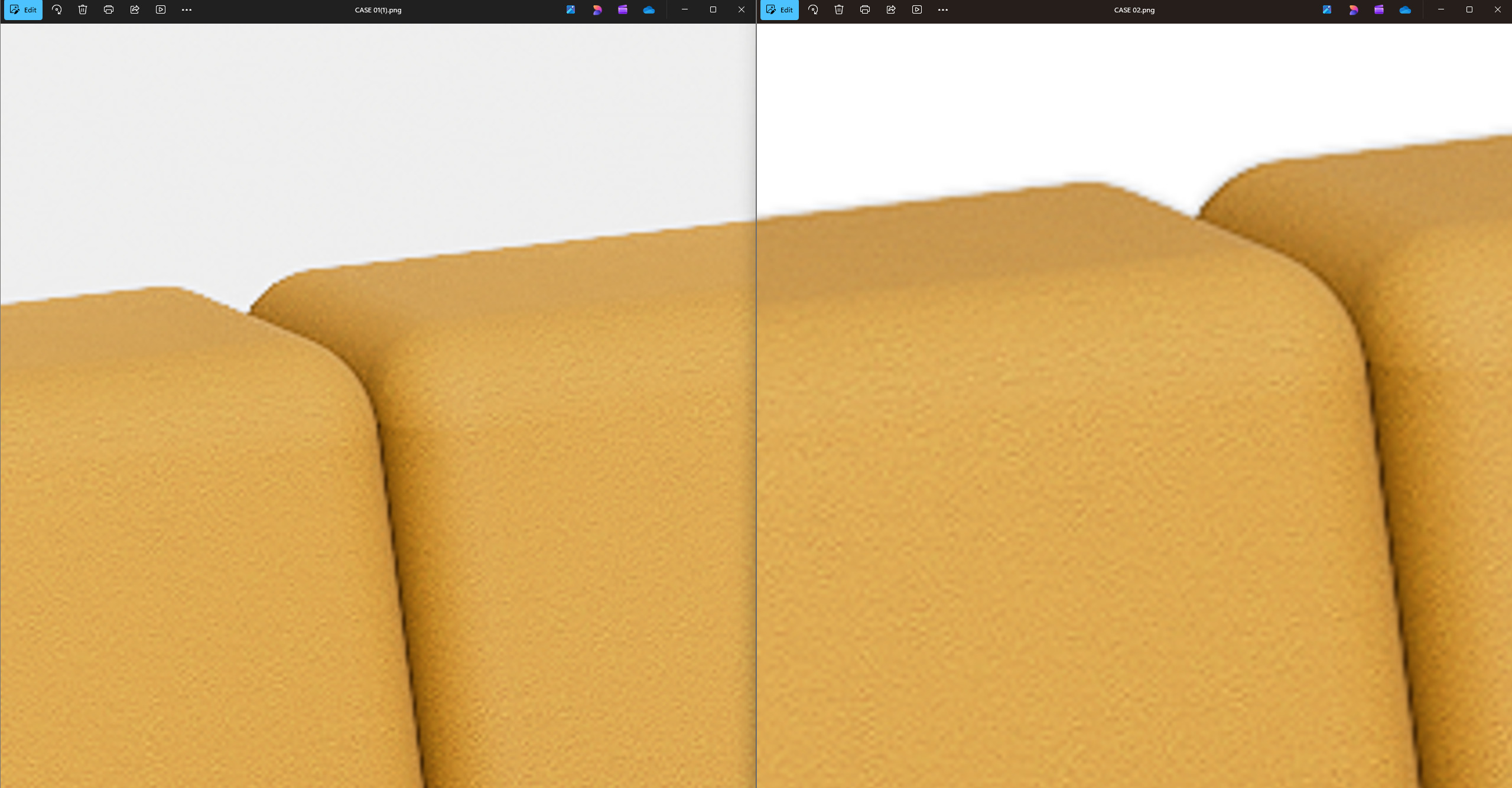
As shown in the attached images:
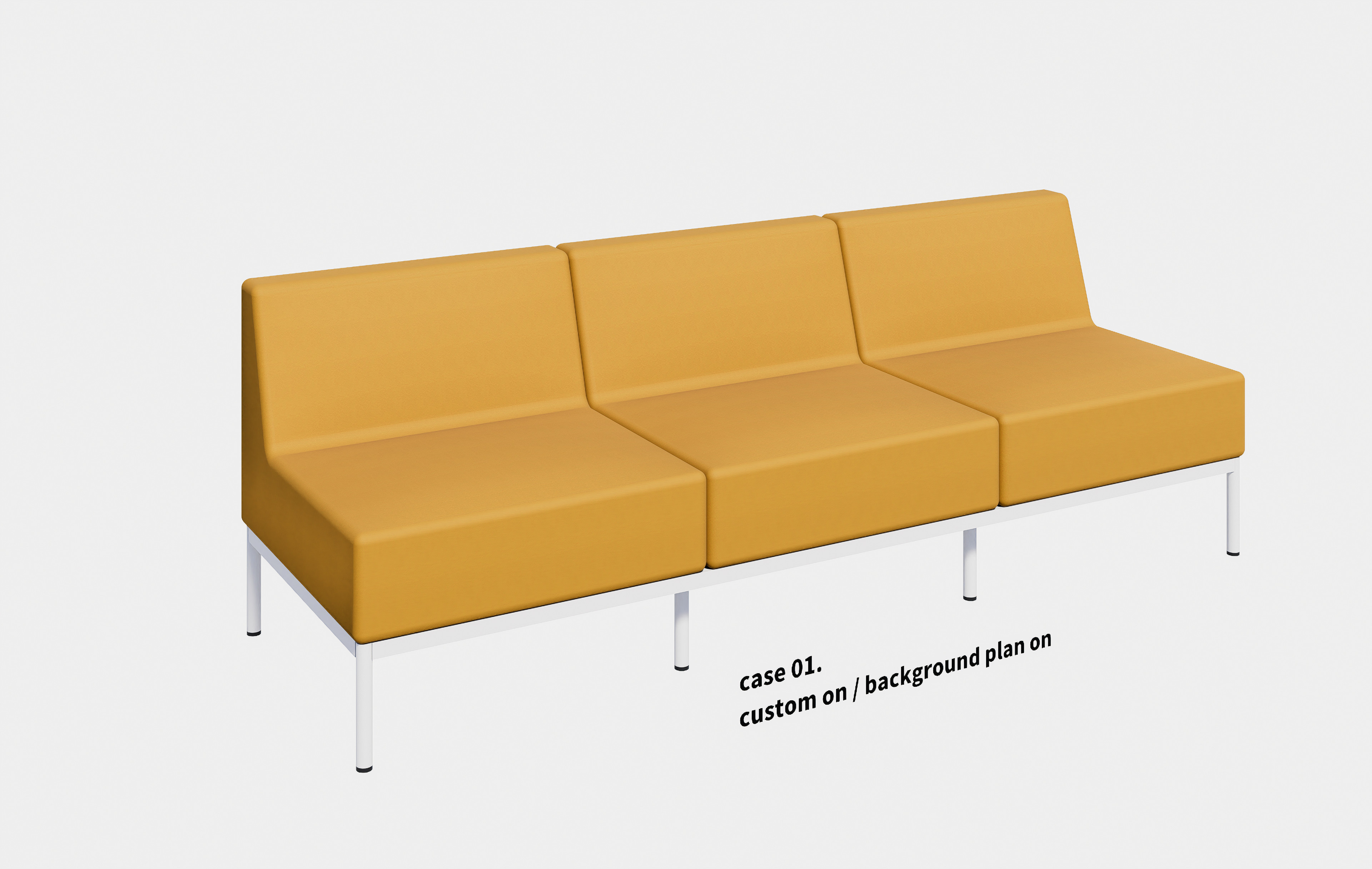
CASE 01:
Custom Background is enabled, and a Plan is visible behind it.
As you can see, the object edges are sharp and clearly defined.
CASE 02:
Custom Background is enabled, but the Plan is turned off.
In this case, the object edges appear noticeably blurred.
If you place both images in the same folder and quickly switch back and forth between them, CASE 02 appears to be slightly shifted, almost as if the entire image has moved by a few pixels compared to CASE 01.
I have already updated the software to the latest version (3.11), and just to rule out any driver-related issues, I also installed the latest graphics driver. Unfortunately, the behavior remains exactly the same.
I would also appreciate it if other users—not just the moderators or administrators—could test this on their systems to see whether they can reproduce the same issue.
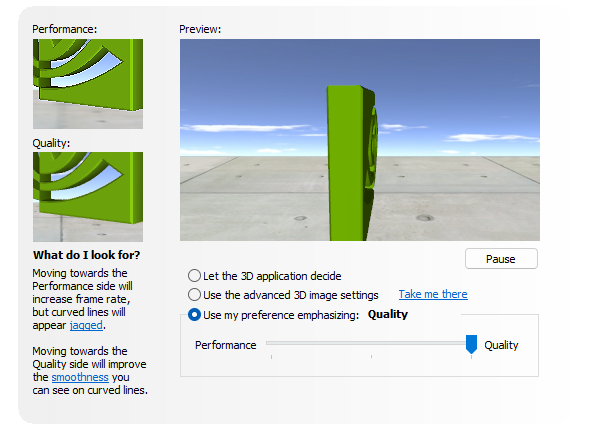
RTX 5060 Ti 16GB 610.74 Drivers NVIDIA Control Panel - Quality Activated
I’m not really sure whether the new file you sent us reflects the issue you’re reporting compared to the one you showed in your first post.
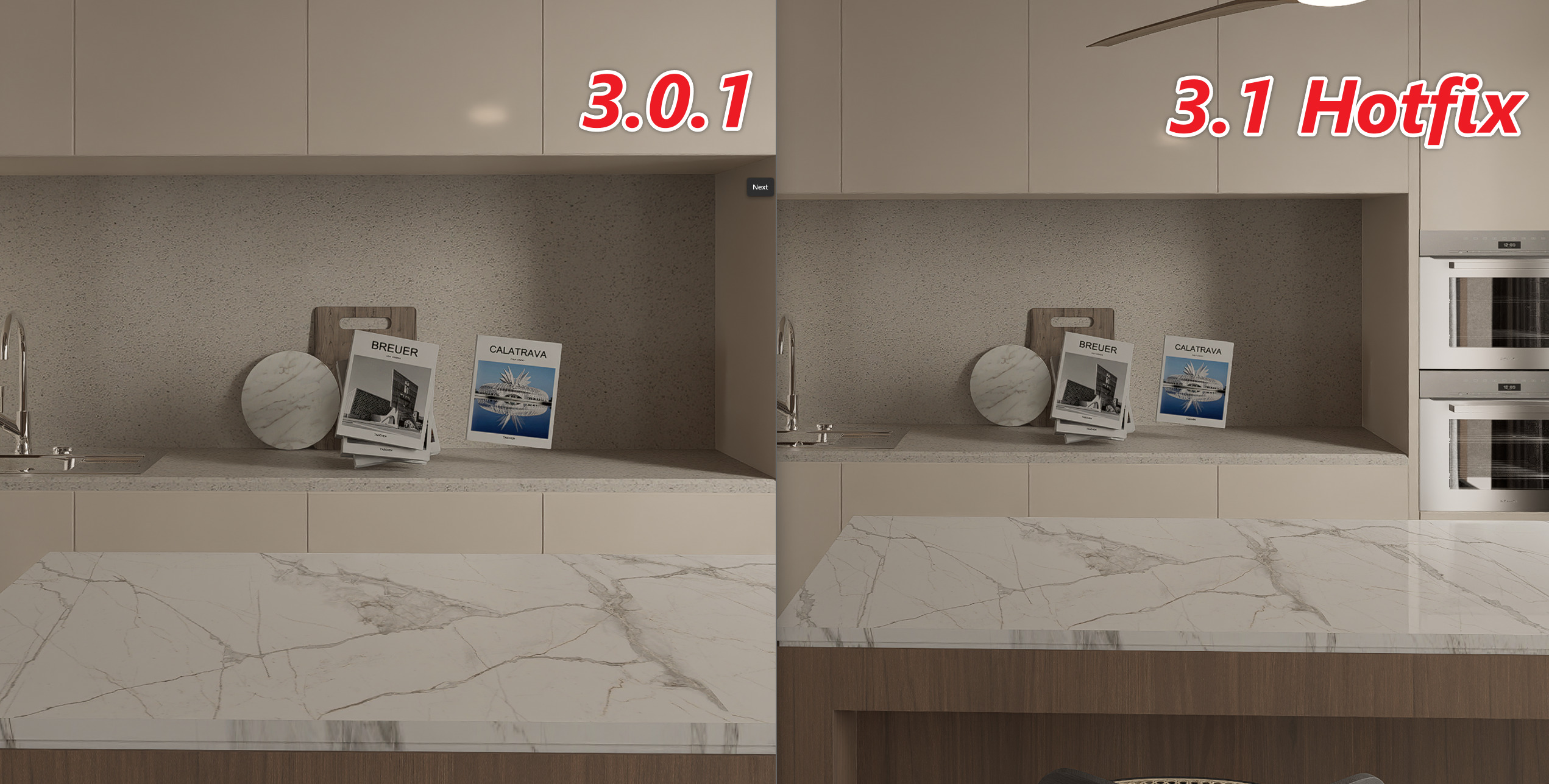
Case 01 appears darker compared to Case 02. I’m trying to find out their differences based solely on the environment and effect settings you’ve set in D5, but I think the differences stem from the D5a model you’ve inserted into both of them.
Additionally, what do you mean by “background plan off/on”?
We’re suspecting this might be because of the image viewer application that you’re currently using.
We’ve tested the image you’ve attached here by opening it in Tev (High dynamic range HDR image viewer) and there is no significant difference on the anti-aliasing issue that you’ve pointed out.
CASE 01 : Custom Background is ON , and I placed a Plan behind the scene.
The reason is that I need to produce sharp edge lines , so this is currently my workaround.
CASE 02 : Custom Background is ON , but the Plan has been removed.
The reason is that I need a super white background for furniture studio renders.
Because of this, the background colors are different between CASE 01 and CASE 02 .
The real issue is that when only the Custom Background is used (CASE 02), the object boundaries become blurry.
It also feels as though an excessive amount of anti-aliasing is being applied to the objects whenever the Custom Background is enabled . Compared to the normal render, it almost looks like the anti-aliasing strength is about twice as high , causing the edges to lose sharpness.
I have already tried several tests:
Changed the NVIDIA settings to Maximum Quality , as recommended.
Tested Super Resolution in D5 Render with both ON and OFF .
During testing, I noticed something interesting:
With the Plane behind the scene, the rendered image size is 11 MB .
Without the Plane, the rendered image size is 8 MB .
Could the difference in file size be related to the image resolution or the way D5 processes the rendering?
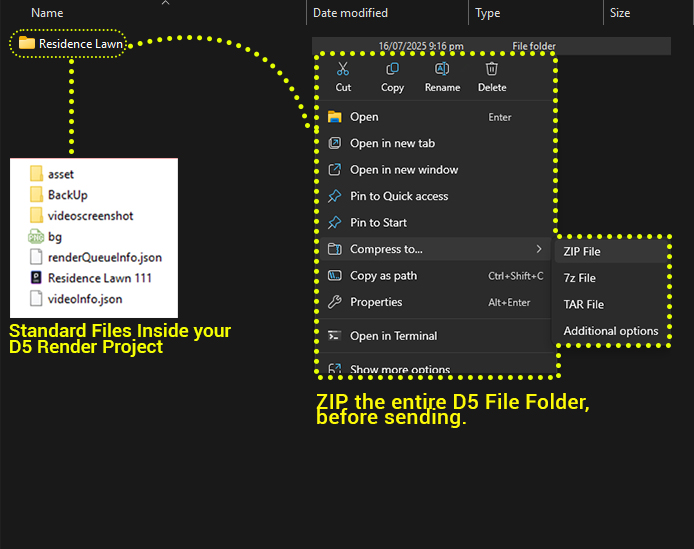
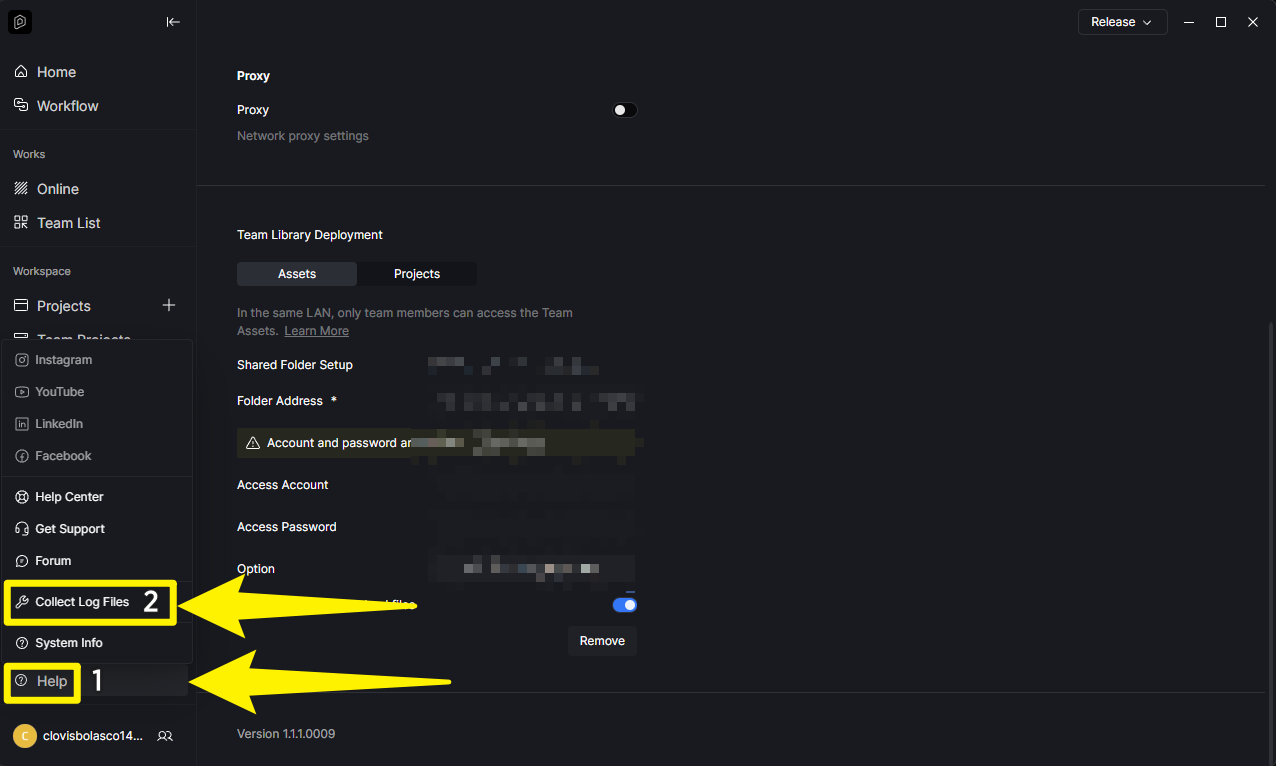
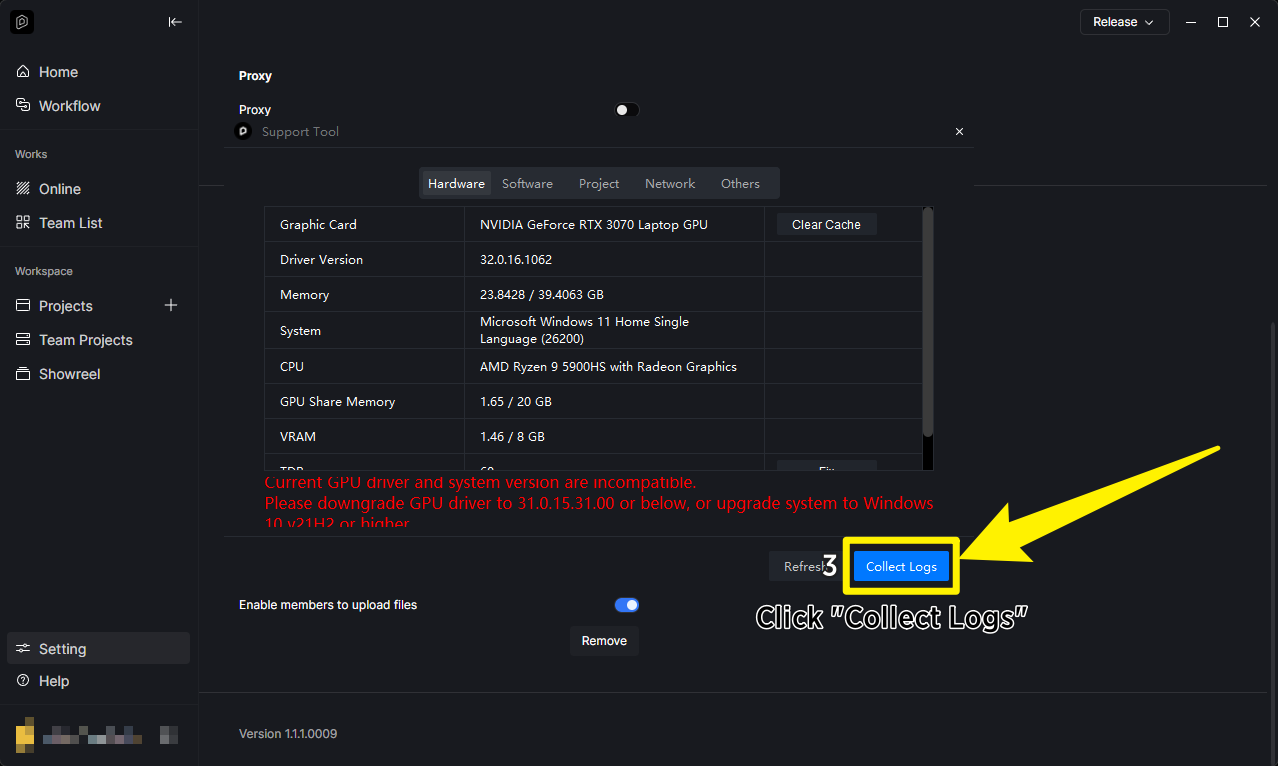
Can we collect your log files? Please send it to me privately here in forum. You may generate a link containing these files if they’re too large if directly sent.
Could the difference in file size be related to the image resolution or the way D5 processes the rendering?
Generally, the difference in file size is not necessarily related to how D5 renders. If both images were exported at the same resolution and format, the larger file size is more likely due to the increased visual complexity of the rendered image.
Elements such as additional geometry, vegetation, detailed textures, and shadows can make the image less compressible, resulting in a larger file size. Therefore, a scene with more vegetation or elements may produce a larger rendered image, but this is due to the image content and compression rather than the rendering process alone.
As for your case, this may be due to the additional plane that was placed at the back of your model.
Anyway, were you able to test out this assumption? Have you considered opening it in photoshop or perhaps in another image viewer software?