Connect the Meta Quest 3S headset

I manage to connect my headset to D5 Render, but when I enable the virtual reality function, the project’s quality drops significantly and it stutters a bit. Is there a specific setting I can adjust to improve this? I’m using a Dell laptop with a 13th Gen Intel(R) Core™ i9-13900HX (2.20 GHz) processor, 32GB of RAM, and an RTX 4060 graphics card.

Hi @studioimag3m

Can you please confirm the following:

  • D5 Version you’re currently using? Are you using 3.1.0.0746?
  • Does this occur to other files as well or just this specific one?
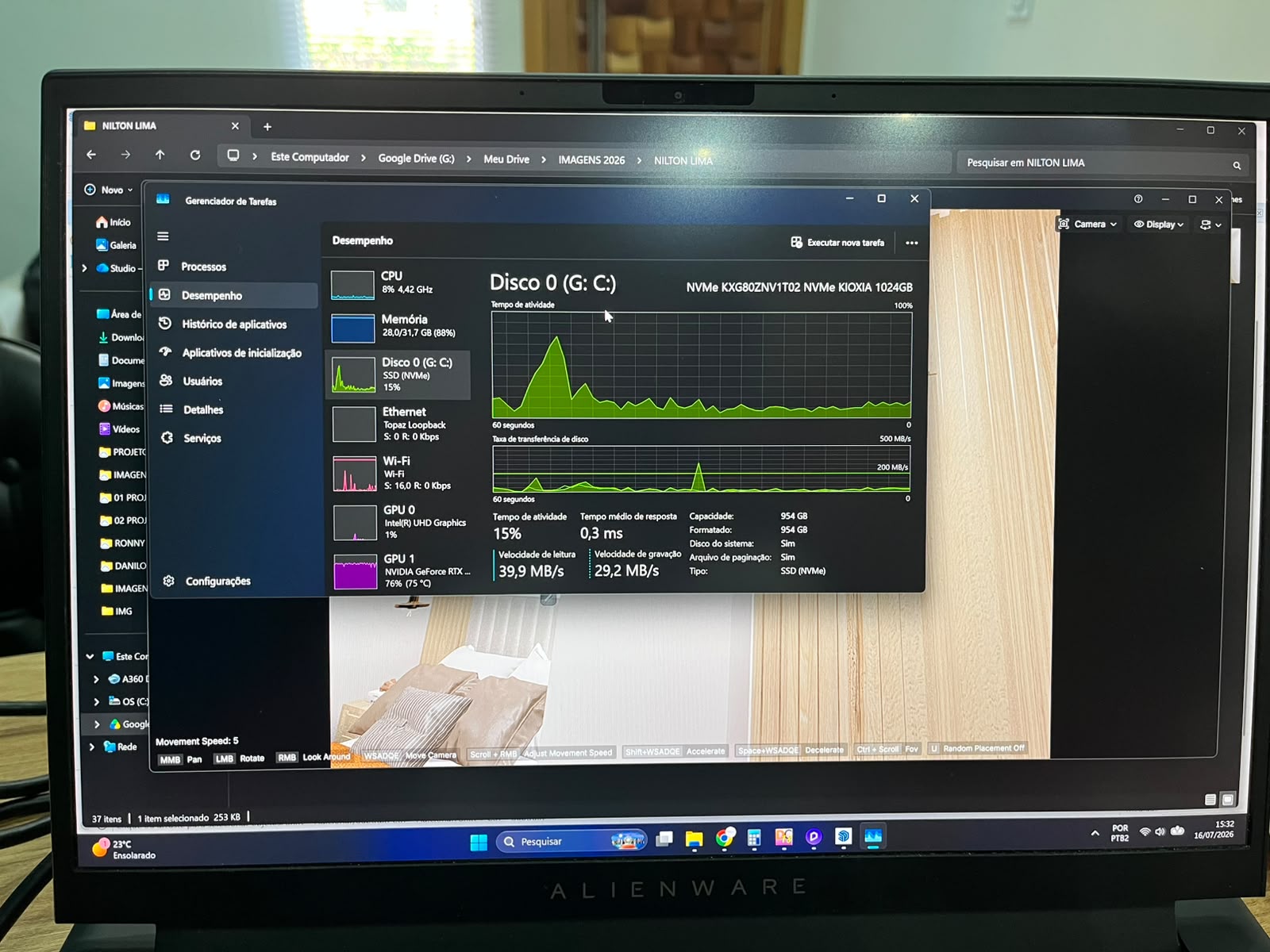
  • While the file is being opened/viewed, can you check your Task Manager> Performance > VRAM Portion? Please send us a screenshot.
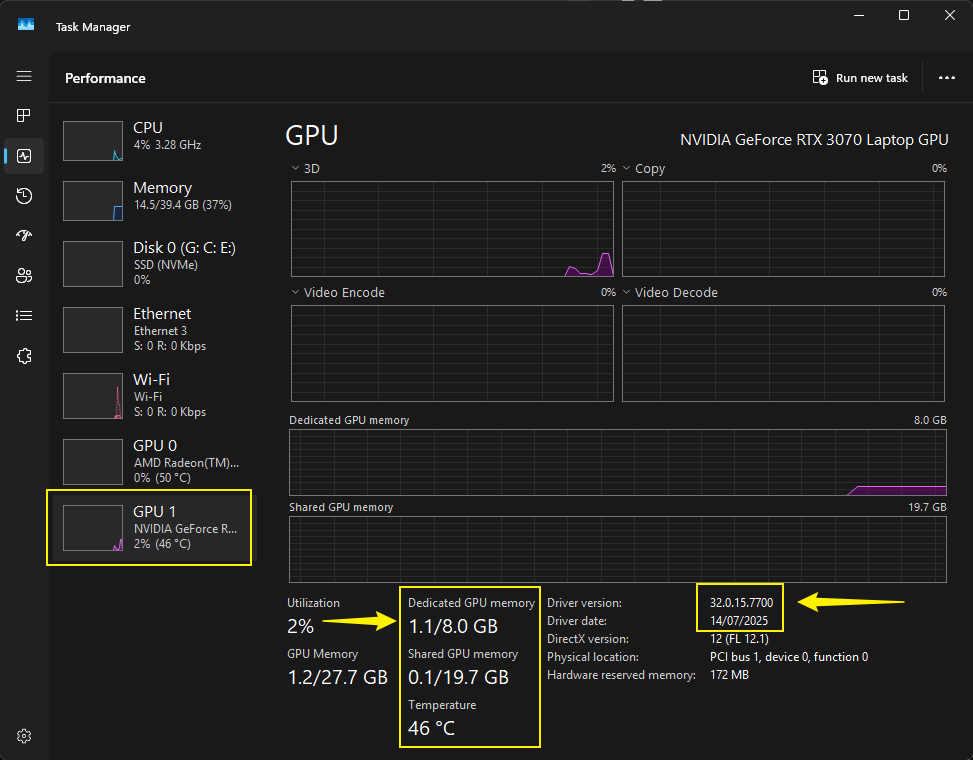
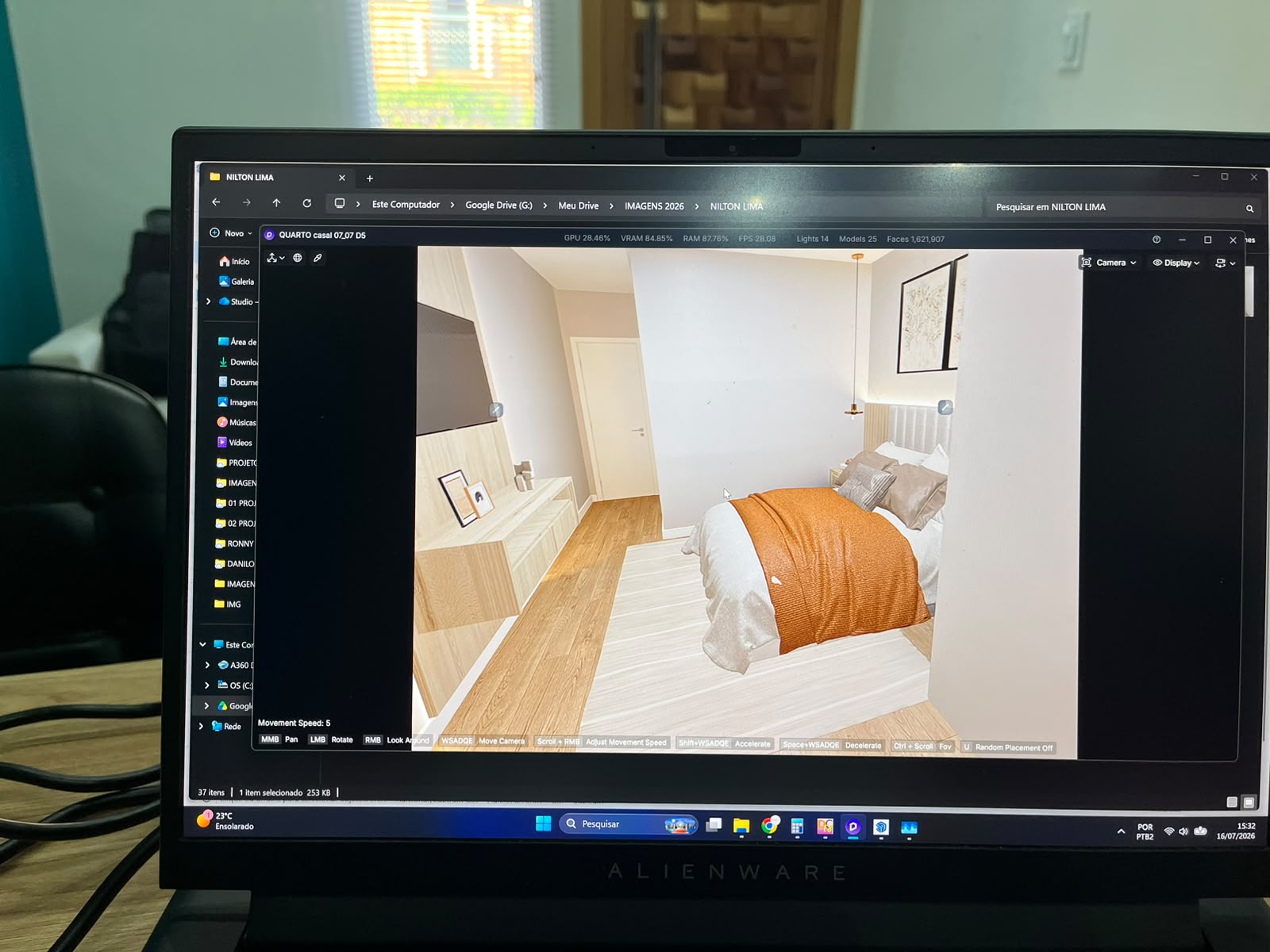
That’s right, it already has that update; it happens with other files too. Do you want me to send a screenshot showing D5 connected to the virtual reality headset?

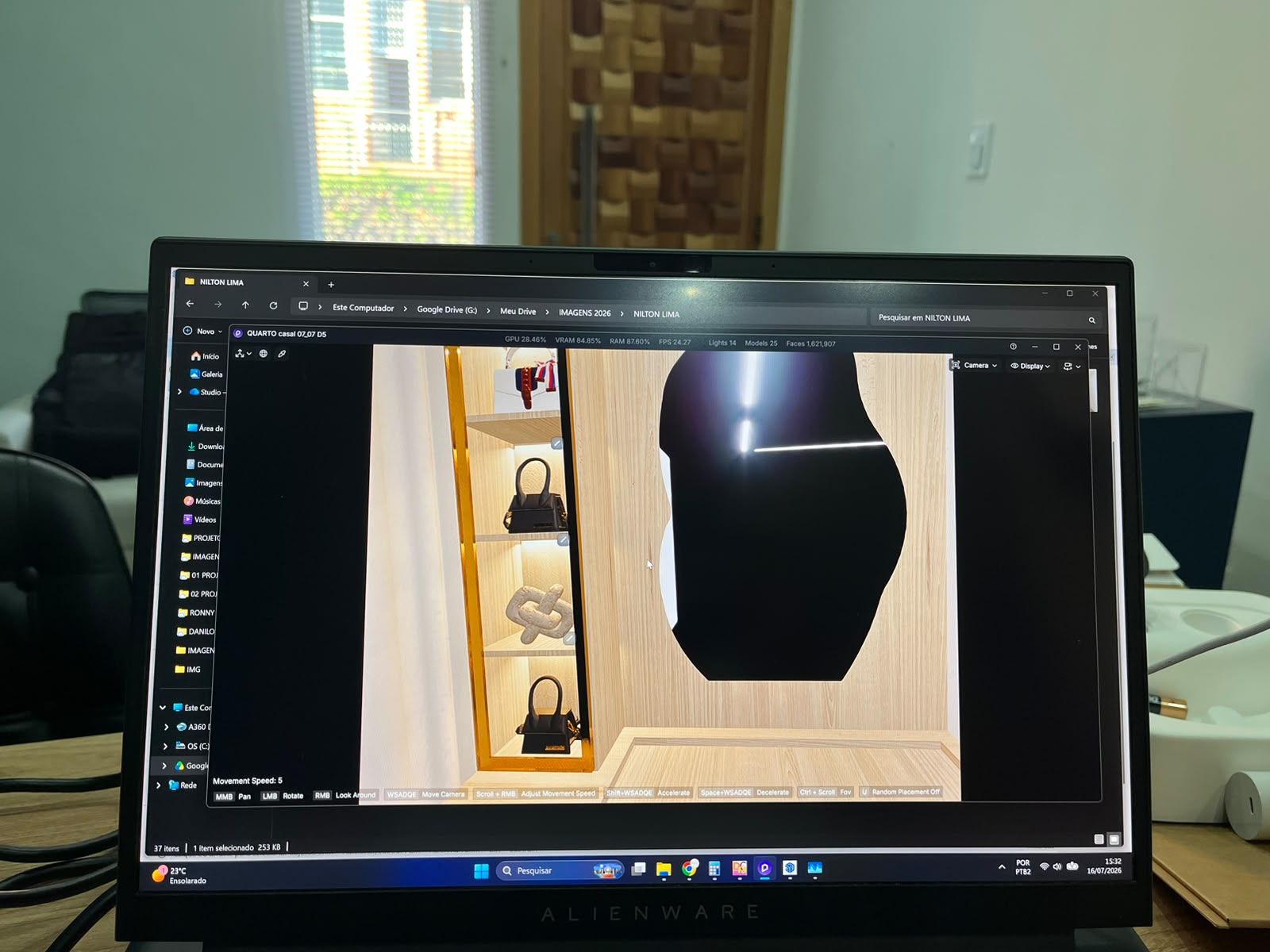
This screenshot shows the scene with the glasses enabled in D5 Render; one detail you can notice is that the mirror doesn’t reflect, and the material doesn’t look quite as realistic.
Uploading: WhatsApp Image 2026-07-16 at 15.37.17 (1).jpeg…
Uploading: WhatsApp Image 2026-07-16 at 15.37.17 (2).jpeg…
Uploading: WhatsApp Image 2026-07-16 at 15.37.17.jpeg…

Hi @studioimag3m

The screenshots you have provided do not display here in the forum. Please wait for them to load before sending your reply here. Thank you.

Additionally, which VR Quality settings were you using?
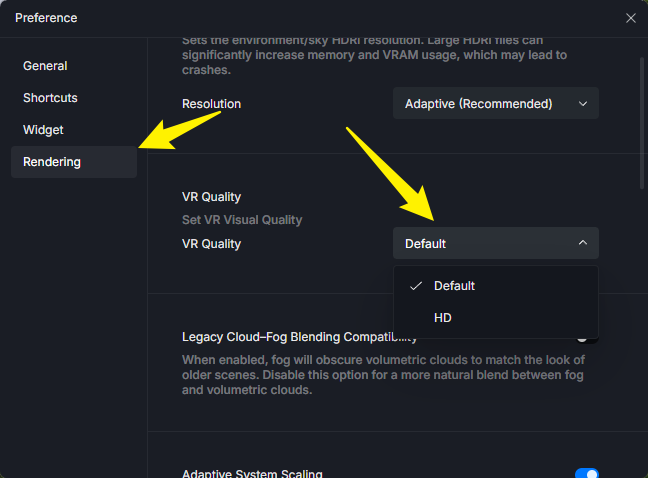
image

  • Default: Suitable for most devices; balanced performance and quality.
  • HD: Enhanced rendering precision, optimized lighting and material reflections. Suitable for high-performance devices or static showcases.

Were you able to use VR Wayback 3.0.1? How does it compare to version 3.1?

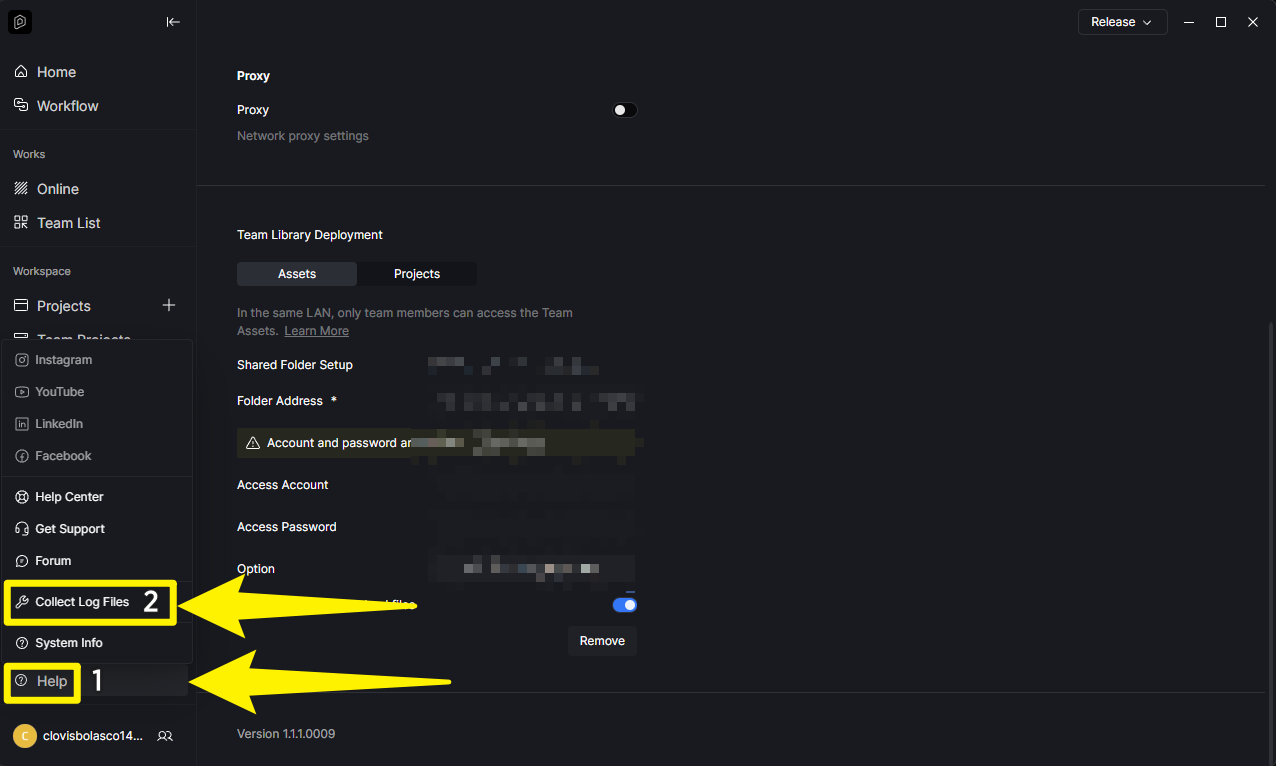
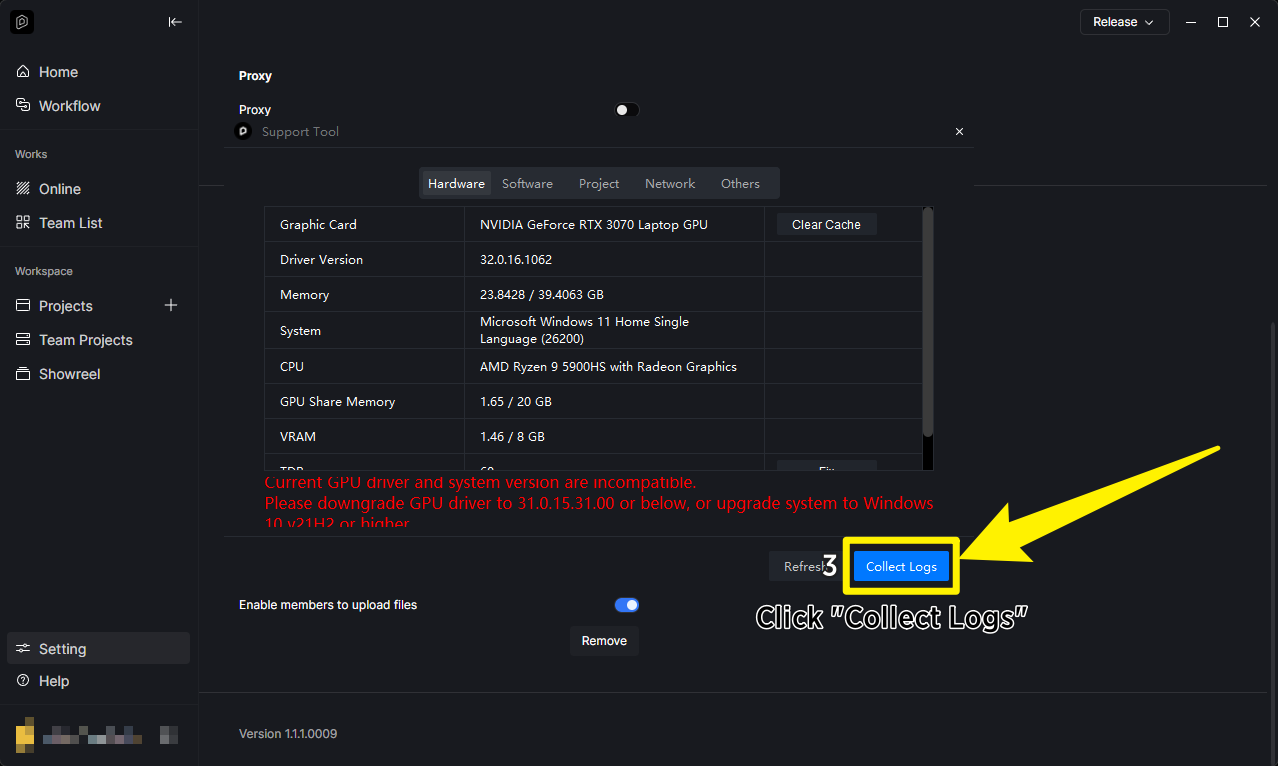
You may generate a link containing these files and send it to me privately.
The headset I’m using is the Meta Quest 3S.


Hi @studioimag3m

I am having a similar issue. Should I start a new Thread or add all my information on this thread? Thanks!

Hi @bcross

Preferably, please add it to this thread to streamline our communication. Additionally, please check out my replies and confirm the following information.

  • Are you also using the same device?
  • Were you able to update your device’s browser?

Here is the link to the file.

Hi @studioimag3m

Can you please check if you’re running Smooth Mode?

  • Try switching to Precise Mode and see if the materials are all displaying correctly.
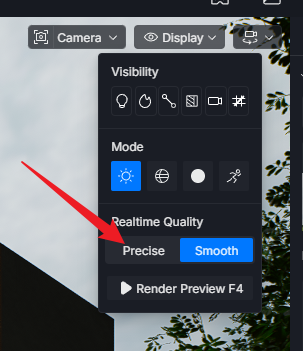
    image
  • We’ve also requested your logs; can you send them to us? Please refer to the images that I have already sent here in this thread.

Okay I am having a poor experience with the vr about 50% of the time. It is often times laggy and the screen will skip around.

Our process

  • Launch Meta quest Horizon and Linkheadset
  • Inside Meta Headset we display monitor to headset
  • Launch D5 Render Model
  • Click on find VR Hedset
  • Then when it kicks us into the VR mode it is laggy about 50 percent of the time

Your questions
Device: Meta Quest 3
D5 Version: 3.1.1.0755
VR Quality: Default
Yes I used VR back in 3.01, I would say that it is close to the same performance.

Task Manager Screenshot while in model

I will send you Log Files in a Private Message

Also, side note we tried this on a 5080 Graphics Card as well.

Thank you for your help.

Hi @bcross

Just to clarify, you’ve mentioned that you have used 3.1.1.0755 but in the logs it shows you’re using the previous version, 3.0.1

  • Does this mean that you have downgraded to this version?

Anyway, based on your logs, we recommend the following steps:

1. Avoid using “Display monitor to headset” before entering D5 VR

Your current workflow of displaying the desktop monitor to the headset before launching D5 VR adds unnecessary overhead and can interfere with D5’s native OpenXR compositor. D5 uses OpenXR directly to render its own stereoscopic view.

Recommended workflow:

  • Connect your Quest 3 via Link (wired or Air Link)
  • Launch D5 Render directly from your desktop
  • Click “Find VR Headset” inside D5
  • D5 will switch to native VR mode on its own

2. Confirm Meta Quest Link is set as the default OpenXR runtime

In the Meta Quest Link PC app, go to Settings → General and verify that the OpenXR Runtime is set to Meta Quest Link.

  • If SteamVR (or another runtime) has taken over as default, D5 VR performance can degrade significantly.

3. Check headset fit and proximity detection

Quest 3 uses proximity detection to manage performance. If the headset fit is loose or you adjust it frequently during use, the headset may think it’s not being worn and throttle performance; this will appear as sudden stuttering. Ensure the strap is snug and minimize headset adjustments during use.

4. Link quality troubleshooting

  • If using Air Link, try a wired Link cable to rule out Wi-Fi interference as the cause of “screen skipping”
  • For Air Link, ensure your PC is connected via Ethernet to a 5GHz Wi-Fi 6/6E router, and the Quest 3 is on the 5GHz band only
  • In the Meta Quest Link settings, try lowering the render resolution/bandwidth and see if stuttering improves

Note: Your logs show you’re running Windows 11 25H2, which is a Canary/preview channel build. This is not a stable Windows release, and we have confirmed multiple cases of GPU driver and rendering incompatibilities on this version. OpenXR VR runtime on a preview OS can be particularly unstable. If possible, we recommend rolling back to Windows 11 24H2 (stable release) for best performance and reliability with D5, or perhaps updating to its latest version.


Additionally, I would also like to suggest a quick test to narrow down the issue.

To quickly identify whether the issue is scene-related or environment-related:

  1. Open a new blank scene in D5

  2. Enter VR mode

  3. Note if stuttering still occurs

  • If smooth → scene complexity is the bottleneck.
  • If still stuttering 50% of the time → focus on workflow, OpenXR runtime, link connection, and OS/driver steps above.

Please let us know your results after trying these steps, and we can assist further.

Clov thanks for your response.

I am using the latest version I just clicked to the older one in the D5 Launcher so I could hover over the new one and see the version type. But I am using 3.1.1.0755 for sure.

I also ensured the settings match your recommendations. I will look into the windows 11 25h2 and have our IT team roll back to the Windows 11 24H2…

I ran the quick test that you recommended in a blank model and it worked great, no issues at all. I then opened up the model I shared with you, and it worked great (No lagging and displayed nicely). I used the left stick to exit VR properly and I took the headset off and passed it to my coworker, once they put it on they headset displayed a black screen. We reset the device several times and when we go to connect to PC the headset displays black (Maybe a Meta issue?).

Also, we are using wired connection to a usbc3 with the meta branded cable. My PC is wired via ethernet.

Hi @bcross

Okay, so it worked normally when you tested it, but it showed a black screen once you passed it to your co-worker?

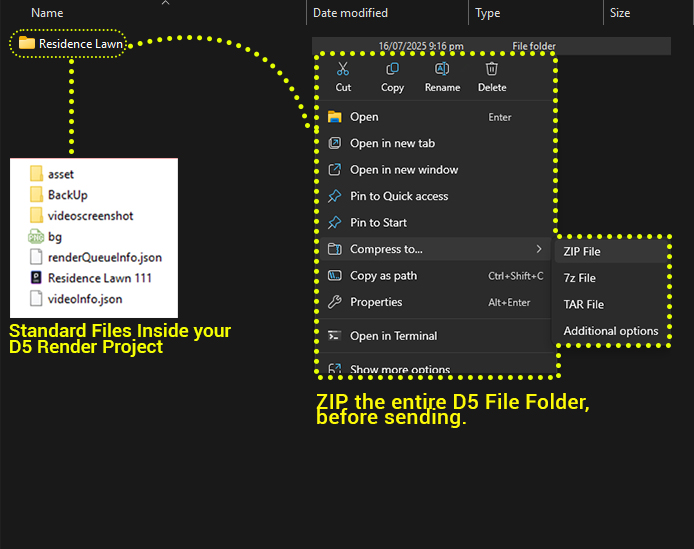
  • Can you please try to open a demo scene file? Perhaps try using Residence Lawn? Just to test if this issue can be replicated across all D5 files?

I haven’t tested this recommendation out but after I sent my previous message we were adjusting settings in the oculus debug tool, and we turned the “Bypass Proximity Sensor Check” to On. It defaults to the OFF position every time you connect your Meta Headset.

Changing this setting helped tremendously. I will update you on your recommendation when I can get to doing it.

Thanks again Clov