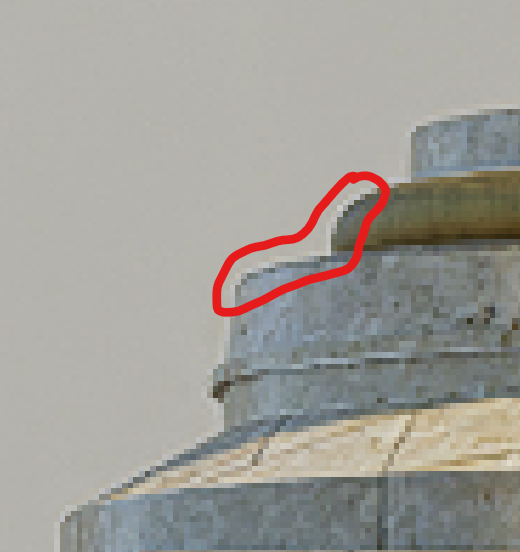
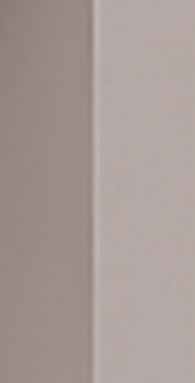
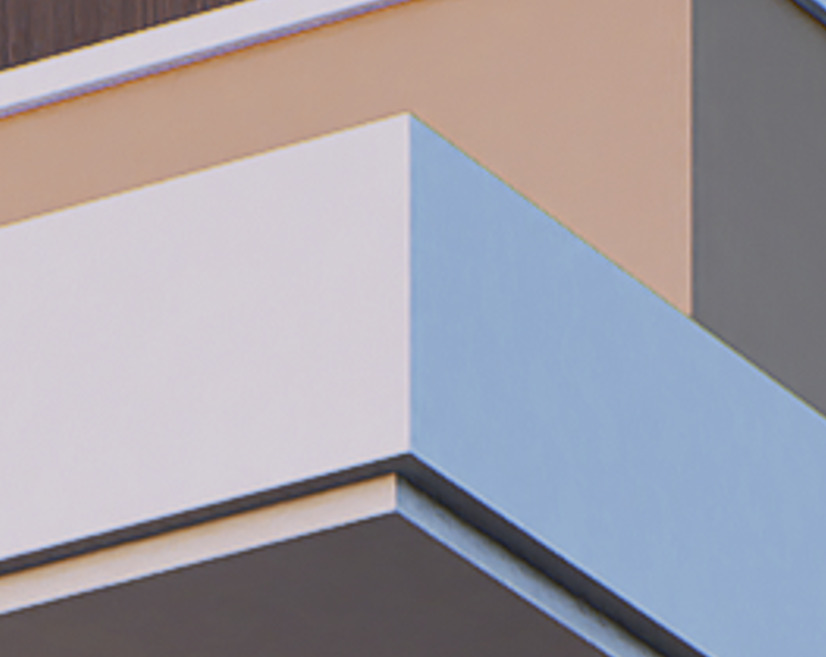
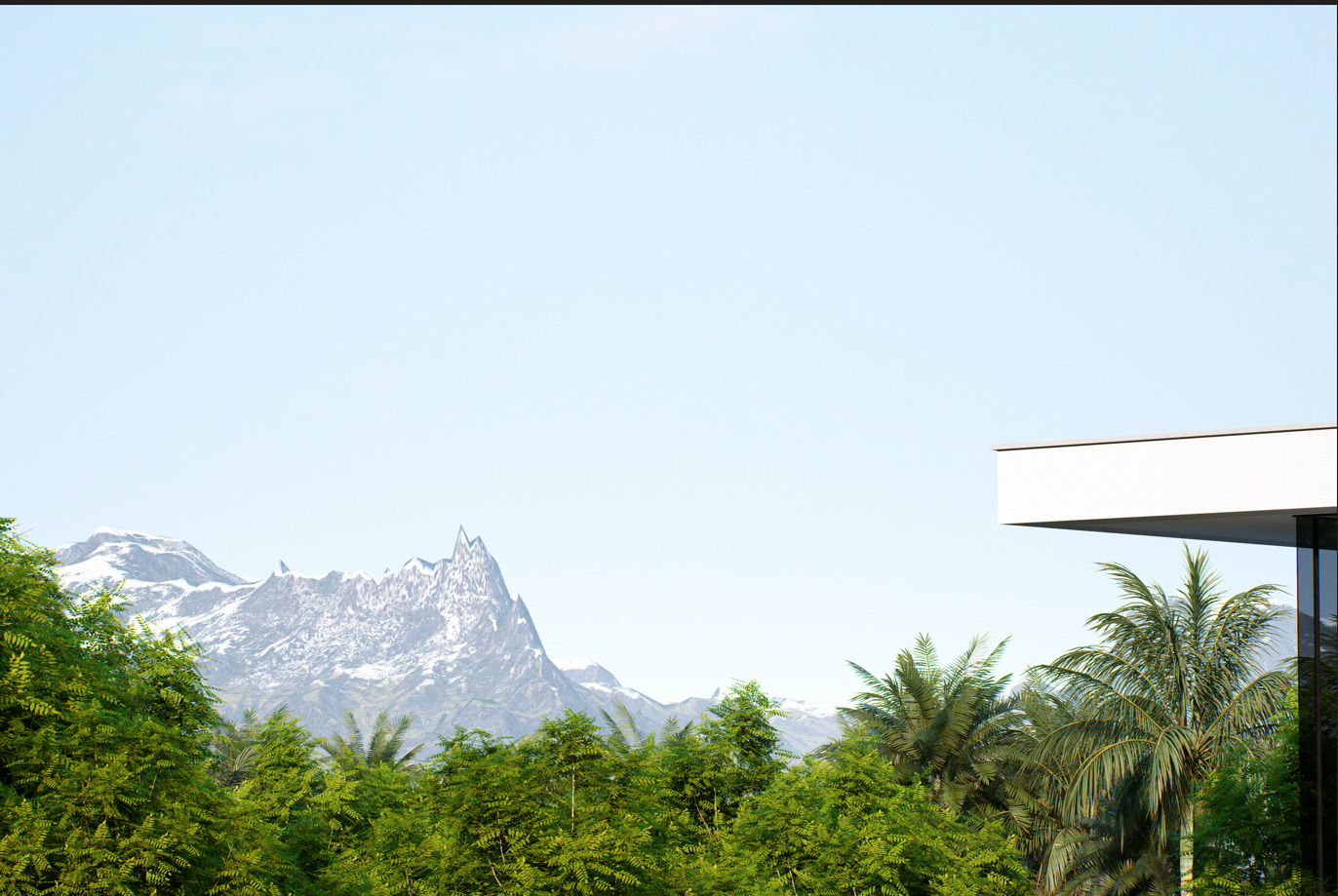
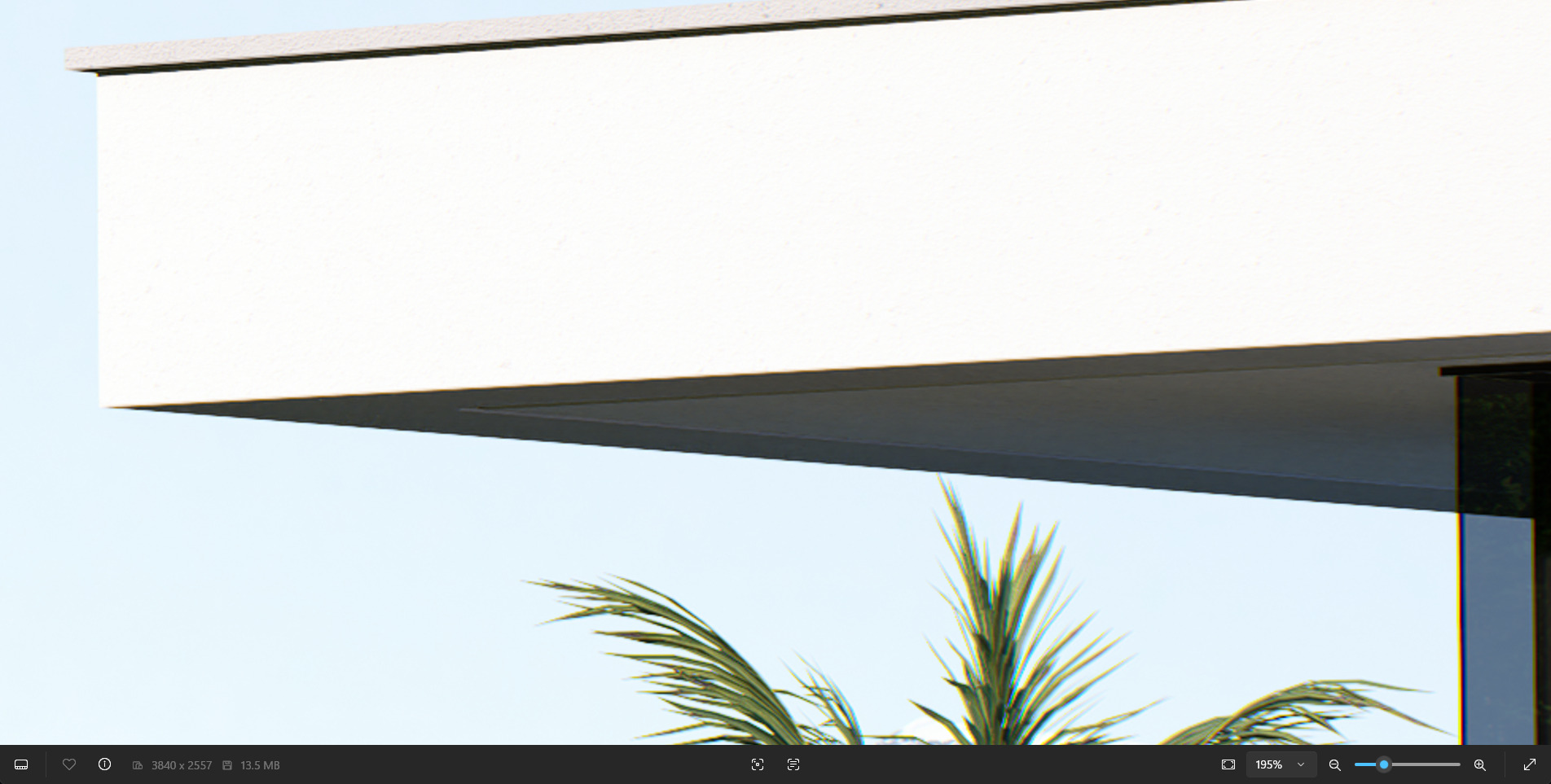
I’ve been using D5 Render for 3 years now and have constantly faced an issue of the renders coming out looking over-sharpened, unlike the results shared on the official D5 channel. I’m attaching a few examples from different renders of mine to illustrate this issue. I tried all the solutions mentioned on the forum, such as rendering in high resolution and turning off SR. The following images have been rendered in 4K without Super Resolution.
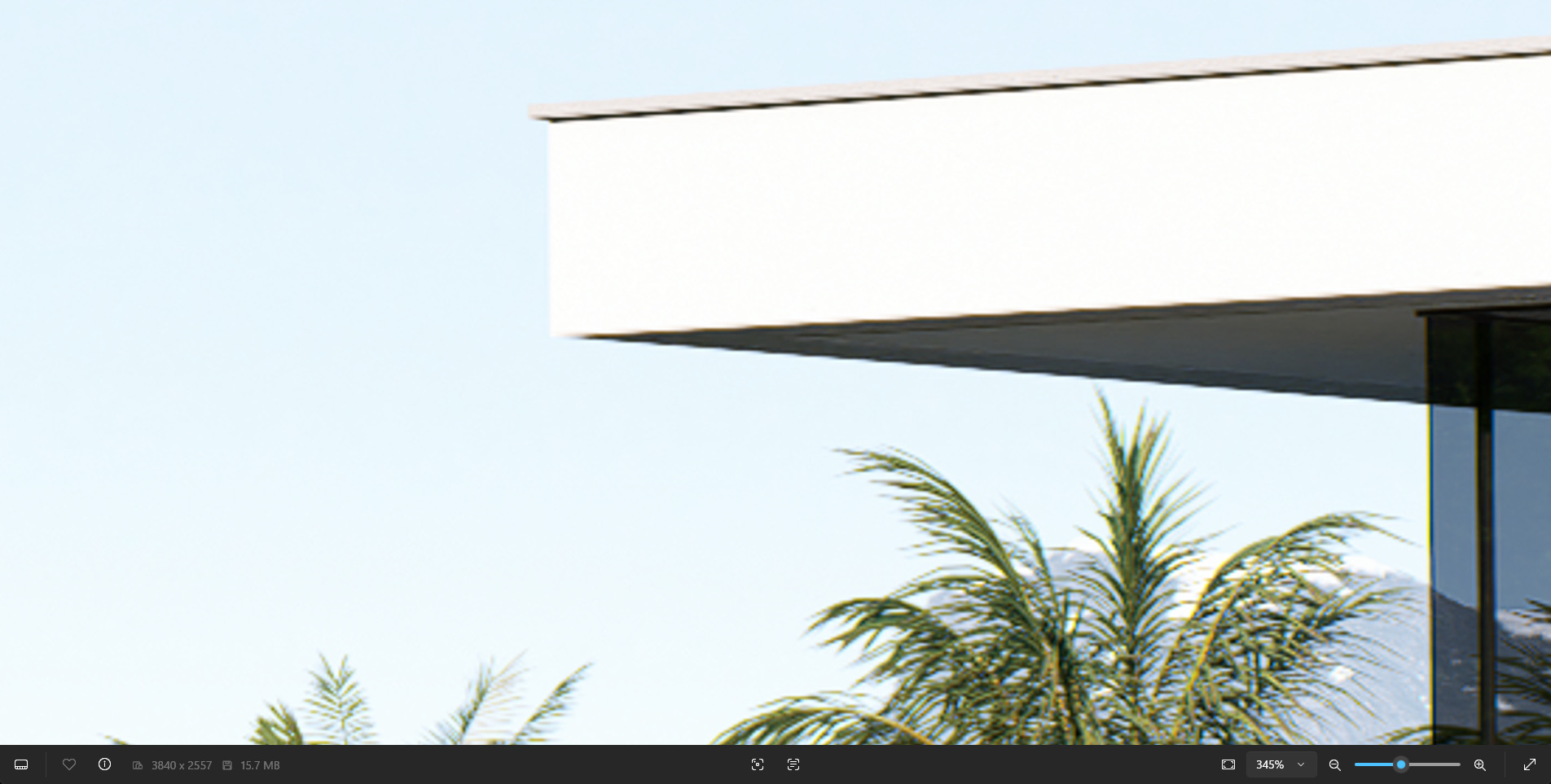
Ultra Sharp Edges present on the facade of a building.
Please help us solve this issue and provide us with a control over the sharpening filter as it detracts from the photorealistic nature of images and makes the images rendered in D5 Render look less natural than fully path-traced edges.
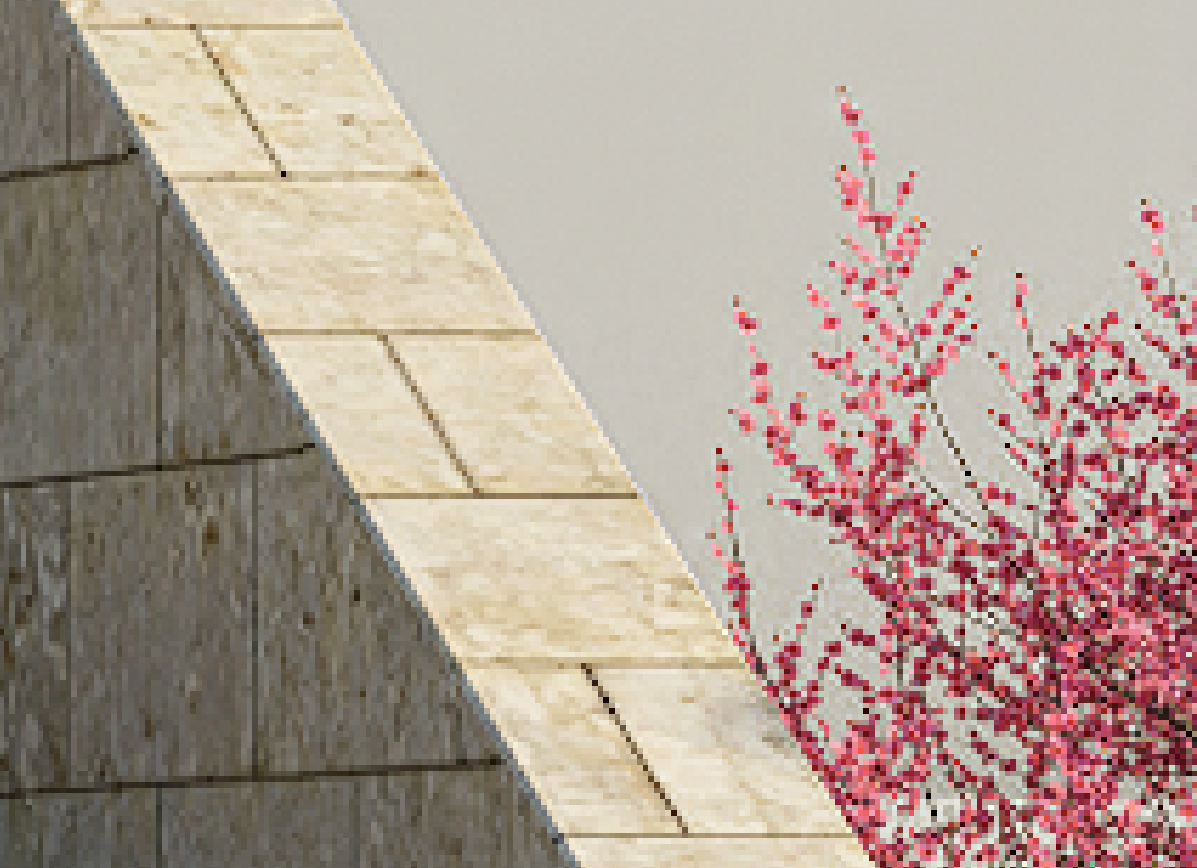
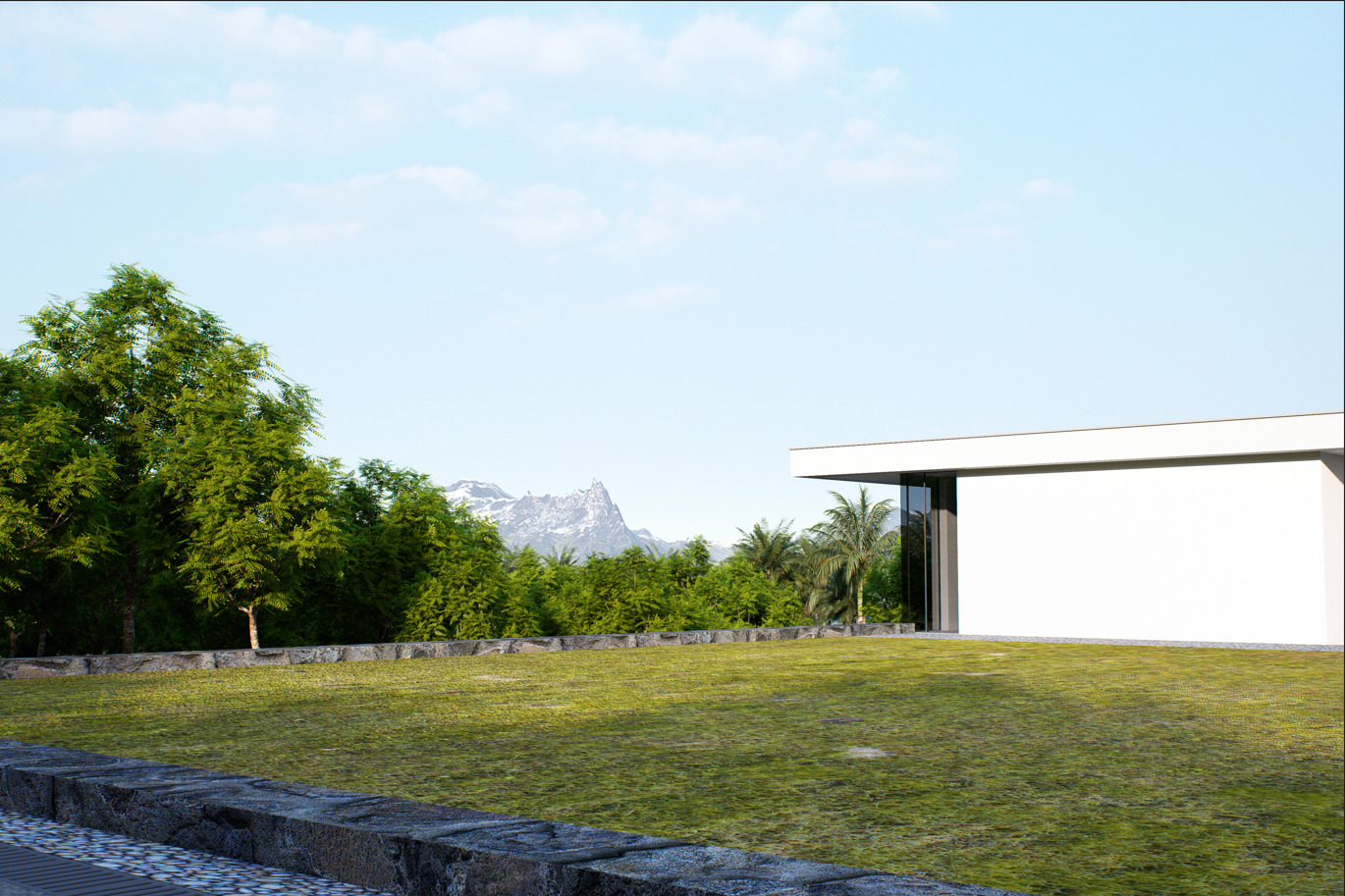
Adding another example from today’s render, notice how the edges of the wall and even the foliage looks extra-sharpened here. It’d be great to have it toned down for realistic results.
Do you have the original image (without being zoomed)?
Wide-angle shots in D5 appear blurry because more of the scene is captured in the same resolution, so each object gets fewer pixels and less detail.When you use a wide-angle lens, more of the scene fits into the frame and each object occupies fewer pixels. Which results textures and fine details look softer or blurry
Hi Clov, thanks for the detailed response and your examples. I’ll send you the original image privately.
I checked and in the first image the camera has a focal length of 35mm and FOV of 54.4.
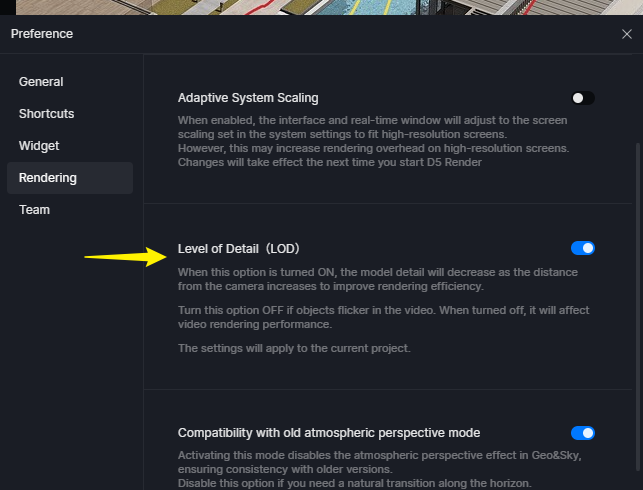
LOD is turned On but I’ve been facing this issue before the LOD option was added to D5
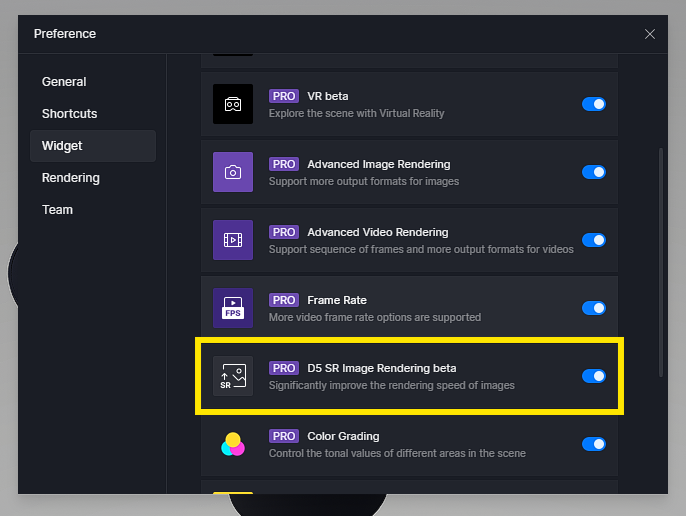
I have disabled D5 SR
The difference between different FOVs is quite apparent, but is there any workaround to fix it for wide angle shots as well? Also, can you please tell me if the Anti-Aliasing issue being worked on?
P.S. While browsing the forum my solution I found a post that suggested setting the NVIDIA Control panel setting “Adjust image settings with preview” to “Let the 3D application decide”. Upon doing this, a major issue i faced about textures being blurred at a distance was solved, but I’m still facing the sharpness problem. Are there other corresponding settings to make it better?
I believe your goal is to ensure that every small detail is clear, even when zoomed in. You can achieve this by increasing the image’s resolution to 16K. While this will significantly increase the rendering time, if this is what you’re aiming for, it’s worth a try.
These outlines are quite natural, unless Outline under Effects is enabled. Can you confirm?
There are no workarounds for the anti-aliasing issues; it is prevalent on thin elements incorporated in your design.