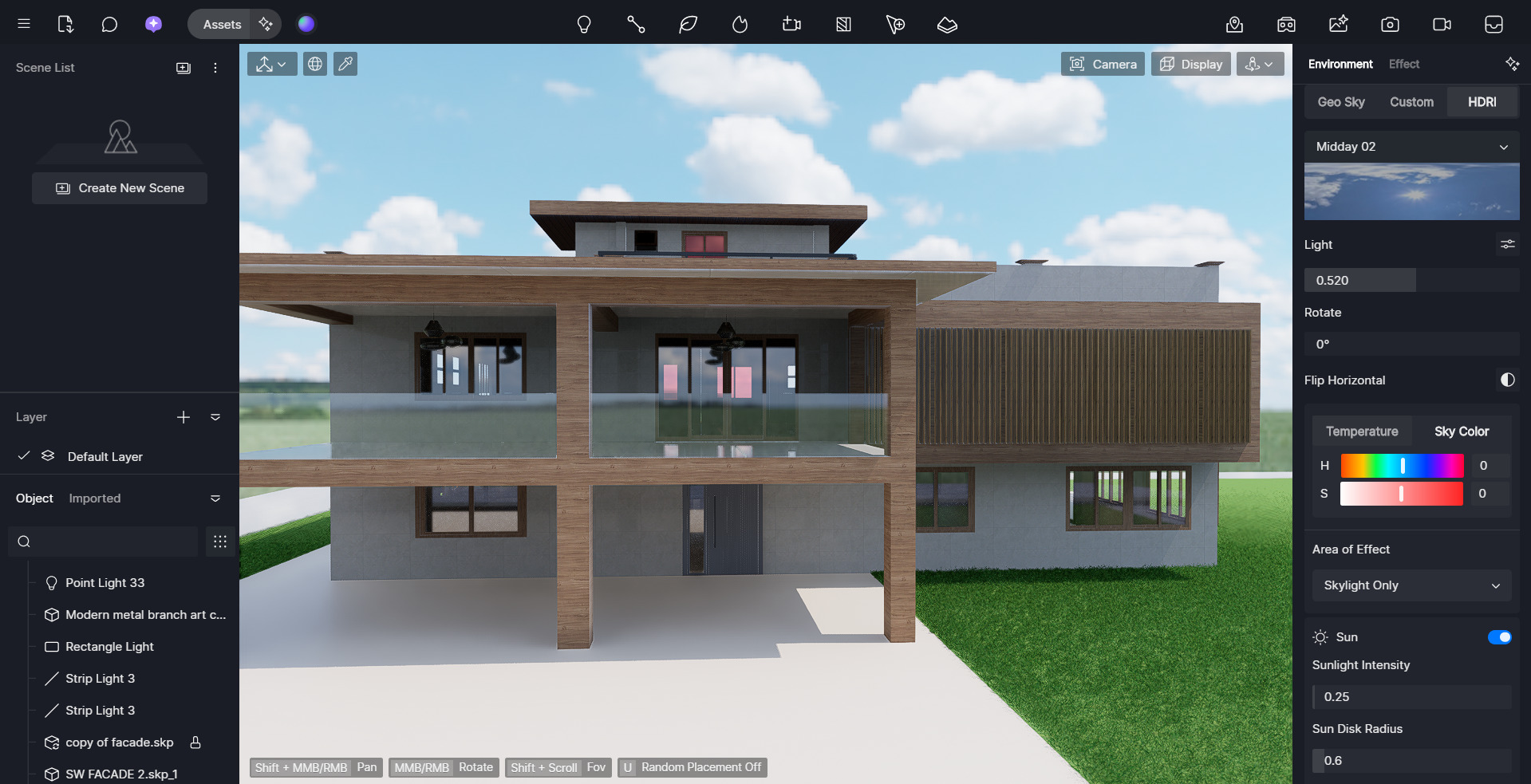
Hi everyone,
I am facing a situation that I am not sure how to handle the best way possible.
I have a SketchUp file and a D5 model linked to it. I already have a couple of options in the SketchUp file(tags), and everything is good so far
Right now, I am going to duplicate the SketchUp file and save it as a new one (option 2)
The reason for that is the main file already has lots of different options, and also, the file is very messy, and we are not able to add to it anymore. The second reason is that the “option 2” edits are very massive, and it is going to be way different than the first one. third reason is I wanted to keep every work I have done on D5 so far like scenes, clips, material, environment, assets, etc. as it is; so desicion is made by the studio and we are going to make a duplicated sketchup file and continue noew options on that one; we still want the first file in the model as it is for furthur progresses.
This is what I have done so far:
copied a new SketchUp file, imported it into D5, and set the location x,y,z same as the old model, so it is exactly in the same spot
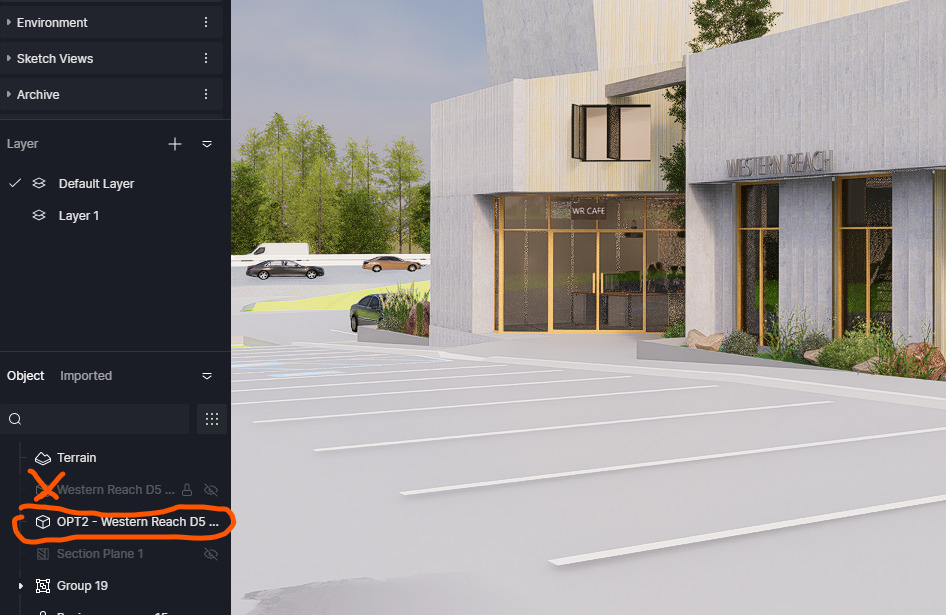
I want to see the materials on the new imported model, same as I have done on the old one, but I see raw materials from SketchUp on the option 2 model
As far as I experienced, the D5 material is going to link with a SketchUp material, but why is it not showing up in the option 2 same as the base model, since they are two identical files? I prefer not to match all the materials one by one (using i/o shortcuts)
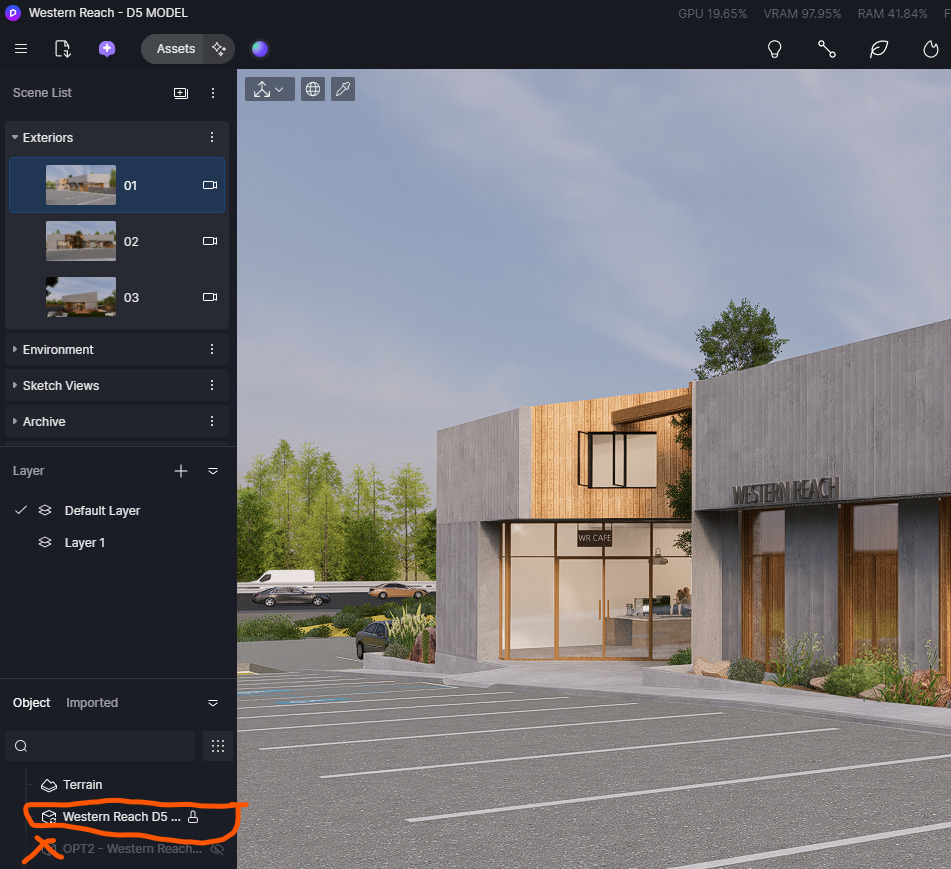
Below are two sample images, old and new imported model, showing up differently: