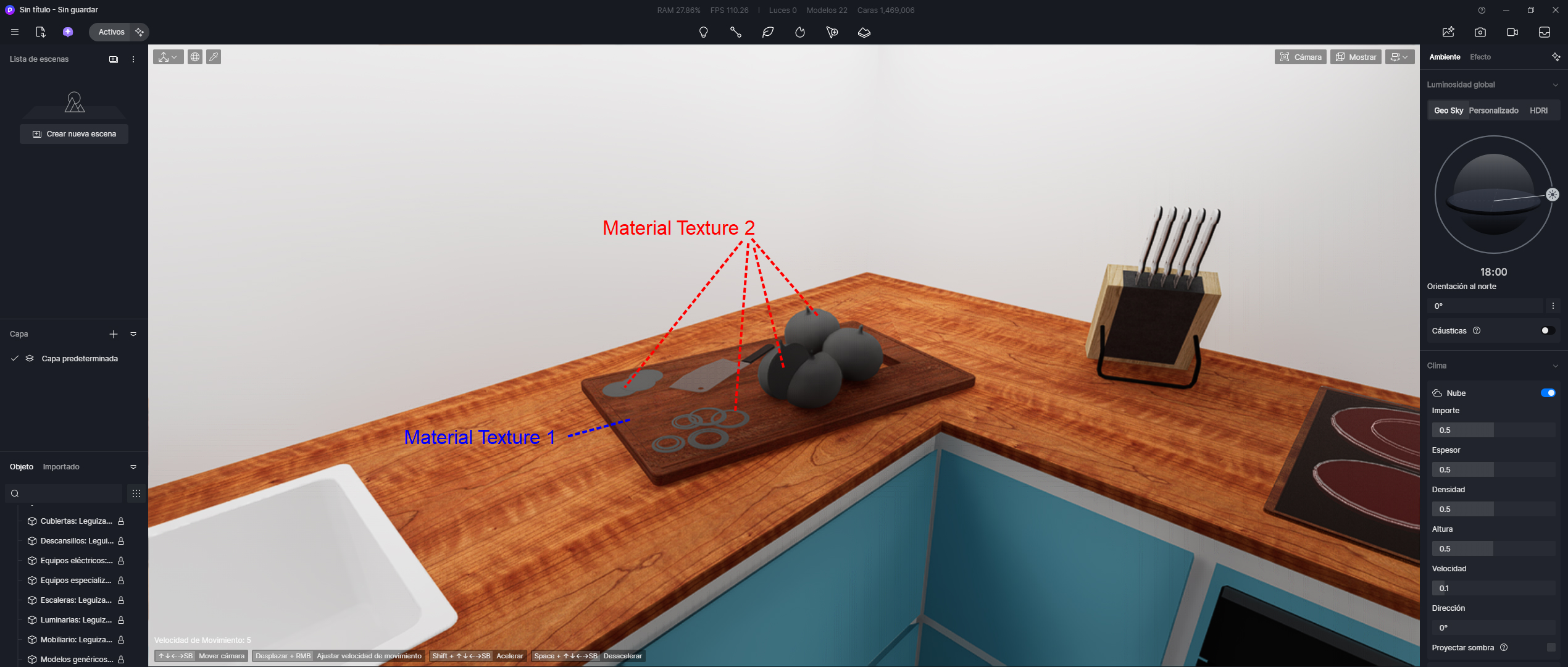
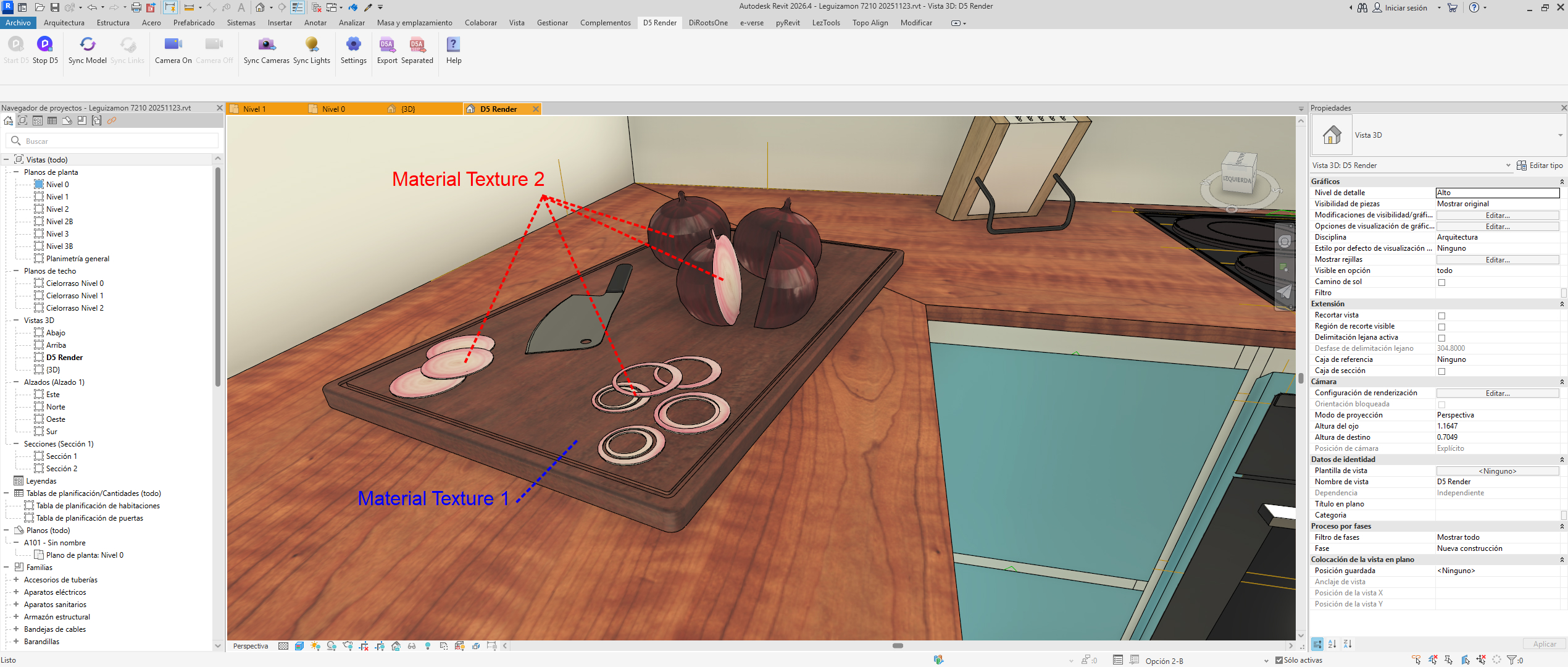
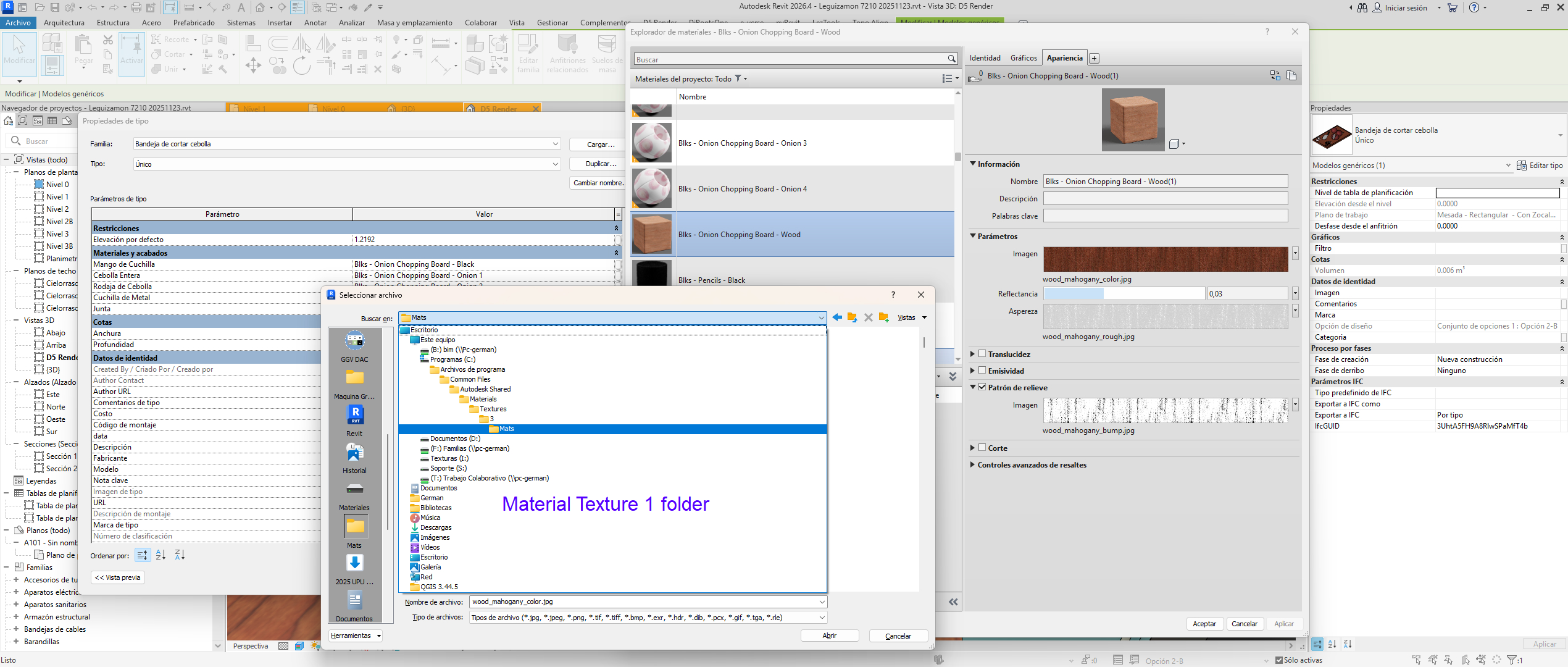
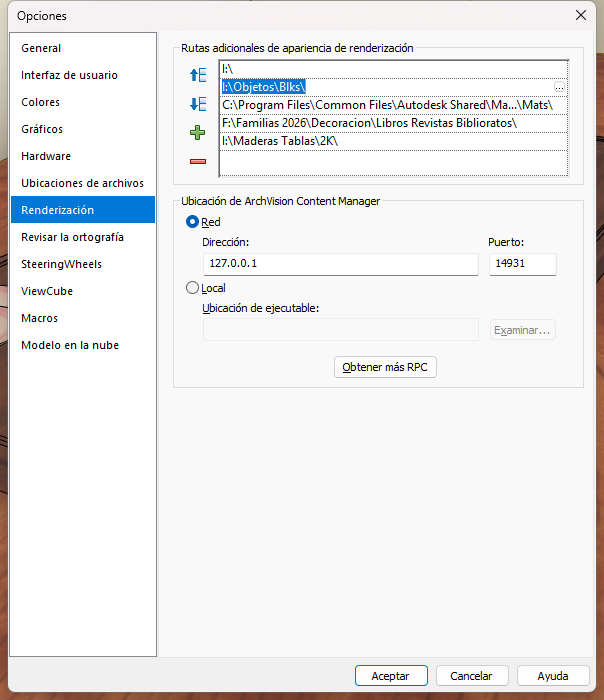
Textures saved in a different folder than the original Revit material’s texture folder are not loading.
If a new material is used and its texture folder is different from the Revit folder, the texture is not loading in D5.
I am using the latest version of D5 (2.11.1), the latest version of the Revit plugin (0.48), and the latest version of Revit (2026.4). Changing the graphics drivers does not resolve the issue. Changing the import method from Revit to D5 also does not solve anything. No matter what combination I try, it doesn’t matter.
In my case, I found that the “long path names” option was enabled in my Windows settings. This was causing texture exports to fail in both D5 Render and other programs.
I disabled this setting, and almost everything started working fine again.
In the specific case of Revit, I used the PyRevit program with the “Relink Textures” function, located in the Edit menu. With this function, I then exported without problems, and the textures worked. This was only necessary for old files saved before disabling the Windows setting. Everything works fine with new files.
Thanks for sharing your solution. That’s really helpful. This will likely help others who run into missing or broken textures in D5 and similar software.
I’m facing an annoying issue , and it is already making me lose a lot of money.
everytime I save my file and turn the software off, when I open it again in rvit , start D5, sync to local project … I lose everything I did the last day.
open the file just to find out that every ajustment I made to every material, every map, and cameras are lost. losing a whole day of work and a lot pf money as every office costs to be open and produce.
nothing was changed from one day to another, not in the computer, nor revit, nor d5.
What is going on ? what is wrong ? what is the problem ?
This happens to me when I change the name of the Revit file.
For example:
“Mountain House 2026-02-04” to “Mountain House 2026-03-15”
Any change to the Revit file name, no matter how small, causes the loss of links between the materials.
I can’t completely fix this with the dialog box that automatically pops up and asks me again which D5 Render file to link the Revit file to.
In that dialog box, it asks if the materials from D5 Render should be retained.
With this method, I can keep most of the materials I assign in D5 Render. For some strange reason, it doesn’t work for all of them.
All of this only happens if I change the name of the Revit file.
If I keep updating the Revit file, saving it with the same name, it always remains linked to the same D5 Render file.
In that case, I don’t have any problems, and they always respect the materials I choose.