I am a user currently utilizing D5 Render Pro. I am working on an interior animation project that features a folding partition descending from the ceiling to the floor (a travel distance of approximately 2,600mm to 3,000mm depending on the ceiling height).
I have completed the modeling in 3ds Max and successfully imported the animation into D5 Render using an .abc (Alembic) file.
My current camera path is approximately 5,700 frames long. I would like the folding partition animation to trigger and run for about 100 frames, specifically starting from frame 2,600 of my total timeline.
However, I am having difficulty finding the setting to offset the animation start time or designate a specific frame (frame 2,600) for the .abc file to begin its playback. Currently, I cannot find a way to sync the object’s animation with the specific section of my camera path.
I truly enjoy using D5 Render, but this particular issue has been quite challenging. Could you please provide a guide or a solution on how to set a specific start frame for imported Alembic animations?
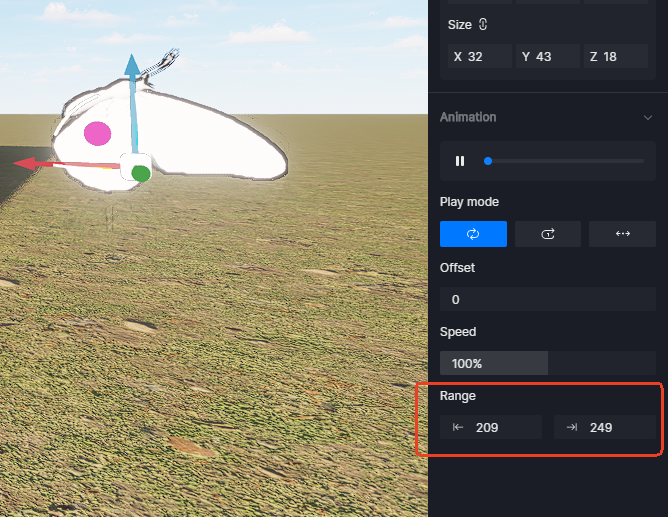
May I know which version of D5 are you currently using? In 2.11 there was a known issue with offsetting imported .abc files, Modifying .abc file’s Range in 2.11 has no effect.
When you set a custom animation range for an .abc file (for example, starting at frame 980 out of 1000), it doesn’t respect that setting.
Instead of starting the animation at your designated frame, the render defaults to the beginning of the baked animation (frame 0).
This issue is not evident on 2.10 and only in 2.11
D5’s dynamic models are not affected only .abc files.
And this issue was fixed with the new 3.0 update, if you’re still experiencing this issue and it’s the same with the description that I have shared, can you share to us the .abc file?
I am a D5 Render Pro user currently using version 3.0.
I have attached an .abc (Alembic) file to this email for your review. This file contains an animation of a folding partition that descends from the ceiling.
My project has a total timeline of 5,700 frames. I would like to know if it is possible to set this specific .abc file to start its animation at frame 2,600.
I want the partition to remain at its starting position (on the ceiling) and only begin moving once the playhead reaches frame 2,600. Despite exploring the new 3.0 interface, I haven’t been able to find a way to offset or delay the start of an imported Alembic animation to a specific frame.
Could you please check the attached file and let me know:
Is it possible to designate a specific start frame (frame 2,600) for this .abc file within D5 3.0?
If so, could you provide a brief guide on how to achieve this?
I appreciate your help as this is crucial for my current project.
Following up on my previous inquiry regarding the folding partition animation (starting at frame 2,600).
Currently, my .abc file only contains 100 frames of animation (from frame 0 to 100). However, my D5 camera path is 5,700 frames long.
I would like to confirm the correct workflow for D5 Render 3.0:
Do I need to export the .abc file with the exact same timeline length as my D5 project?
Specifically, should I:
Set the 3ds Max timeline to 5,700 frames.
Keep the partition stationary from frame 0 to 2,599.
Animate the descent from frame 2,600 to 2,700.
Export this entire 5,700-frame sequence as an .abc file?
Is this the only way to ensure the animation triggers at the correct time (frame 2,600) within D5 Render, or is there a setting within D5 3.0 to offset a shorter 100-frame animation to start at a specific point?
Extend the timeline to 5,700 frames in Autodesk 3ds Max and keep the object static until frame 2,599. Animate the object from frames 2,600 to 2,700, and then export the entire animation as an Alembic file. This process ensures perfect synchronization; however, it results in unnecessarily large files and longer export/import times. But if this does not bother you, then you may freely proceed.
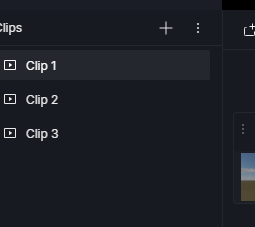
Another option is to place the animated object out of view initially, or implement scene or camera cuts to reveal it only at the desired moment. For example,
Clip 1 - Establishing / idle
Clip 2 - Transition toward object
Clip 3 - Animation moment
But this method will require you to compile these clips using a video-editing software, if this is a hassle for you then your proposed workaround should be enough