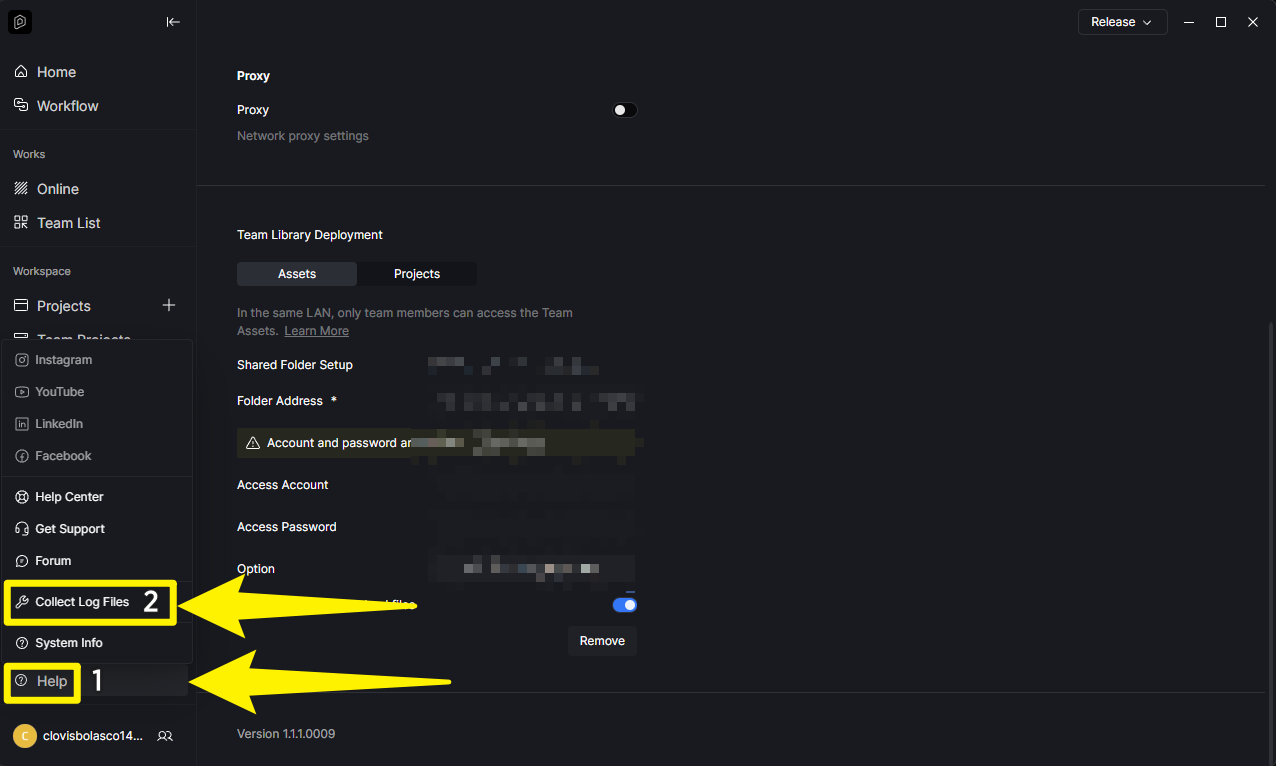
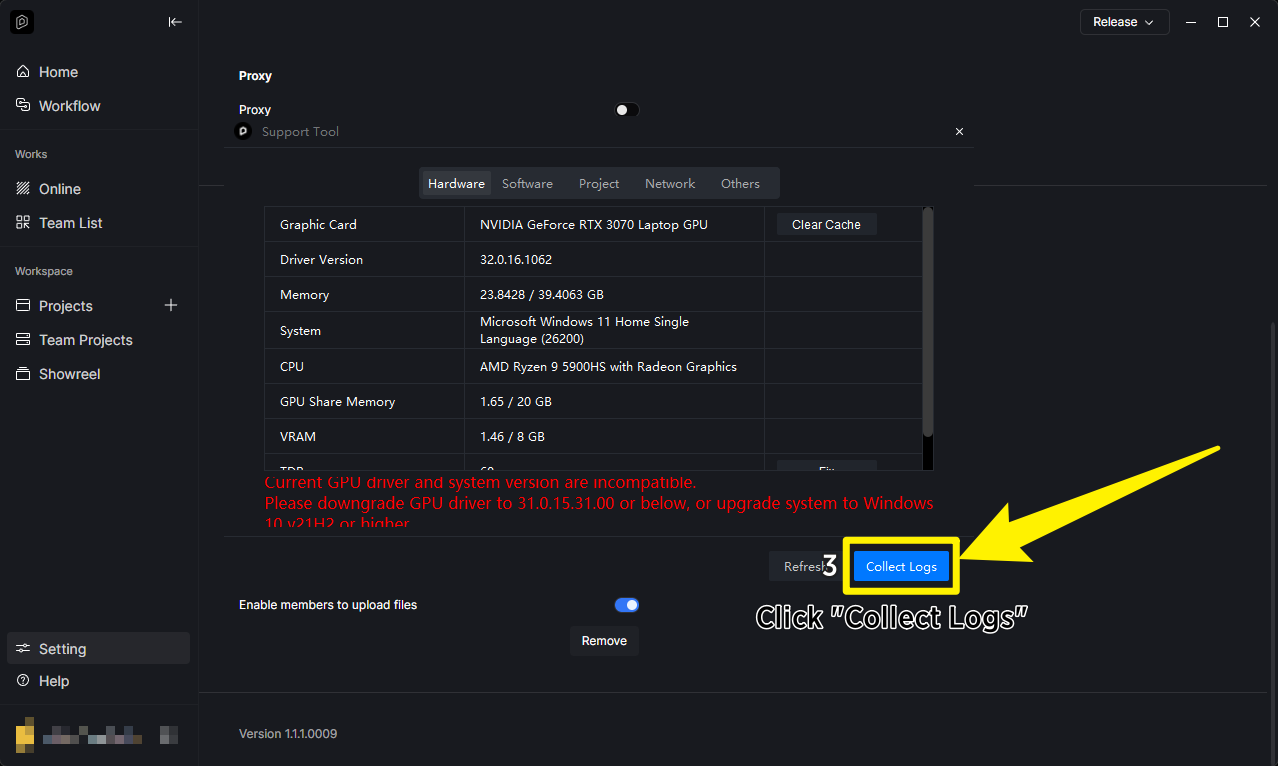
I’m experiencing a recurring issue with D5 Render.
System specs:
Ryzen 7 3700X
Gigabyte RTX 3060 12GB
32GB RAM
Windows 11 Pro
HDMI connection
Issue:
When launching D5, the entire system becomes sluggish for a few seconds and then the monitor loses display signal (black screen). However, the PC itself continues running normally:
audio keeps playing
ongoing calls continue
keyboard and mouse remain powered
This happens with both new empty projects and existing projects.
I already tried:
DDU clean uninstall
Installing NVIDIA Studio Driver
Reinstalling D5
Interestingly, I experienced the same issue in the past and reinstalling Windows solved it temporarily, but the problem has now returned.
Has anyone experienced something similar or found a solution?
The issue you’re experiencing, where your monitor loses signal while the PC continues running, is typically related to GPU stability, driver conflicts, or other system-level issues.
Since D5 Render is a GPU-intensive application, it relies heavily on your graphics card. This behavior may indicate that there is an underlying issue with your GPU or the system handling GPU workloads.
We understand that opening large or demanding projects can sometimes cause D5 Render to crash, especially if the available VRAM is insufficient. However, D5 Render itself should not cause your monitor to lose signal or trigger a blue screen. These symptoms are more commonly associated with hardware, drivers, or system instability.
Please try the following troubleshooting steps:
1. Check Your Hardware Connections
GPU and Power Supply: Make sure your RTX 3060 is fully seated in its PCIe slot. Also, verify that your power supply provides sufficient power. NVIDIA recommends at least a 550W PSU for an RTX 3060.
HDMI Cable and Port: Try using a different HDMI cable or another port on your graphics card. Also, confirm that your monitor is connected to your dedicated GPU.
2. Optimize Your System and D5 Settings
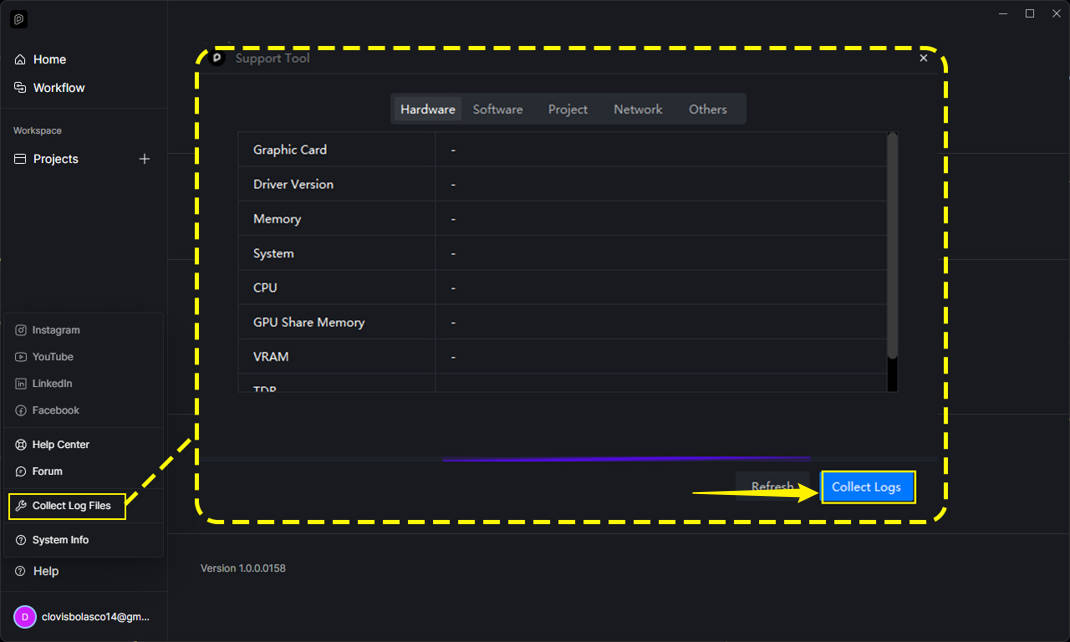
Run D5 as Administrator: Right-click the D5 Render shortcut and select Run as administrator. Wait until the welcome page appears, then restart your PC. This allows D5 to automatically configure certain system settings, such as TDR values, thereby improving stability.
Reinstall D5 to a Simple Installation Path: Uninstall D5 Render and reinstall it to a folder without spaces or special characters, such as C:\D5Render instead of C:\Program Files\D5 Render.
3. Check for System Corruption
Repair Windows System Files: Open Command Prompt as Administrator and run the command sfc /scannow to repair any corrupted Windows system files.
Update Windows: Ensure your Windows 11 Pro installation is fully up to date by going to Settings > Windows Update.
4. If the Issue Persists
Reset BIOS Settings: If any components, such as your CPU, GPU, or RAM, have been overclocked, restore your BIOS settings to their default values.
Perform a Clean Windows Installation: Since reinstalling Windows previously resolved the issue temporarily, a clean installation may help eliminate any deeper system-level problems. Be sure to back up your important files before proceeding.
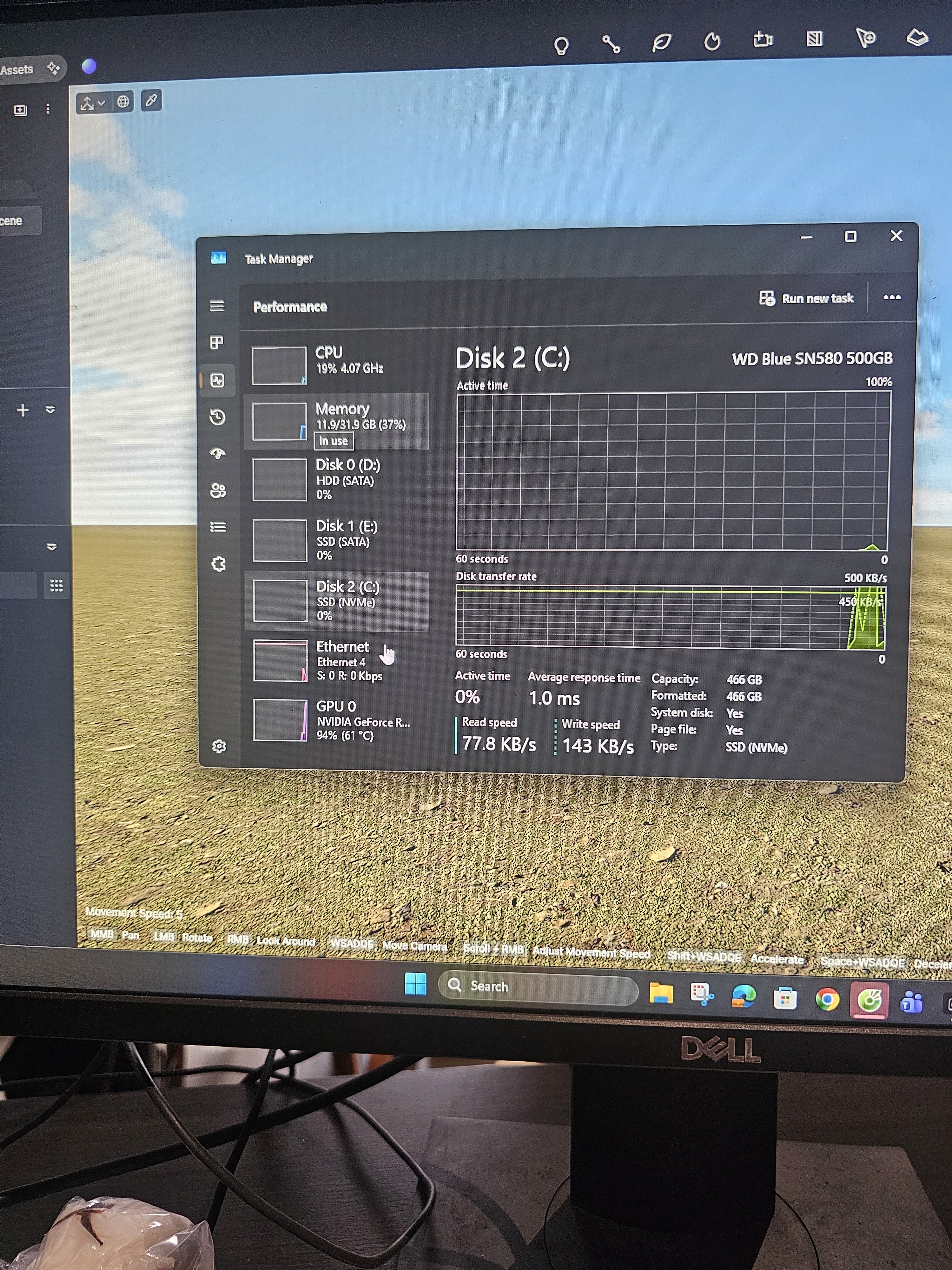
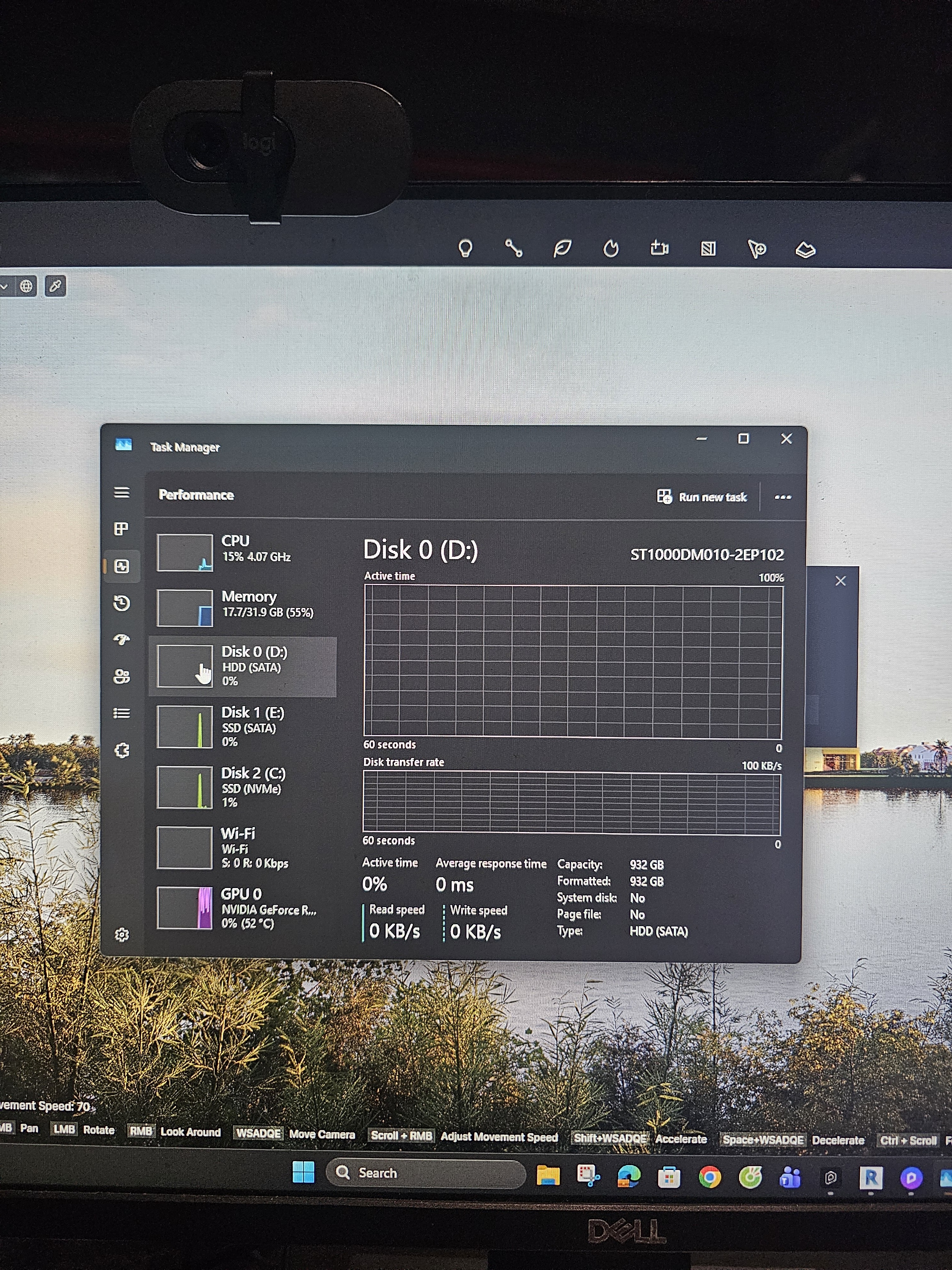
I am experiencing the same issue and have already attempted all of the troubleshooting steps you recommended.
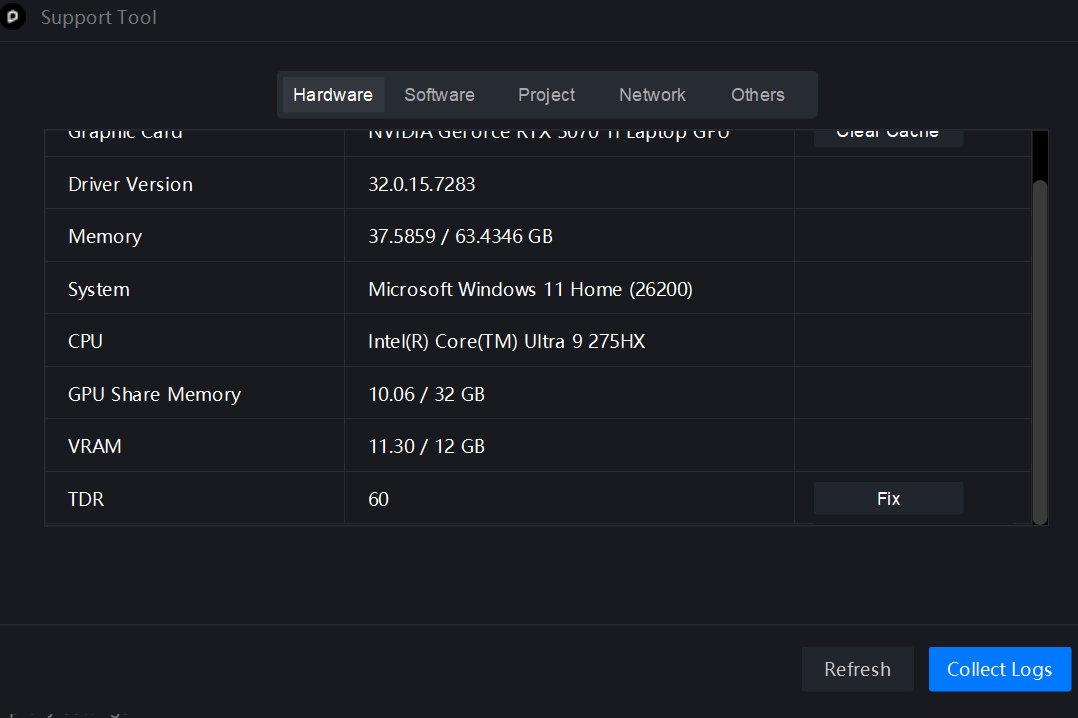
Specifically, I rolled back to the Nvidia Studio Driver version 572.83, which worked correctly before the last D5 update. I also deleted all external elements and reduced the face count to nearly 6,000,000. Despite these changes, the system continues to show a VRAM usage of 95%.