I designed a village with a circle of trees along the perimeter to block the view of an unnatural horizon abd have terrain disabled. However, the village is actually situated in a flat area with fields stretching to the horizon. Question: how can I create a flat landscape extending to the horizon in a full 360-degree view?
Hi, why don’t you use Cesium.
Nice plugin but the Cesium integration in D5 Render is not available for free community users. I am free user.
Hello again, if you can use Blender or SketchUp, you can use RenderDoc, and a plugin that captures both land and buildings via Googlr Maps or Google Earth, transforming them into many faces with Google maps in 3D, but you have to see some tutorials to install it, it’s not simple, you have to do some steps to activate it, after which it’s simple to make it work. Luckily there are many tutorials that explain how to do it, and you can find them on YouTube,

But if you want something quick, just make some background images of your terrain, in PING format. then you load everything into Adobe Photoshop, delete the blue part i.e. the sky, and make it transparent and save it in the same PING format, then when you open D5 on your project you will take some panels in the objects, I think they are free, you rotate them, select the material with the dropper, go to the right drop-down menu of the program. you will see the material there, click on it and in this way you load the image, then afterwards you can enlarge it as you want based on the view, simpler and lighter. Or use an HDRI download it ib google maps with the Street View Download 360 program.
Good Work
Good advice. I use SketchUp, but the “Add Location” feature didn’t work with my version. Instead, I created an image using Google Earth, imported it into SketchUp, and then into D5 Render. It provides exactly the right background. I did have to scale it up significantly. The background now cuts right through the castle’s pond. How can I fix that? If I cut a hole in the SketchUp file, that hole appears everywhere because D5 Render constructs the background from a composite of multiple Google images.
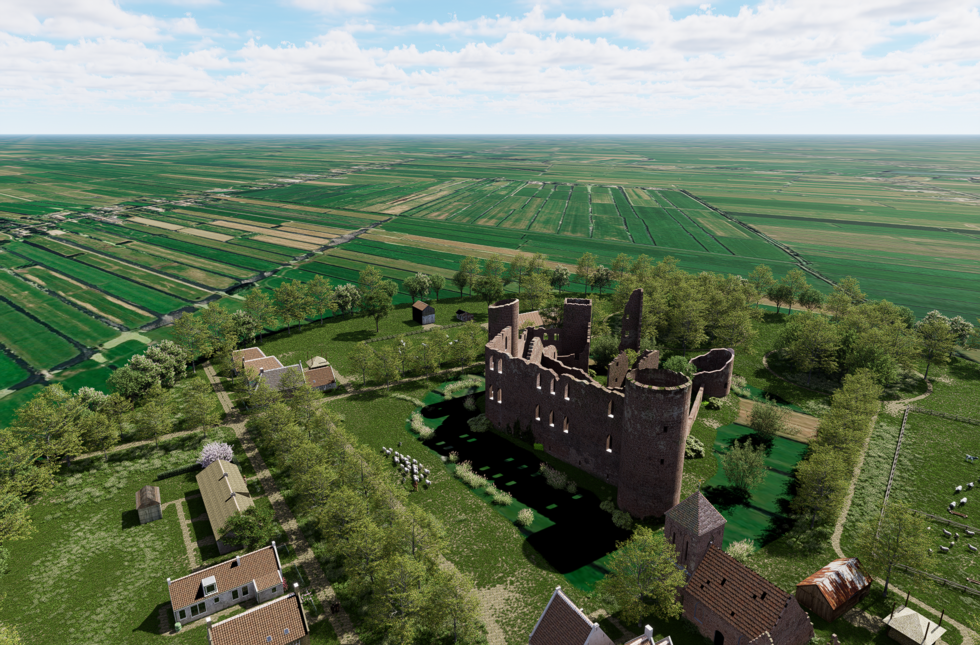
show me on D5 how you position the image in relation to your project
I meant it that way anyway;
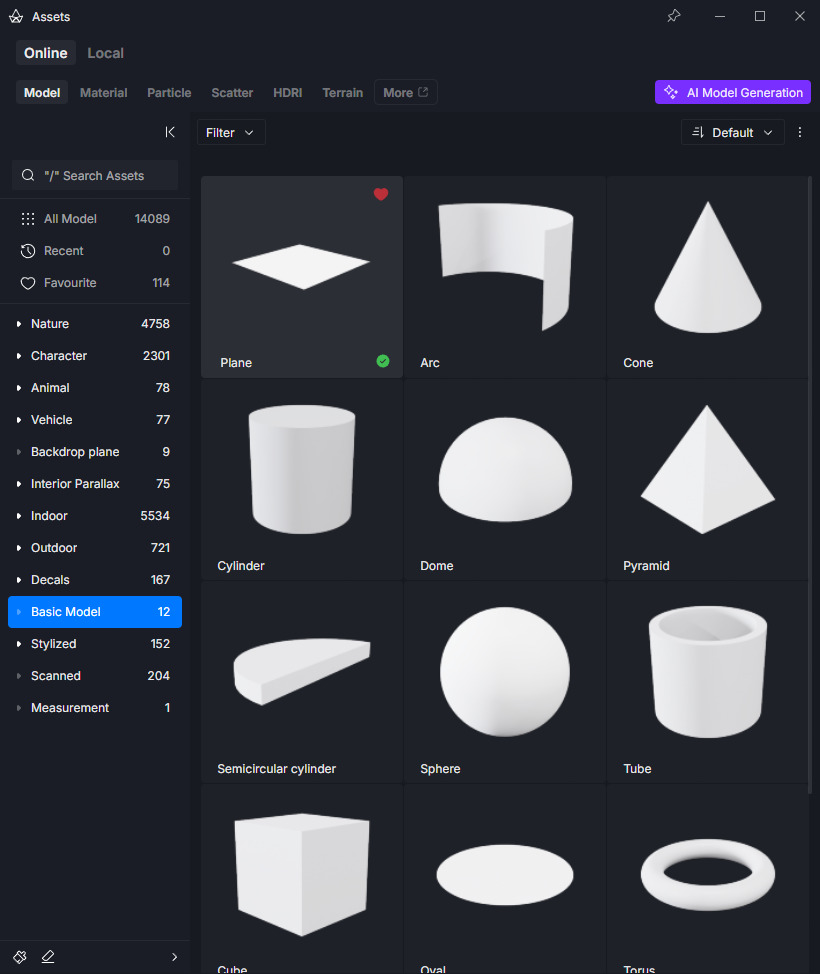
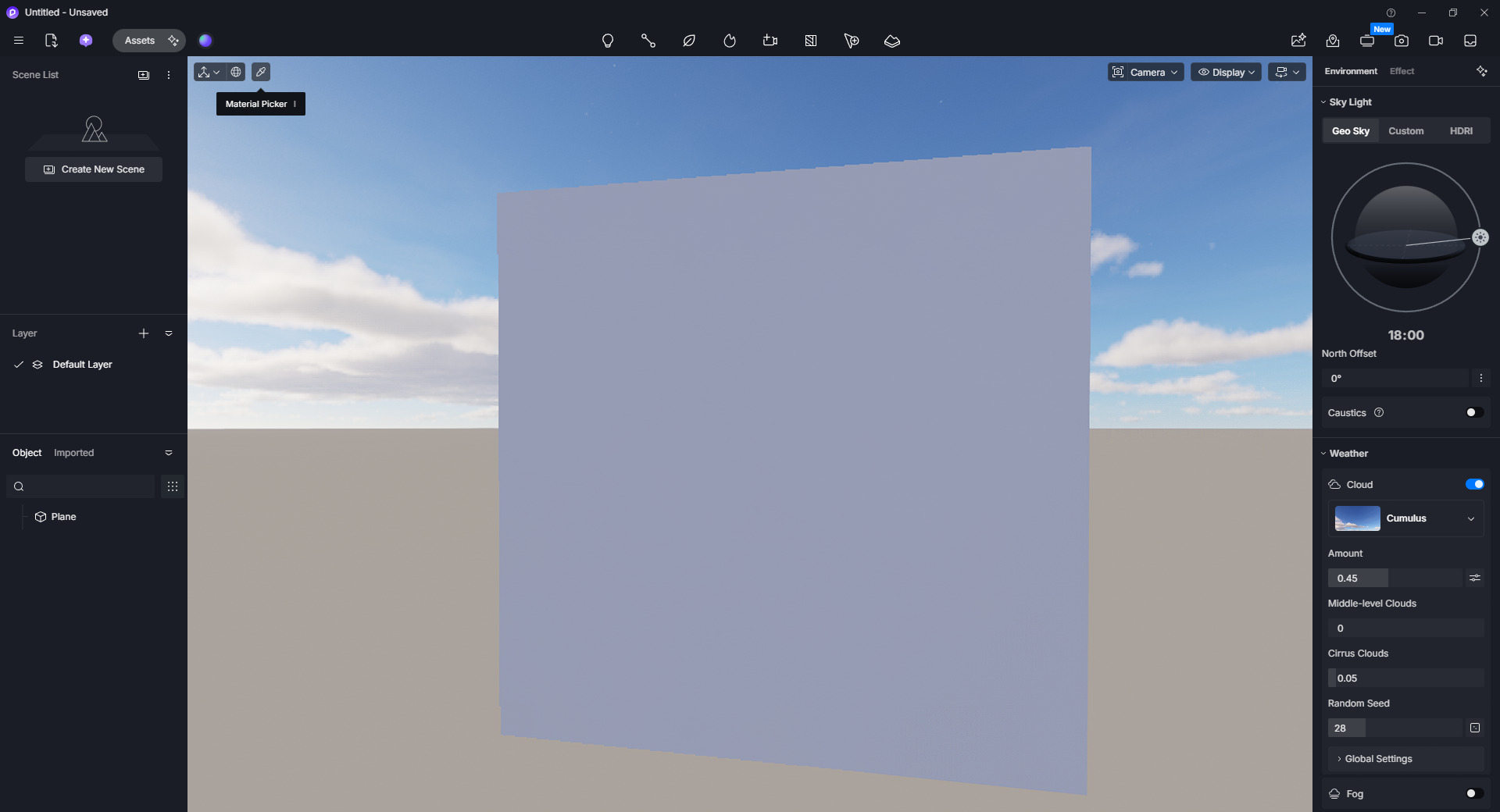
I click on the material and put the background image
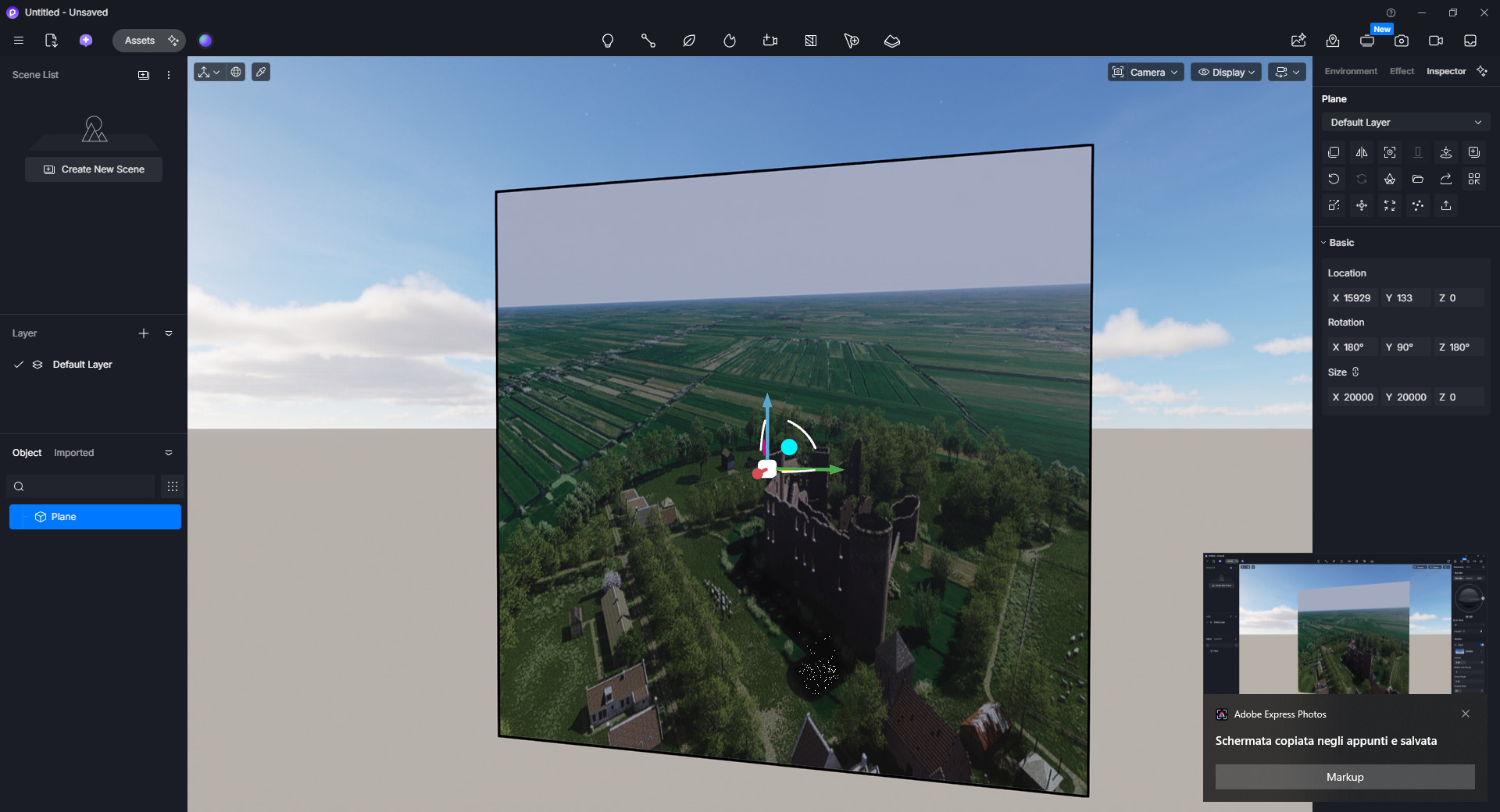
then I place it where I want and climb it how I want
Then once you’ve done this, place it wherever you want, then at the bottom of the example I put a D5 building for you to understand
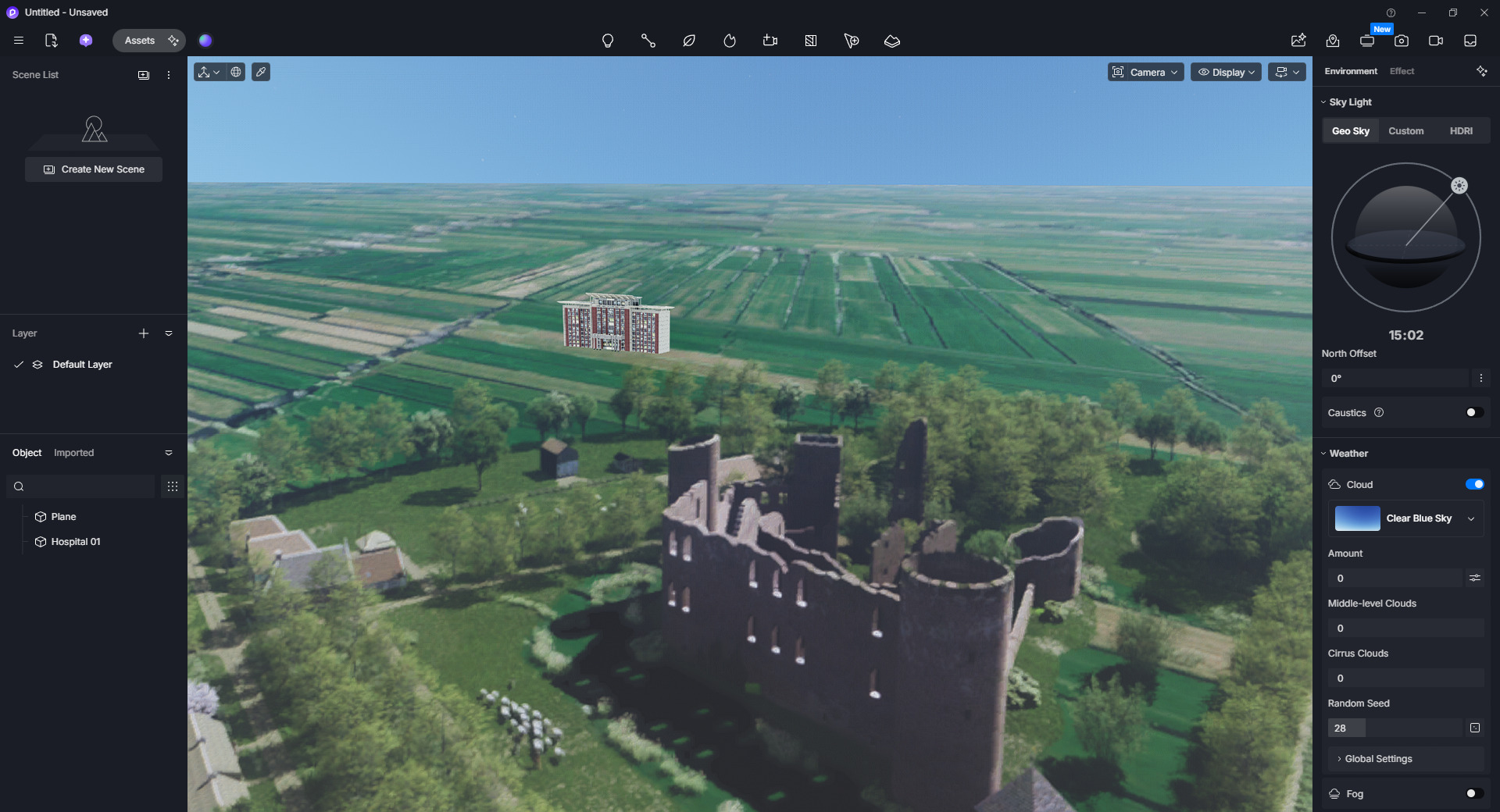
PS: the image was cropped to make the sky appear
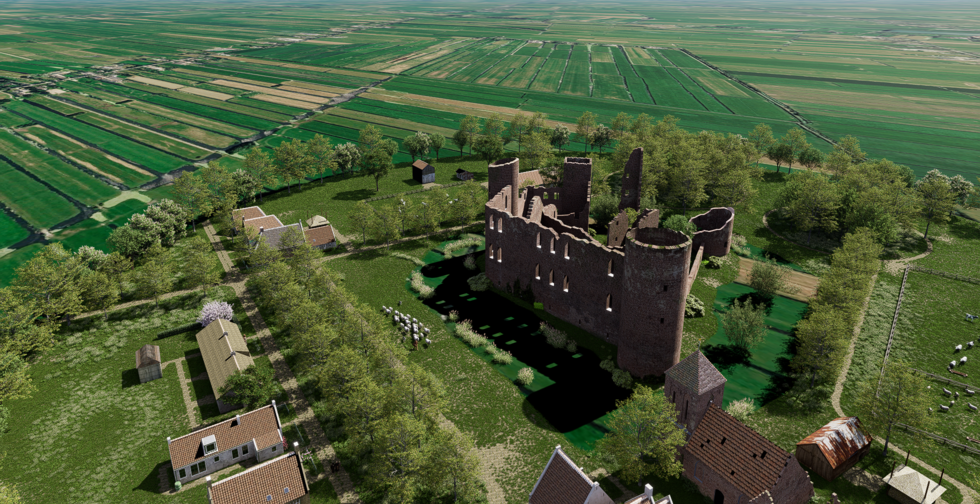
I understand your example. I was planning to fill the landscape with a few houses and some vegetation as well. But the problem is that the plane cuts across the moat, making the water invisible. I could lower the plane slightly, but that has its own downsides, and I don’t see how to cut a hole in the plane at that specific spot.
You always have to try, you always have a solution. Then you know that Cesiun can also be downloaded without the D5 3D app, but it would still be heavy, because I don’t know the power of your computer.
Then if you know Adobe Photoshop well there is a way to make a 360° panorama with just a few images.
In File - Automate and Photomarge
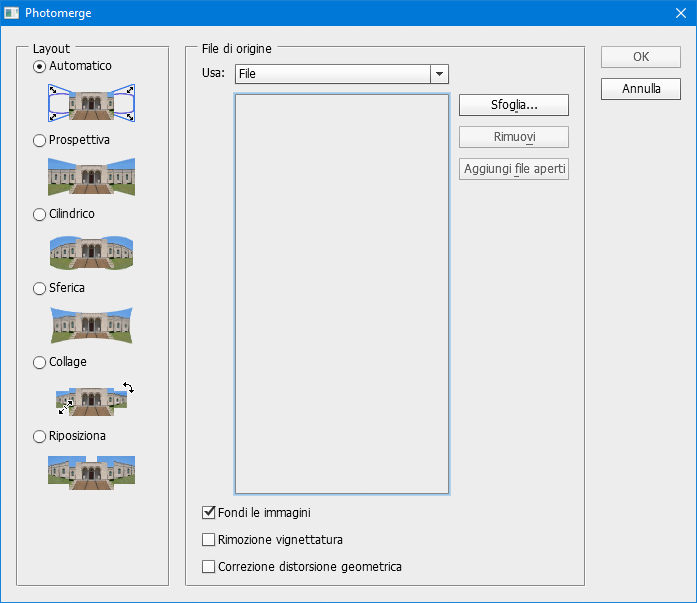
Anyway, I wish you good work
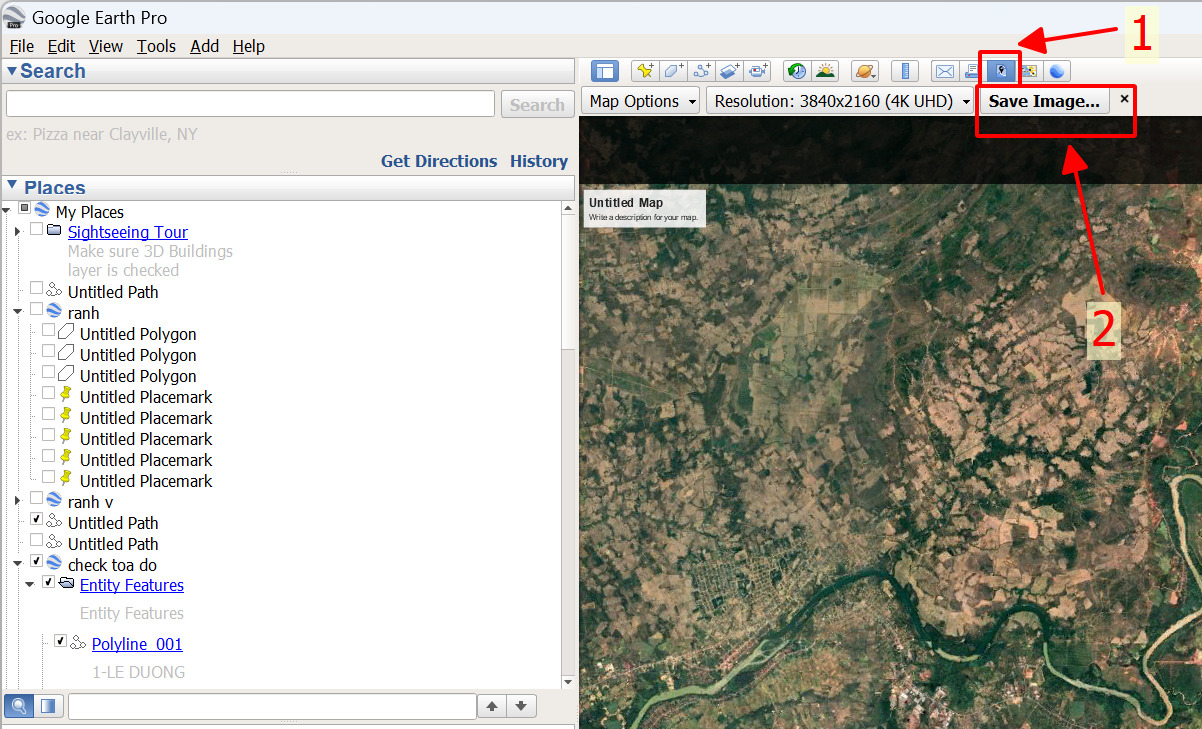
You could use Google Earth Pro for this — it has a “Save Image” export that lets you capture a flat, top-down map of the surrounding area.
Suggested workflow:
- Open Google Earth Pro (desktop app, free) and navigate to your village’s real-world location (or a similar flat area).
- Zoom/tilt to a straight top-down view, centered on the site.
- Use File → Save → Save Image to export a high-res flat aerial capture.
- Bring that image into your terrain/ground plane in D5 as a large flat texture extending out to your horizon — this reads as fields/farmland at a distance without needing real geometry.
- For the true 360° sky/horizon blend (not just ground), you’ll likely still want a simple flat plane (or very low-poly disk) with this texture applied, blending into your HDRI/sky at the edges with a gradient or fog falloff so the seam isn’t visible.