I am working on a bim360 Revit file (with about a dozen other users) and every time I synchronize my Revit file with the central model, I lose my materials and they revert back to the materials applied in Revit.
Workflow:
I opened D5 through the D5 render tap in Revit
I edited Revit material settings in D5, replaced Revit materials with D5 materials, and imported custom maps into D5.
I synchronize my Revit file with the central model and refresh the D5 sync link
Result:
My materials in D5 revert back to the materials applied in Revit.
Could you please inform me where these files are currently located? We generally do not recommend placing them in your Cloud or Network Path, as this may lead to issues such as:
Materials reverting to their previous appearance
Models being misplaced or potentially disappearing
To ensure a smooth workflow, please store these files on your Local Drive (either the C or D drive) while you are working on them. Once you’re done, you may zip and store these files in your cloud storage or on a network path for transfer only.
Additionally, if it is placed in your Local C or D drive, and it is still occurring please try to enable Long Path in your registry.
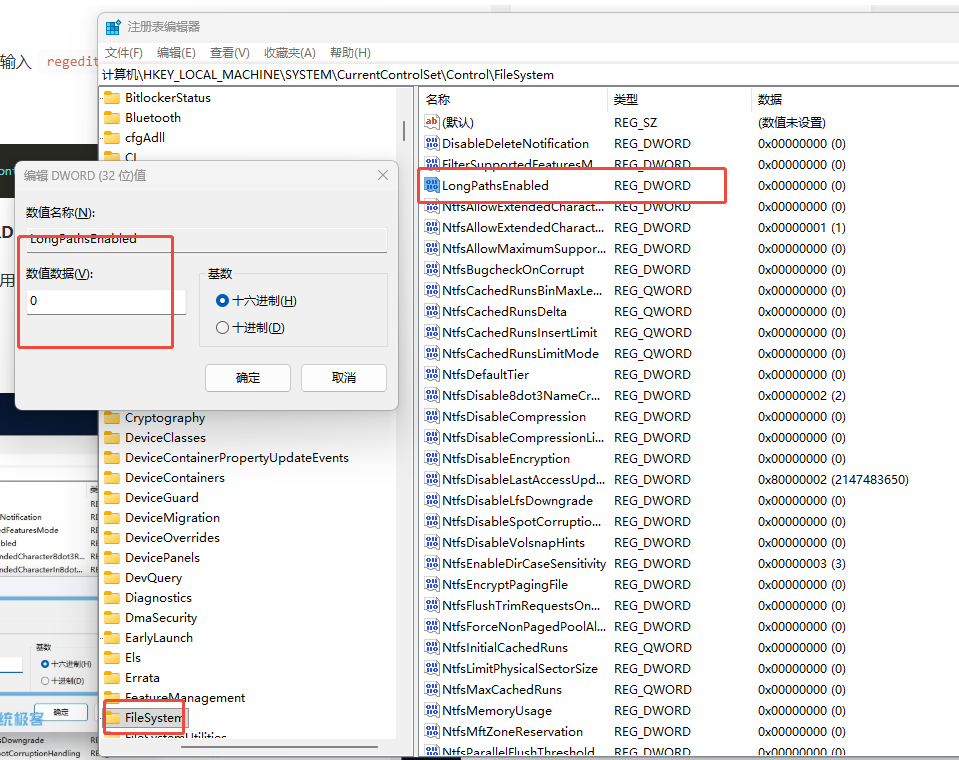
You may do the following steps (Enable Longpath):
Press Windows Key + R, type regedit, and hit Enter
Navigate to: HKEY_LOCAL_MACHINE\SYSTEM\CurrentControlSet\Control\FileSystem
Find the entry LongPathsEnabled.
If it doesn’t exist, right-click, select New > DWORD (32-bit) Value, and name it LongPathsEnabled.
Double-click LongPathsEnabled and change the value data to 1
make sure you sync from an uncropped 3d view every time. I go ahead and set up a 3d view called D5 SYNC that i go back to before i sync. if you sync in a view thats cropped, everything beyond that crop will lose its material. it’s frustrating. i’ve had to close without saving so i can go back to the prior sync before the materials were lost.
Do you mean save the D5 files to my local drive? Due to the nature of my work, I cannot save Revit files on my local drive. All files are saved on our company network.