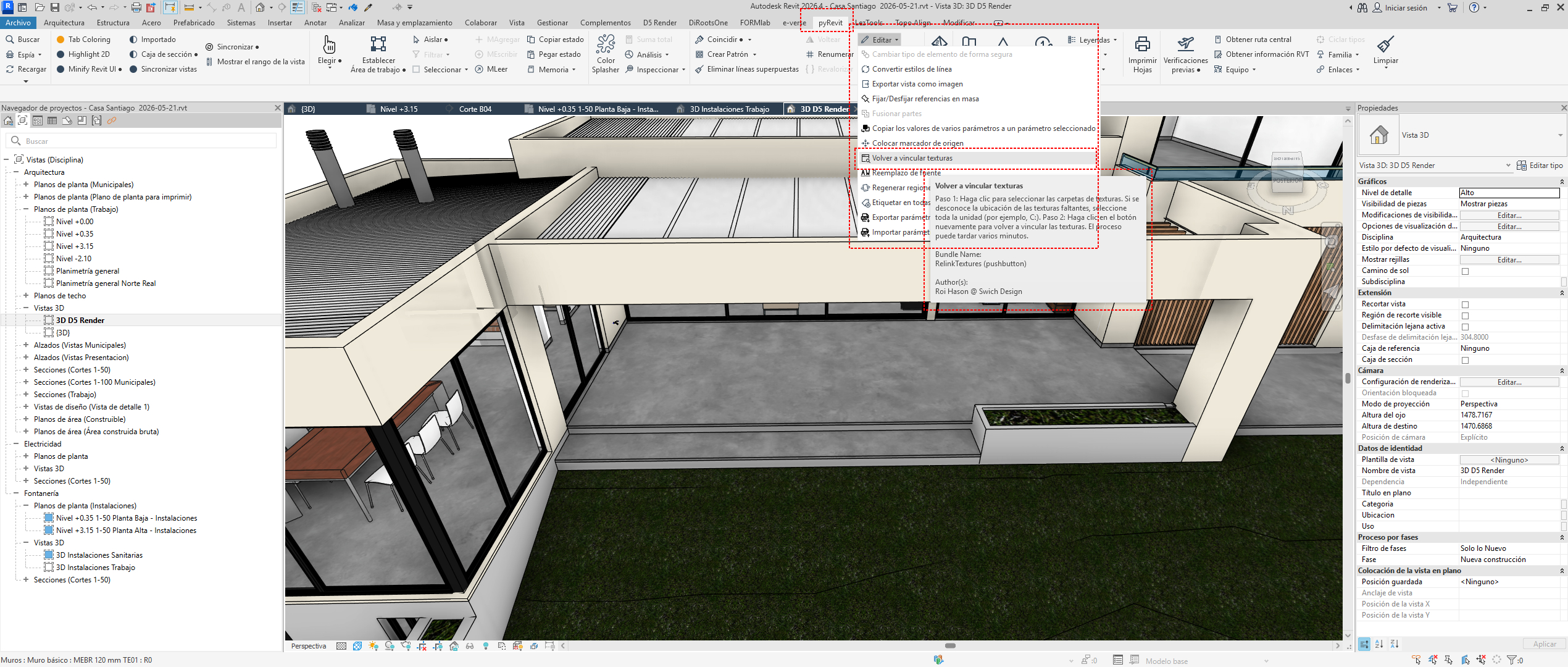
Good morning. Try rebuilding all the texture paths for each material in Revit before importing. You can use the command that’s part of the PyRevit plugin.
I’m really curious about this process. Typically, textures should be read in D5. Are there any specific circumstances that may have led to this issue, prompting the use of the Revit plug-in? Additionally, where are these textures originating from?
Hi. I’ll try to explain what happened to me.
At some point, I configured Windows with long filenames. This setting apparently started randomly affecting the texture paths in the materials.
With use, I began having problems transferring the files to D5 Render. I tried everything. I noticed that the textures weren’t correct in Revit. I corrected the paths in Revit, but they still didn’t appear in D5 Render. The same thing happened with Twinmotion. And it was all random. In D5, it was one set of textures; in Twinmotion, it was another, all within the same file.
When I disabled long filenames in Windows, everything started working correctly in both programs. The paths I fixed in Revit appeared correctly in both.
That’s how it happened.
Now both programs load everything correctly.
I’m sharing some screenshots I took of the process.
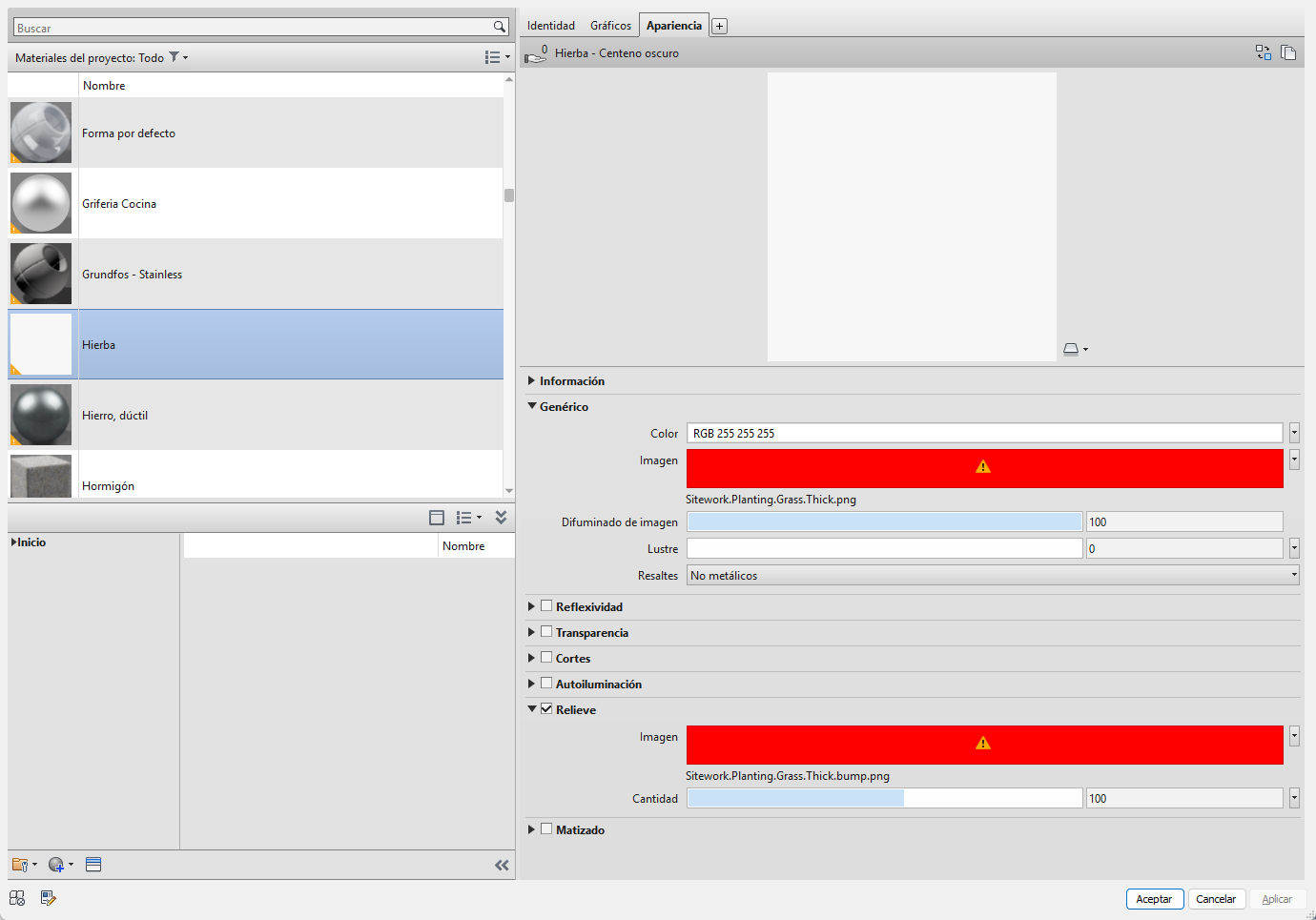
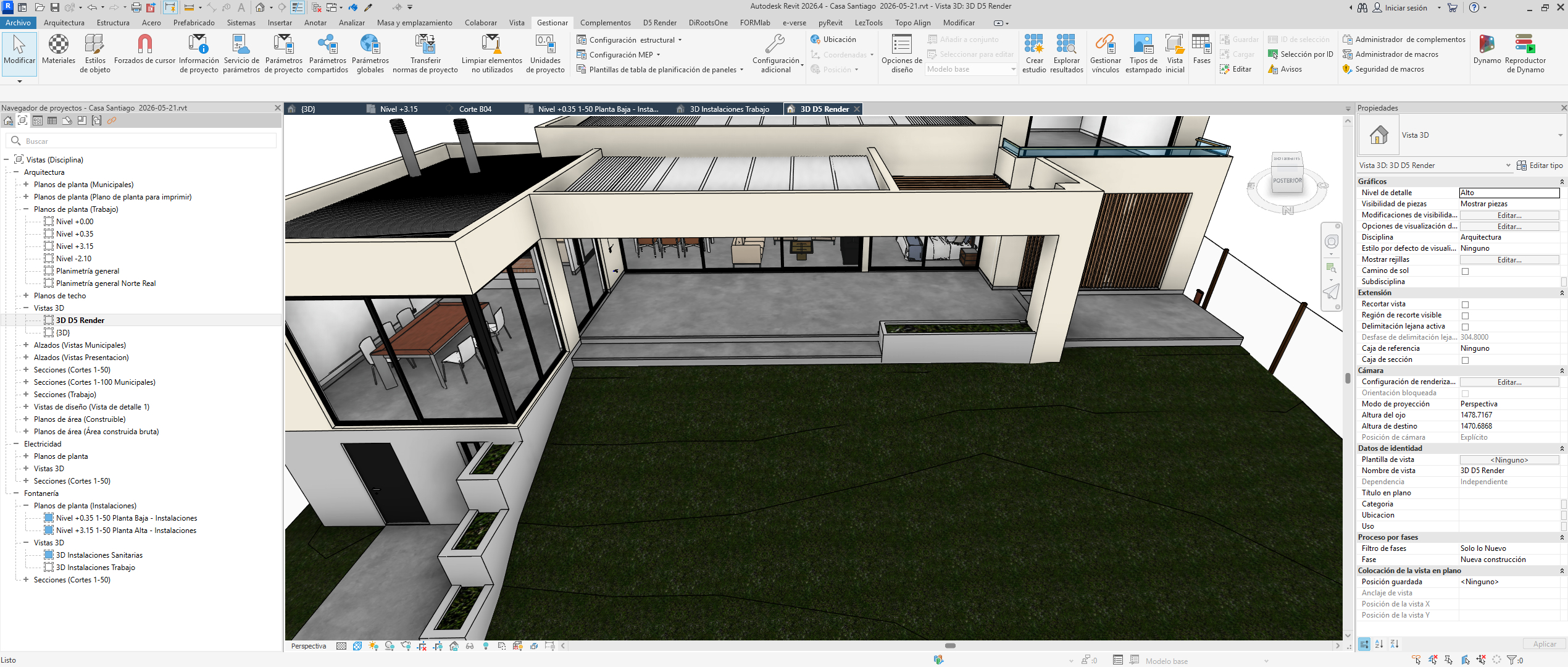
When a texture goes wrong in Revit.
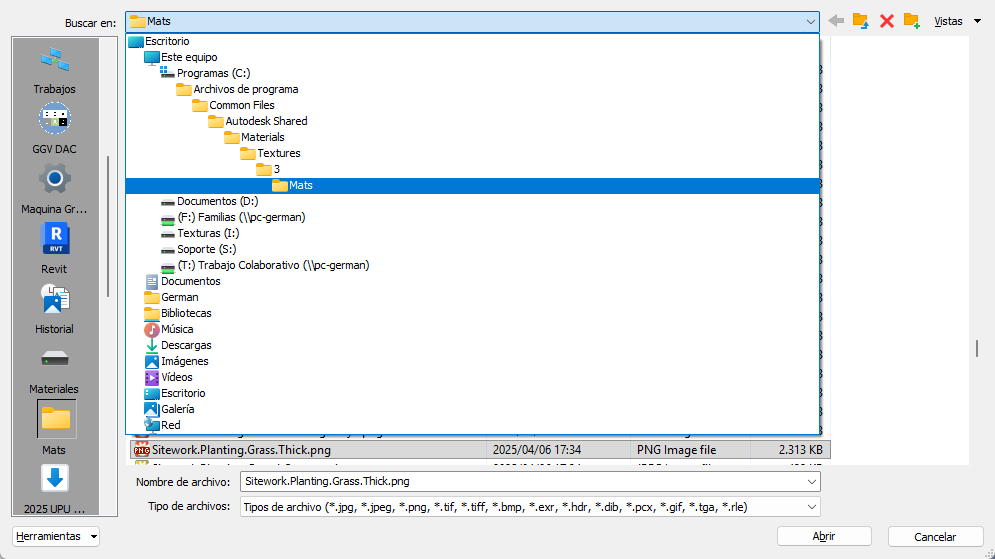
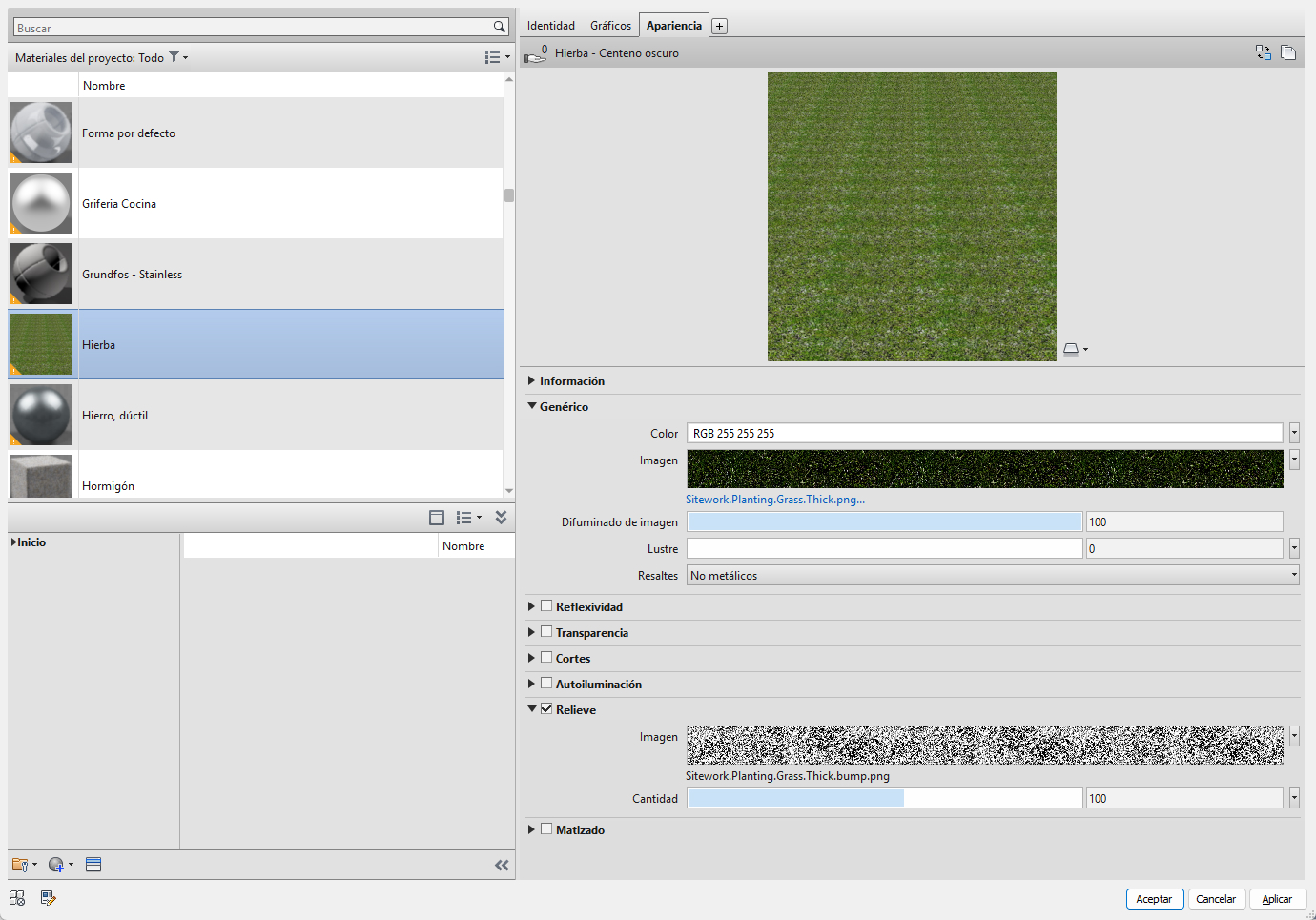
You can manually search for the correct location and reload the texture.
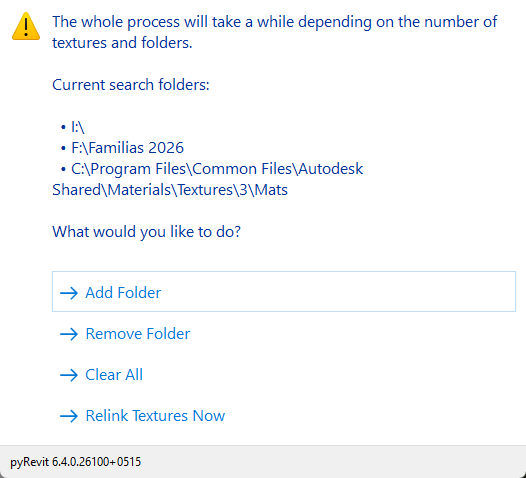
Or you can use the PyRevit command that does it automatically; it searches the specified folders and reassociates the texture with each material.
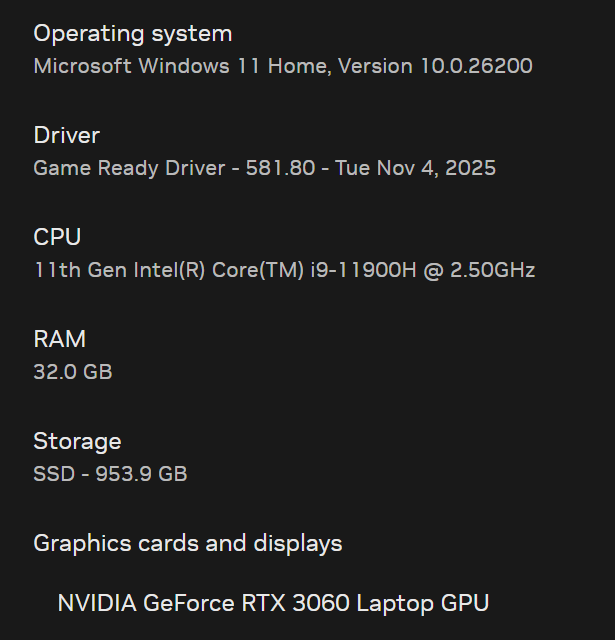
Hi. Yes, I don’t know why, but in my case, I needed to disable LongPathTool in the Windows Registry. But only then did everything start working properly again. Windows 11 still has bugs that accumulate and are fixed on the fly. I’ve noticed real stability improvements in recent months, when Microsoft gets it right.
Perhaps the fix for the missing texture paths was implemented during an update, and it coincided with a change to that variable in the Windows Registry.
The truth is, I didn’t re-enable it; it was hours of lost work, days when everything was malfunctioning.
With the latest versions of D5 and everything updated to today, and my current Windows configuration, everything works, and I can work. Thanks to D5 for their part.
A D5 for Linux would be fantastic… it’s an operating system that seems to run wonderfully.
My textures are appearing fine in Revit. The map previews appear in the Revit Material Editor, and when I view the model with textures on, the maps appear consistently. So, I don’t have texture paths to fix. I also checked before making this post and confirmed that the long path name is not activated in my OS.
In Revit’s Rendering options, I have the paths to the folders where my textures are located. Do you have that configured? Are the folders where the textures are located shared on a network?