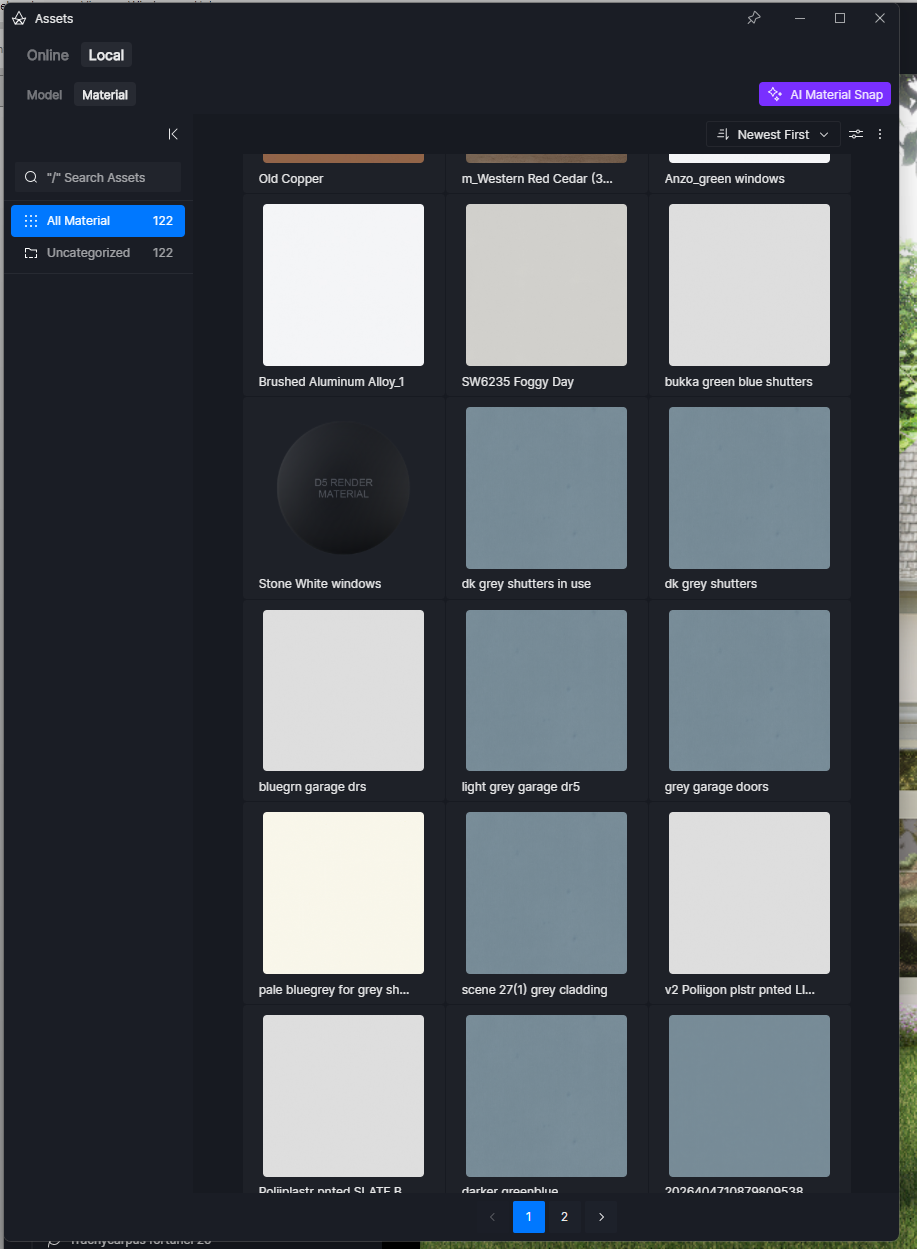
TLDR - Color of materials saved in Local assets don’t match the model’s appearance.
When I like a particular material but would like to reuse its settings in different colors (e.g. wall paints or stuccos):
-
I duplicate the material and apply it to a second surface, then make changes to the base color so it appears to be another paint color. At this point it is unique in the model.
-
When I add this color to the Local assets, it is applied there with it’s original ‘base color map’ color, not the way it actually appears in the model - I have for example used the base color to change it significantly, while keeping it’s underlying normal, specular, etc., maps.
-
The result is I have many different colors, but in the Local asset library they all look like the original one, making it very difficult to pick one
-
To figure out what the actual color is, I have to rename the local material and include a description of its actual color to get “close”, when trying to find it later. (See attached image)
-
I now have to remember to pickup the newly added local material and place it back over the surface where I had previously created it from before adding, or that surface will continue to have the name of the original material I began from.
It would be VERY helpful to have the saved material appear as it does when applied in the model, rather than how it ‘began’ its life when first imported to the model.
A second - possible? - nice thing to have, would be a popup that asks, after renaming the newly added material: “Apply new material name to source material?” (most recent material edited before the add to local assets step)
Thanks for your consideration!