I was hoping to make this whole process much more seamless, having to export an entire scene completely fresh each time via FBX is the only way i can get this to work correctly. A scene that went from Revit, then file linked to Max to make sure we could update the link when the architects updated their model basically doesn’t work unless we collapse everything effectively breaking the link.
Also the fact it exports it as one object for the whole scene is actually mental…
There has to be a better way to work that keeps all the links and is seamless, otherwise who on earth designed it to work like this.
Thanks for explaining the workflow. If I understand correctly, you’re using Revit as the source model, then file-linking the Revit model into 3ds Max so that the Max scene can be updated whenever the architects make changes in Revit.
- I’m assuming that your workflow inevitably involves Revit to 3dsMax, and using Revit solely is out of the question.
The problem is that the current FBX workflow requires you to collapse the linked geometry, which effectively breaks that Revit–Max connection.
Anyway, D5 supports incremental synchronization from 3ds Max to D5, so you can push changes to the Max scene to D5 without exporting the entire scene as a new FBX each time.
- Have you already tried using the D5 3ds Max plugin/LiveSync with your File Linked Revit workflow?
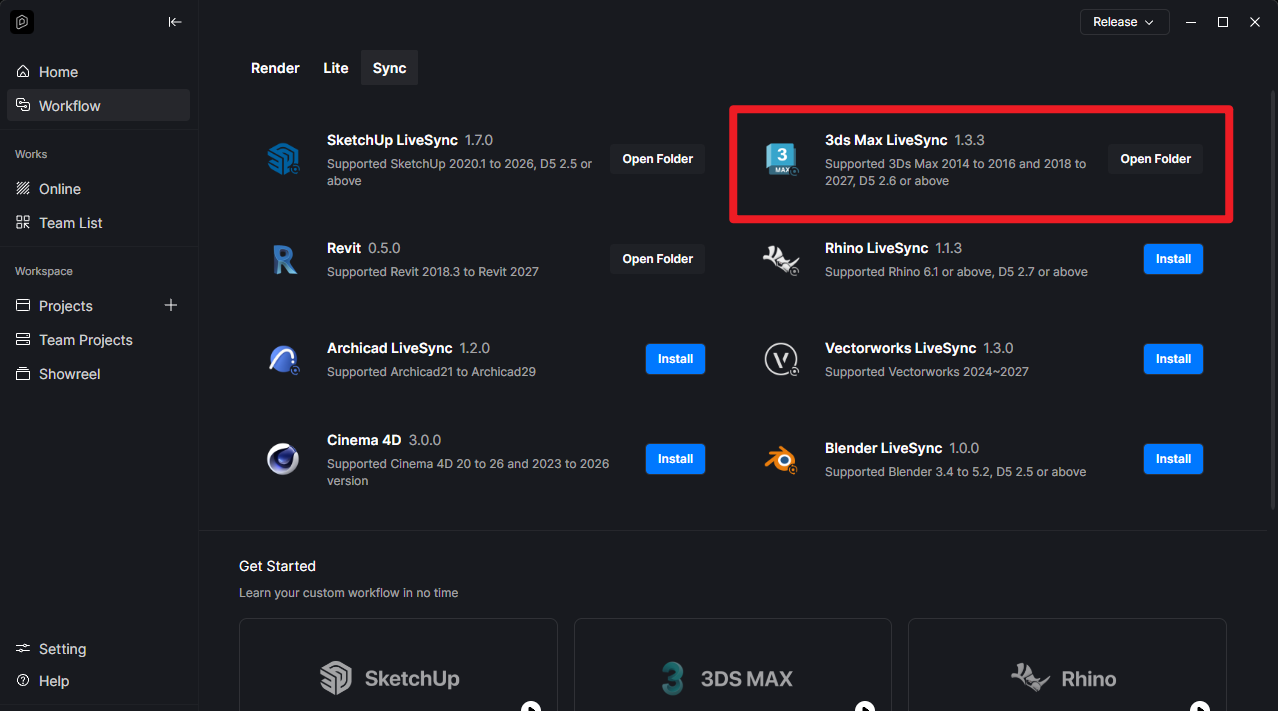
If not, I think it would be worth testing this workflow first:
- Revit > File Link in 3ds Max > D5 3ds Max LiveSync > D5
Then, when the architects update the Revit model, you can update the File Link in 3ds Max and use D5’s synchronization to push the changes to the existing D5 scene.
We don’t use Revit those are just one of the many file types we recieve. We use 3ds Max primarily and plugins like Railclone.
Does file link save your scene in D5? So when you close D5 and come back to it the next day or doing amends in the following days or weeks, does it save what you added in D5? or do you have to add it all again when syncing the live ink again?
@nicholas.bounds You need to have both the Max model and D5 project files open for live sync to work. Meaning, you can’t close D5 and keep working on a Max model for a week, and then open only D5 and have it synced already. But you just need to have both files open and resync them.
If you changed the geometry in your Max model, but kept the materials the same, all the materials in D5 will be kept. If you changed the landscaping geometry in your Max model and had scatter applied to the landscaping in D5, you will be prompted to regenerate the scatter once you resync the updated Max model.
It’s pretty straight forward. 
Im just trying to figure out various ways of working with it and how it fits into our current workflows and pipelines. The fact it doesn’t work with edit meshes i think (Which is what file link manager does to linked Revit and FBX files) thats my main problem as i have to collapse them and effectively break the link.
I understand how live link work because i use Vantage the same way. but it doesn’t solve my problem which mentioned before with Edit Mesh. i can of collapse them down but it can break certain meshes when converted to edit poly that i received from the client such as arch ways and text on buildings.
Still working through it all though, its taken me a year to get this signed off and in the business and only had a day playing with it again! 